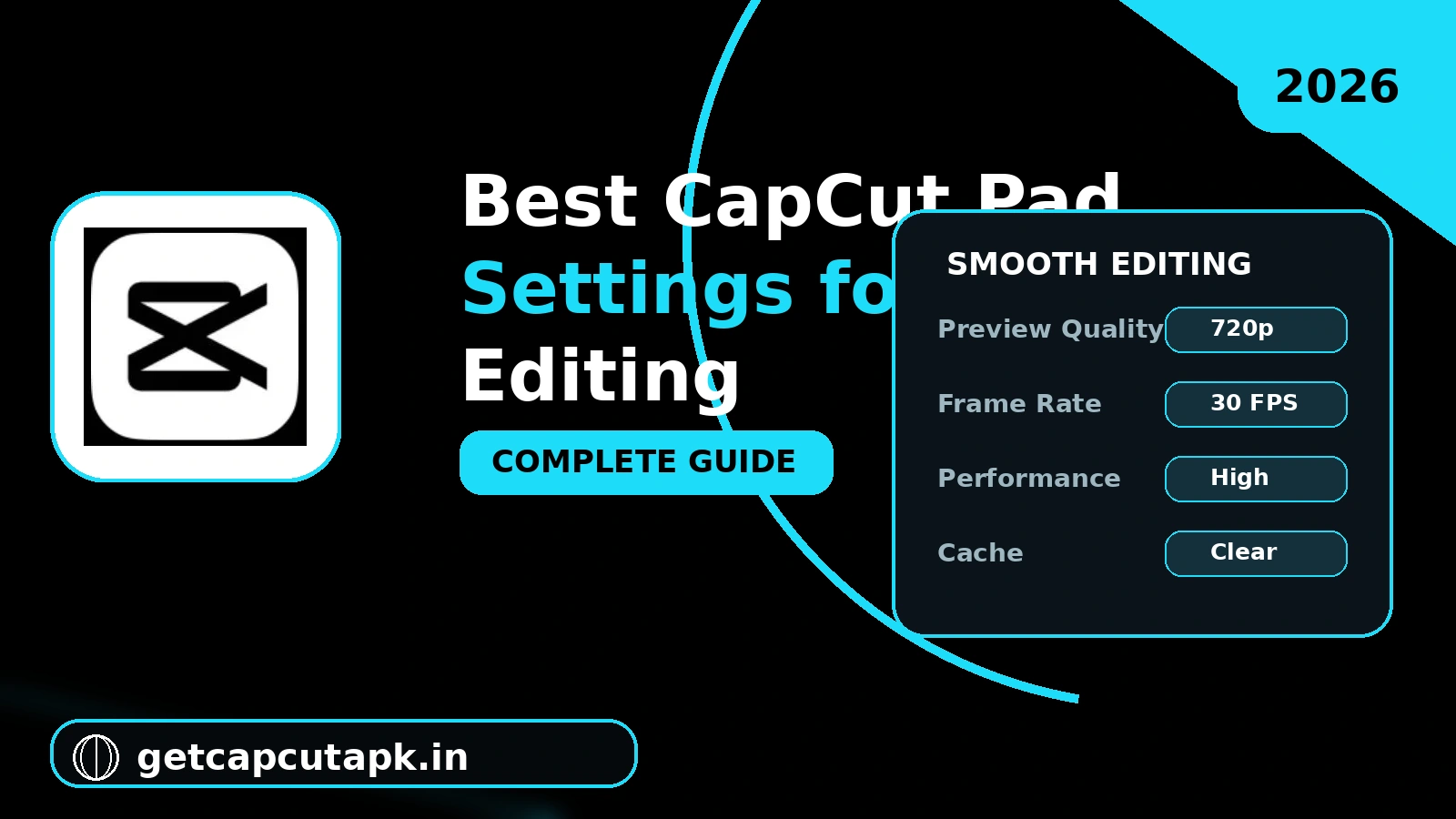
Best CapCut Pad Settings for Smooth and Fast Video Editing
A tablet can be a powerful editing tool, but only if CapCut is set up the right way. The wrong settings can cause lag, failed exports and blurry videos. This guide shares the best CapCut Pad settings for smooth and fast editing on iPad and Android tablets.
You will learn which app settings to change, which export settings to use and which tablet settings matter most. Each tip includes simple steps and a clear reason why it helps. The team at getcapcutapk.in/ tested these settings on several tablets, from budget models to high-end iPads.
These changes take only a few minutes, but they can transform your editing experience. Older tablets benefit most, though even new models gain speed and stability. For an overview of the mobile app, visit our CapCut Pro APK home page.
Why Settings Matter on a Tablet
CapCut has to balance quality and speed on every device. Tablets vary a lot in memory, storage and processor power. The default settings do not always match your tablet.
The right settings help CapCut use your tablet’s power wisely. They reduce lag during playback and stop exports from failing. They also protect your battery and storage.
Most settings fall into three groups: app settings, export settings and tablet system settings. We cover each group below. Change them one at a time so you can see what makes the biggest difference.
Quick Settings Summary
Here is a short list of our recommended settings. Each one is explained in detail in the sections below. Use this table as a quick checklist.
| Setting | Recommended Choice | Why |
|---|---|---|
| Preview quality | Lower on older tablets | Smoother playback |
| Default ending | Off | No ending clip on new projects |
| Export resolution | 1080p for social media | Sharp and small files |
| Frame rate | 30 fps for most videos | Faster exports |
| Cache | Clear weekly | Frees storage and fixes bugs |
| Screen orientation | Landscape with rotation lock | Wider timeline |
| Low power mode | Off during exports | Full speed |
| Auto update | On | Latest fixes and features |
Best App Settings in CapCut
These settings live inside the CapCut app. Open them by tapping the Settings gear icon on the home screen. The exact names may change a little with updates.
Turn Off the Default Ending
CapCut adds a short ending clip to new projects by default. Most creators delete it every time. Turning it off saves you a step on each video.
- Open CapCut and tap the Settings gear.
- Find Add default ending.
- Turn the switch off.
Lower the Preview Quality
Preview quality controls how sharp your video looks while you edit. High preview quality needs more power and can cause lag. Lowering it makes playback smoother without changing your final export.
On older tablets, choose a lower preview setting. On new high-end tablets, you can keep it high. If playback stutters, this is the first setting to change.
Clear the Cache Often
CapCut stores temporary files to speed up previews. Over time, these files grow large and can slow the app. Clearing them is safe and does not touch your drafts.
- Open Settings in CapCut.
- Tap Clear cache.
- Confirm the action.
Do this once a week if you edit often. You may free up several gigabytes of space. Your tablet will feel faster right away.
Best Export Settings
Export settings decide how your final video looks and how large the file is. The right choice depends on where you will post it. Higher settings mean longer exports and bigger files.
| Platform | Resolution | Frame Rate | Notes |
|---|---|---|---|
| TikTok | 1080p vertical | 30 fps | Sharp and quick to upload |
| Instagram Reels | 1080p vertical | 30 fps | Matches Instagram limits |
| YouTube Shorts | 1080p vertical | 30 or 60 fps | 60 fps for fast action |
| YouTube videos | 1080p or 4K | 30 or 60 fps | 4K for top quality |
| WhatsApp status | 720p or 1080p | 30 fps | Smaller files send faster |
Resolution
1080p is the best choice for most social media videos. It looks sharp on phones and keeps file sizes reasonable. Use 4K only for YouTube or when you need extra detail.
Frame Rate
30 fps works well for most content, including vlogs and tutorials. 60 fps makes fast motion look smoother, like sports or gaming clips. Higher frame rates take longer to export.
Bitrate
Some versions of CapCut let you choose a bitrate or quality level. Higher bitrate means better quality but bigger files. The recommended or default level works well for most users.
Best Tablet System Settings
Your tablet’s own settings also affect CapCut. A few small changes can boost speed and stability. They take only a minute to set.
Lock Screen Rotation
Turn your tablet sideways and lock rotation. This keeps CapCut in landscape mode with a wider timeline. It also stops the layout from flipping when you move.
Turn Off Low Power Mode During Exports
Power saving modes slow down the processor to save battery. This can make exports much slower or cause them to fail. Turn power saving off before long exports and plug in your charger.
Keep Enough Free Storage
CapCut needs free space for cache files and exports. Low storage is a common cause of crashes and failed exports. Try to keep at least 10 GB free on your tablet.
Turn On Auto Updates
New CapCut versions fix bugs and improve speed. Turn on auto update in the App Store or Play Store. Your app will stay current without any effort.
Settings for Older Tablets
Older tablets need extra care to run CapCut well. These settings help budget and older devices the most. Apply as many as you can.
- Set preview quality to the lowest level
- Export at 720p or 1080p instead of 4K
- Use 30 fps for every export
- Keep projects short, under a few minutes
- Use fewer layers and heavy effects
- Close every other app before you edit
- Restart your tablet before long sessions
These settings can turn a laggy tablet into a usable editing tool. You may not get 4K exports, but your videos will still look great on social media. Most viewers watch on phones, where 1080p is more than enough.
Settings for High-End Tablets
Powerful tablets like iPad Pro and flagship Android tablets can handle more. You can push quality higher without lag. Here is how to get the most from them.
- Keep preview quality high for accurate color
- Export at 4K for YouTube and large screens
- Use 60 fps for smooth action shots
- Work with many layers and effects
- Use the Apple Pencil or S Pen for fine control
Even on strong tablets, clear the cache now and then. Large 4K projects fill storage quickly. Keeping space free helps your tablet stay fast.
Battery Settings for Long Sessions
Video editing drains the battery faster than most apps. The right settings help you edit longer. They also keep your tablet cool.
| Setting | Recommendation |
|---|---|
| Screen brightness | Medium, not full |
| Background apps | Close them |
| Wi-Fi | On only when you need online tools |
| Charger | Plug in during exports |
| Power saving | Off during exports, on during light editing |
A cooler tablet keeps its speed for longer. Avoid editing in direct sunlight or on soft surfaces that block airflow. A simple stand helps the tablet stay cool.
Settings for Better Audio
Good audio makes your videos more enjoyable. A few settings help your sound stay clear. They are easy to adjust inside CapCut.
- Tap your audio clip on the timeline.
- Set the volume so voices stay clear above the music.
- Add a fade in and fade out to music tracks.
- Use noise reduction on voice clips if available.
- Use headphones to check the final mix.
Keep music lower when someone is speaking. Many editors set background music around 20 to 30 percent of the voice volume. Your viewers will thank you for clear speech.
Settings for Better Text and Captions
Text that looks great on a tablet may be too small on a phone. Most of your viewers will watch on phones. A few settings help your text stay clear on every screen.
- Use a bold font with a dark shadow or outline
- Keep text large and short
- Place text away from the edges of the frame
- Use Auto Captions and review every line
- Pick high contrast colors like white on dark
Preview your video on a phone before you post if you can. Send a test export to yourself with a messaging app. This quick check catches small text before your audience sees it.
Cloud Sync Settings
Cloud sync lets you move projects between your tablet, phone and computer. It also keeps a safe copy of your work. A few simple settings make sync smooth.
- Sign in to the same CapCut account on every device.
- Upload important drafts to your cloud space.
- Use Wi-Fi for large uploads to save mobile data.
- Delete old cloud drafts to keep free space.
Free accounts have a limited amount of cloud storage. Pro plans offer more room for active projects. The editors at getcapcutapk.in/ keep only current work in the cloud and archive the rest.
How to Check If Your Settings Work
After you change your settings, test them with a short project. This helps you see what changed. It also helps you find the best balance for your tablet.
Make a one minute video with a few clips, text and music. Play it back and watch for lag or stutter. Then export it and note how long the export takes.
If playback still lags, lower the preview quality further. If exports take too long, try 1080p and 30 fps. Adjust one setting at a time until your tablet runs smoothly.
Common Settings Mistakes
Many users make the same few mistakes with their settings. Avoiding them saves time and frustration. Here are the most common ones.
| Mistake | Better Choice |
|---|---|
| Exporting every video in 4K | Use 1080p for social media |
| Keeping preview quality high on old tablets | Lower it for smooth playback |
| Never clearing the cache | Clear it weekly |
| Exporting in low power mode | Turn it off and plug in |
| Running many apps at once | Close them before editing |
For more tablet tips, read our CapCut Pad guide. If you use an Android tablet, our guide on how to use CapCut on Android tablets has extra tips. Both guides work well with the settings on this page.
Key Takeaways
Here are the most important points from this guide on CapCut Pad settings. Keep them in mind for your next project. They cover the steps that make the biggest difference.
- Turn off the default ending once
- Lower preview quality on older tablets
- Export at 1080p and 30 fps for social media
- Turn off power saving during exports
Conclusion
The best CapCut Pad settings help your tablet edit smoothly and export without errors. Turn off the default ending, lower preview quality on older tablets and clear the cache each week. Export at 1080p and 30 fps for most social media videos.
Tablet settings matter too, so lock rotation, turn off power saving during exports and keep storage free. High-end tablets can use 4K, 60 fps and high preview quality. Older tablets do best with lighter settings and shorter projects.
Test your settings with a short project and adjust them one step at a time. For more tablet guides and editing tips, keep visiting getcapcutapk.in/. Happy editing on your tablet.
Frequently Asked Questions
Use a lower preview quality on older tablets for smooth playback. Keep it high on powerful tablets for accurate color. Preview quality does not change your final export.
Use 4K only for YouTube or when you need extra detail. For TikTok, Reels and Shorts, 1080p is the best choice. It exports faster and uploads quicker.
No, clearing the cache only removes temporary files. Your drafts stay safe. It is a good habit to clear the cache once a week.
Power saving mode, low storage and high export settings can slow exports. Turn off power saving, free up space and plug in your charger. Try 1080p and 30 fps for faster results.
Open CapCut settings and turn off Add default ending. New projects will no longer include the ending clip. You can still delete it by hand from older projects.