How to Use CapCut Templates on Android Step by Step Guide
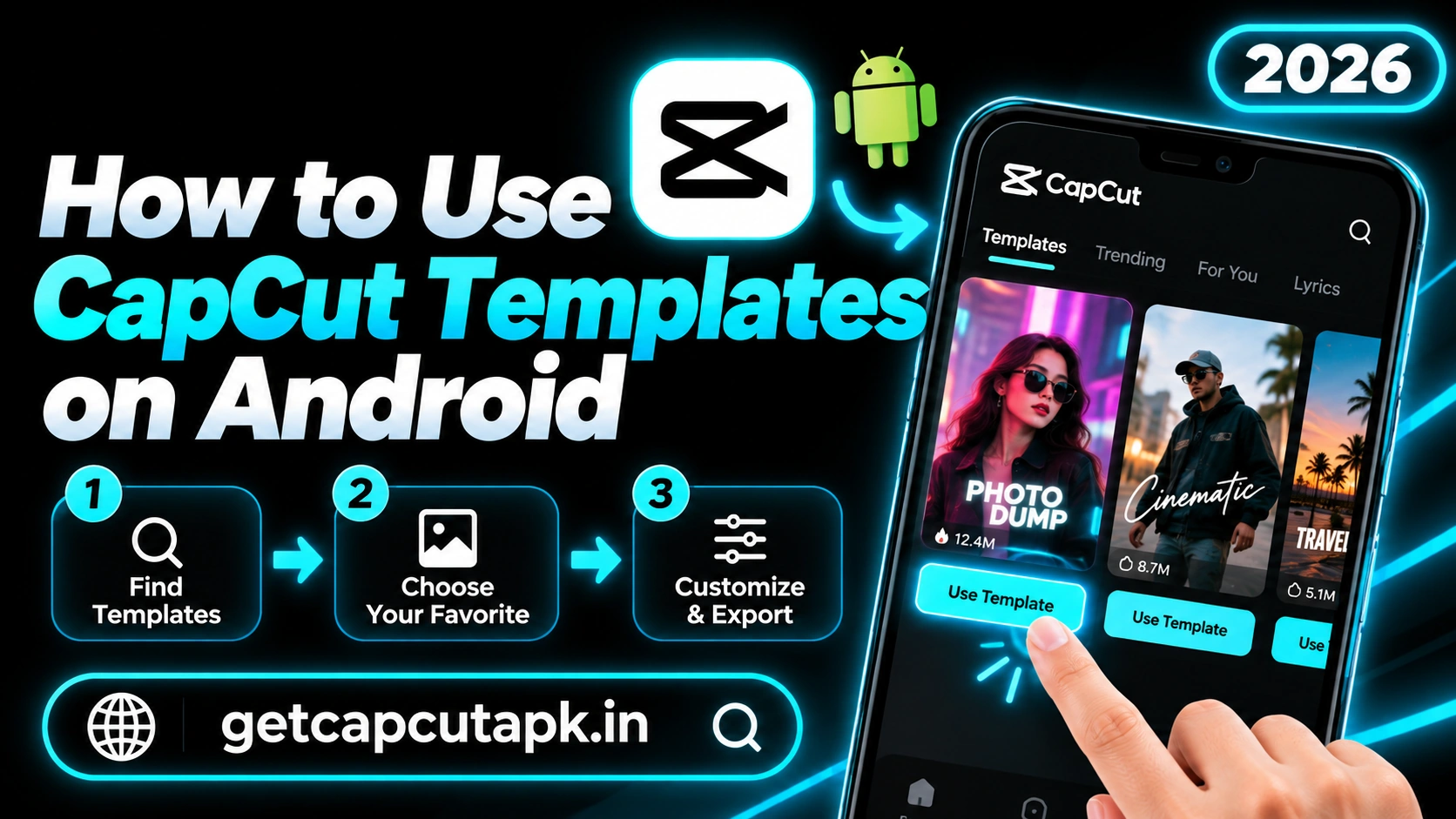
CapCut templates let you turn a few photos or clips into a trendy video in seconds. They are one of the easiest ways to follow viral trends on TikTok and Reels. This guide shows you how to use CapCut templates on Android step by step.
You will learn how to find templates, add your media, edit text and crop, and export in high quality. We also cover how to use templates from TikTok links, tips for better results and fixes for common problems. The team at getcapcutapk.in/ has tested these steps on many Android phones.
You do not need any editing skills to use templates. If you can pick photos from your gallery, you can make a template video. For an overview of the app, visit our CapCut Pro APK home page.
Before You Start
A few quick checks will make the process smooth. Templates need internet to load, and they work best on the latest app version. Here is what you need:
- CapCut installed and updated to the latest version
- Stable internet through Wi-Fi or mobile data
- Photos or clips ready in your gallery
- Free storage of at least 1 GB for exports
- A CapCut account if your region requires sign-in for templates
If CapCut is not installed yet, read our guide on how to download CapCut on Android. It explains the safest way to get the app. Then come back to this guide.
Step 1 Open the Templates Tab
The template library lives in its own tab in CapCut. You can reach it from the home screen. Follow these steps:
- Open CapCut on your Android phone.
- Look at the bottom of the home screen.
- Tap Templates.
- Wait a moment while the template feed loads.
You will see a feed of popular and trending templates. Each one shows a short preview, the number of clips needed and the length. Scroll down to see more.
Step 2 Find a Template You Like
There are thousands of templates, so searching helps you find the right one. You can browse by category or search by name. Here are your options.
Browse Categories
At the top of the Templates tab, you will see categories like For You, Trending, Love, Birthday, Travel and more. Tap a category to see related templates. This is a great way to discover new styles.
Search by Name
- Tap the search bar at the top.
- Type a trend name, song name or theme.
- Tap Search and browse the results.
Use a TikTok Link
If you see a TikTok video made with a template, look for the CapCut Try this template label. Tap it, and the template opens in CapCut. This is the fastest way to recreate a trend you saw.
Step 3 Preview the Template
Before you use a template, watch the full preview. This helps you check if it fits your clips and style. Pay attention to these details:
| Detail | What to Check |
|---|---|
| Clip count | How many photos or videos it needs |
| Length | Total duration of the video |
| Music | Whether the song fits your mood |
| Speed | Fast cuts or slow, calm motion |
| Text | Whether it includes text you can edit |
| Pro label | Whether it needs a Pro plan |
If the template looks good, tap Use template. If not, go back and try another one. A good match between template and clips gives the best result.
Step 4 Add Your Photos or Clips
Now it is time to add your own media. The template tells you exactly how many items to choose. Here is how to add them.
- Tap Use template.
- Your gallery opens with Videos and Photos tabs.
- Tap the clips or photos you want in the order you want them.
- Check the counter to see how many you have chosen.
- Tap Next or Preview when you are done.
CapCut will build your video automatically. This usually takes a few seconds. A preview of your new video will appear.
Tips for Choosing Clips
- Pick vertical clips for vertical templates
- Choose sharp, bright photos
- Put your best shot first to hook viewers
- Match clip energy to the music
- Avoid very dark or blurry media
Step 5 Edit Your Template Video
After the preview loads, you can make changes. Templates let you replace clips, edit text and adjust the crop. Tap Edit to start.
Replace a Clip
- Tap Edit on the preview screen.
- Tap the clip you want to change.
- Tap Replace.
- Choose a new clip from your gallery.
Trim a Video Clip
- Tap a video clip in the edit screen.
- Tap Trim or Clip.
- Drag the frame to pick the best part.
- Tap the check mark.
Adjust the Crop
- Tap a clip and choose Crop.
- Pinch and drag to frame the subject.
- Tap the check mark.
Edit Text
- Tap the Text tab.
- Tap the text you want to change.
- Type your new words and tap done.
Some templates also allow you to change the music volume. Look for an Audio or Sound option. This is useful if you want to add a voiceover later.
Step 6 Export Your Video
When your video looks right, it is time to export. Choose the best quality for where you will post. Here is how.
- Tap Export in the top right corner.
- Choose your export settings, such as 1080p.
- Tap Export or Save.
- Wait for the export to finish.
- Choose to save to your gallery or share directly.
| Platform | Recommended Export |
|---|---|
| TikTok | 1080p |
| Instagram Reels | 1080p |
| YouTube Shorts | 1080p |
| WhatsApp status | 720p or 1080p |
Export options may vary by template and region. Some templates may show different save options. Follow what your app shows on the export screen.
How to Open a Template in the Full Editor
Some templates let you open the project in the full CapCut editor. This gives you more creative control. You can add effects, stickers, keyframes and more.
Look for an option like Edit more or Open in editor on the template screen. Tap it to load the template into a normal project. Then edit it like any other video.
This option may not be available for every template. It depends on how the creator built it and on your app version. When it works, it is a great way to make a template your own.
How to Add Your Own Music to a Template
Most templates come with their own song, which is part of the trend. Sometimes you may want a different sound or a voiceover instead. Some templates allow this, while others lock the music.
- Open the template in Edit mode.
- Look for an Audio or Sound option.
- Lower the original music volume if allowed.
- Open the template in the full editor for more audio control.
- Add your own music or record a voiceover.
If the music is locked, you can export the video first. Then import it into a new CapCut project. Mute the original audio and add your own sound on the timeline.
How to Make Your Template Video Stand Out
Many people use the same trending templates. Small changes help your video feel unique. Try these ideas to stand out from the crowd.
| Idea | How to Do It |
|---|---|
| Custom text | Write your own short message instead of the default words |
| Unique clips | Use fresh angles and interesting locations |
| Strong first frame | Start with your most eye-catching shot |
| Personal story | Use clips that tell a small story in order |
| Matching caption | Write a caption that adds context or humor |
Viewers notice when a template video feels personal. Even small text changes can make people stop scrolling. Try to add something only you can offer.
Template Videos for Business
Templates are not only for fun personal videos. Small businesses can use them for product promos, sales and announcements. They save time and still look professional.
Search for product, sale or promo in the Templates tab. Replace the sample media with your product photos. Add your price, offer or shop name in the text.
Keep your brand colors and fonts consistent across posts. This helps customers recognize your content quickly. For more advanced brand videos, open the template in the full editor and add your logo.
How to Save a Template Draft
Sometimes you may want to finish a template video later. CapCut saves template projects as drafts in many cases. This lets you come back without starting over.
After you add your clips, leave the editor without exporting. Your draft may appear in the Projects or Templates section of your home screen. Open it later to continue editing.
Tips for Better Template Videos
Templates are easy, but small details make a big difference. These tips help your videos stand out. The team at getcapcutapk.in/ uses them every day:
- Use clips filmed in good light
- Keep faces centered in the crop
- Edit text to match your message
- Post while the trend is fresh
- Add a caption and hashtags that fit the trend
- Try several templates with the same clips
Testing a few templates with the same clips helps you find the best one. Different styles can make the same clips feel totally new. Pick the one that fits your audience.
Best Templates for Beginners
If you are new to templates, start with simple styles. They are easy to fill and forgiving with any clips. Here are good first choices.
| Template Style | Why It Is Easy |
|---|---|
| Photo slideshow | Works with any photos |
| Birthday wishes | Simple text and happy music |
| Travel recap | Fits casual phone clips |
| Aesthetic vlog | Soft effects hide small flaws |
After a few simple templates, try faster trend styles with beat cuts. You will quickly learn which clips work best. Read our CapCut templates page for more ideas.
Common Problems and Fixes
Templates usually work well, but some problems can appear. Most of them are quick to fix. The table below covers the common ones.
| Problem | Fix |
|---|---|
| Templates tab missing | Update CapCut and check your region |
| Template will not load | Check internet and clear the app cache |
| Wrong number of clips | Select exactly the number shown |
| Export blocked | Pick a free template or use Pro |
| Video looks blurry | Use sharper clips and export at 1080p |
If templates do not appear at all, read our guide on CapCut templates not showing. It covers every cause in detail. Most fixes take only a minute.
Key Takeaways
Here are the most important points from this guide on CapCut templates. Keep them in mind for your next project. They cover the steps that make the biggest difference.
- Watch the full preview before you choose
- Pick exactly the number of clips shown
- Adjust the crop so faces stay in frame
- Export at 1080p for sharp results
Conclusion
Using CapCut templates on Android is fast and fun. Open the Templates tab, find a style you like and tap Use template. Add your clips, edit the text and crop, then export in 1080p.
Choose sharp, well-lit clips and match their mood to the music. Use TikTok links to recreate trends quickly. If you want more control, open the template in the full editor.
For more template guides and trend ideas, keep visiting getcapcutapk.in/. Also explore our main CapCut templates page for the latest styles. Happy creating.
Frequently Asked Questions
Open CapCut and tap Templates. Pick a template and tap Use template. Select your clips, tap Next and then export.
Your app may be outdated, or your internet may be weak. Templates may also be limited in some regions. Update the app and check your connection.
In many regions, you can use templates without signing in. Some regions or features may ask you to log in. Follow the prompts in your app.
Each template shows how many photos or clips it needs. Choose exactly that number for the best result. The counter shows your progress.
Tap the CapCut Try this template label on the TikTok video. It opens the template in CapCut. Make sure CapCut is installed and updated.