CapCut System Requirements for Android Phones and Tablets
Before you install a video editor, it is smart to know if your phone can handle it. Video editing uses more power than most apps, so the right specs matter. This guide covers the full CapCut system requirements for Android phones and tablets.
You will learn the minimum and recommended specs, what each one does and how to check your own phone. We also share tips to make CapCut run smoothly on older devices. All details come from testing by the team at getcapcutapk.in/ on budget, mid-range and flagship phones.
Knowing these requirements helps you avoid lag, crashes and failed exports. It also helps you pick the right export settings for your phone. For a full overview of the app, visit our CapCut Pro APK home page.
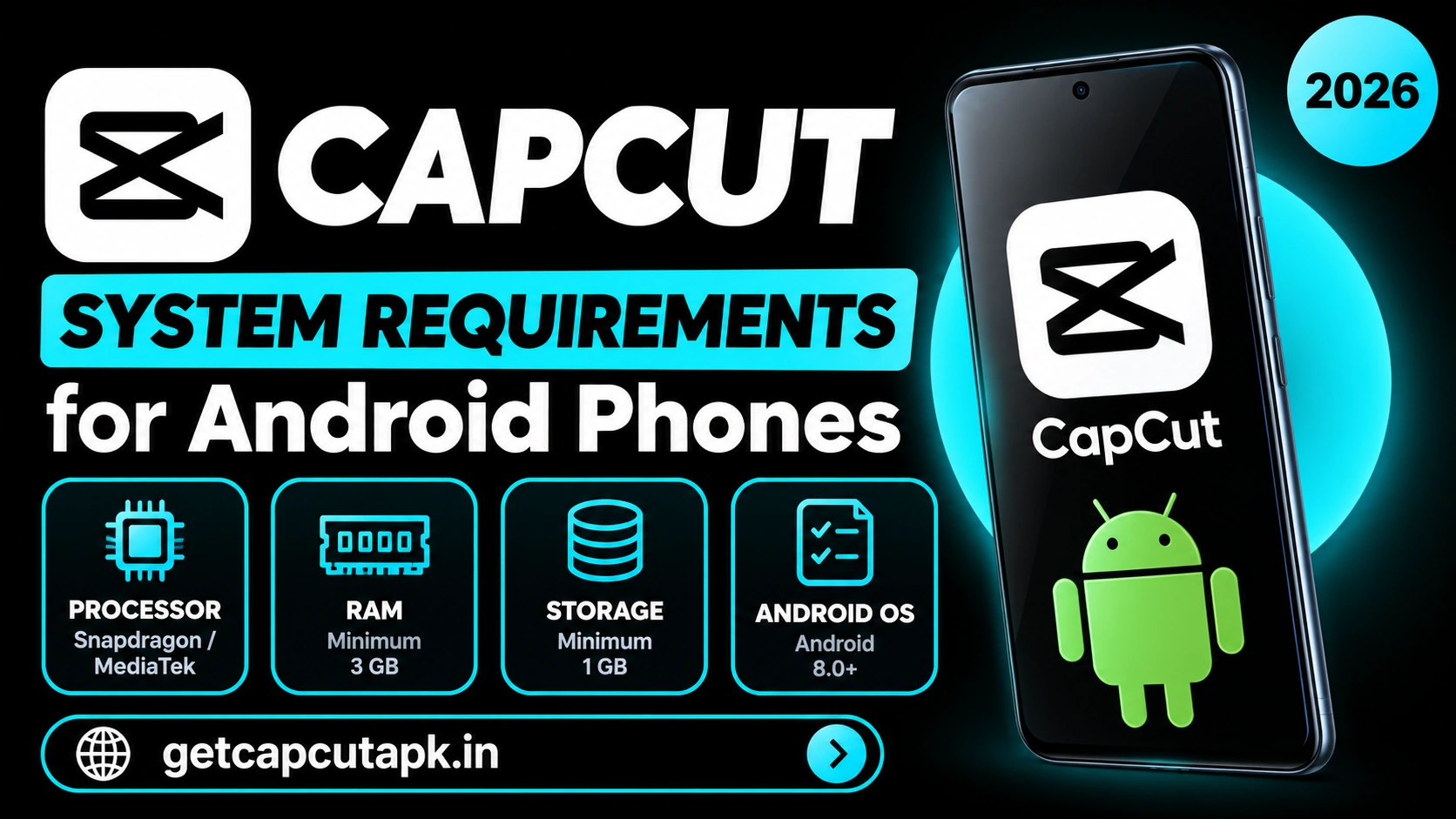
CapCut System Requirements at a Glance
Here is a quick summary of what CapCut needs on Android. The minimum specs let the app open and handle short, simple edits. The recommended specs give you smooth editing for HD and 4K projects.
| Component | Minimum | Recommended | Best for 4K |
|---|---|---|---|
| Android Version | Android 5.0 | Android 9.0 or later | Android 11 or later |
| RAM | 2 GB | 4 GB | 6 GB or more |
| Free Storage | 1 GB | 4 GB | 10 GB or more |
| Processor | Quad-core | Octa-core mid-range | Recent flagship chip |
| Screen | 720p | 1080p | 1080p or higher |
| Internet | For online tools | Stable Wi-Fi | Fast Wi-Fi |
These numbers are a guide, not a strict rule. A phone below the minimum may still run the app, but it will be slow. A phone above the recommended specs will handle long and complex projects with ease.
Android Version
The Android version decides whether the app will install at all. CapCut supports Android 5.0 and later, but newer builds work best on recent versions. Old Android versions may also miss some features.
How to Check Your Android Version
- Open Settings on your phone.
- Tap About phone.
- Look for Android version on the screen.
If your phone runs Android 5 or 6, you can still use basic tools. However, some AI features and newer effects may not appear. Updating your phone software, when available, gives you the best results.
RAM
RAM is the short-term memory your phone uses to run apps. Video editing needs a lot of RAM to load clips, effects and previews. Low RAM is the main cause of lag and crashes in CapCut.
| RAM | What to Expect |
|---|---|
| 2 GB | Short clips, simple edits, some lag |
| 3 GB | Basic projects with a few layers |
| 4 GB | Smooth HD editing for most users |
| 6 GB | Multi-layer projects and 4K clips |
| 8 GB or more | Long, complex projects with many effects |
How to Check Your RAM
- Open Settings and tap About phone.
- Look for RAM or Memory.
- Some phones show it under Device care or Battery and device care.
If your phone has 2 or 3 GB of RAM, close other apps before you edit. This gives CapCut more memory to work with. Keep your projects short for the best results.
Storage
Storage is where the app, your clips and your exports live. CapCut itself needs a few hundred megabytes, but projects need much more. A 4K video can use hundreds of megabytes per minute.
The app also creates cache files while you edit. These files help the preview play smoothly, but they can grow large over time. Clearing the cache from time to time frees up a lot of space.
As a rule, keep at least 4 GB of free storage for normal editing. If you work with 4K clips, aim for 10 GB or more. Low storage is a common reason for failed exports and app crashes.
Processor
The processor handles effects, transitions and exports. A faster chip means quicker previews and shorter export times. It also helps with AI tools like Auto Captions and Background Removal.
Most mid-range chips from recent years handle HD editing well. Flagship chips can handle 4K editing and heavy effects with no problem. Older or budget chips may struggle with many layers or long 4K clips.
You cannot upgrade a phone processor, but you can work around a slow chip. Use lower export resolutions and fewer layers for heavy projects. Our tips section below shows more ways to speed things up.
Internet Connection
You can edit many videos offline with basic tools like trim, split, text and filters. However, many popular features need an internet connection. These include templates, the music library, cloud sync and most AI tools.
A stable Wi-Fi connection gives the best experience with online tools. Slow internet may cause templates to load slowly or fail. Mobile data works too, but large downloads can use a lot of data.
If you plan to edit offline, download the music and effects you need first. Save them to your project while you are online. Then you can finish the edit later without a connection.
Requirements for Different Video Types
Different projects need different amounts of power. A short reel needs far less than a long 4K vlog. The table below helps you match your phone to your projects.
| Project Type | RAM Needed | Storage Needed | Export Setting |
|---|---|---|---|
| Short reel under 60 seconds | 2 to 3 GB | 1 to 2 GB | 1080p |
| Template edit | 3 GB | 1 to 2 GB | 1080p |
| YouTube video in HD | 4 GB | 4 GB or more | 1080p |
| Multi-layer edit with effects | 6 GB | 6 GB or more | 1080p or 2K |
| 4K video project | 6 to 8 GB | 10 GB or more | 4K |
Requirements for Tablets
Android tablets make great editing devices thanks to their larger screens. The requirements are the same as for phones. A tablet with 4 GB of RAM and a recent Android version works well.
The bigger screen lets you see more of the timeline at once. This makes precise trims and keyframes much easier. Some tablets also support a stylus for even finer control.
If you plan to edit on a tablet, check that it still gets system updates. Very old tablets may not support the newest CapCut builds. For more tablet tips, read our CapCut Pad guide.
How to Make CapCut Run Faster on Older Phones
Even if your phone is below the recommended specs, you can still edit well. A few simple changes reduce lag and crashes. Try these tips:
- Close background apps before you open CapCut
- Clear the CapCut cache from the app settings
- Lower the preview quality in the settings menu
- Keep projects short and split long videos into parts
- Use fewer layers and effects at the same time
- Export at 720p or 1080p instead of 4K
- Restart your phone before long editing sessions
These steps make a big difference on phones with 2 to 3 GB of RAM. They also help newer phones when you work on heavy projects. The team at getcapcutapk.in/ uses them every day on budget devices.
Best Phones for CapCut by Budget
You do not need the most expensive phone to edit great videos. Many budget and mid-range phones handle CapCut very well. The table below shows what to look for at each price level.
| Budget | What to Look For | Best For |
|---|---|---|
| Low budget | 4 GB RAM, 64 GB storage, recent Android | Reels and simple edits |
| Mid range | 6 GB RAM, 128 GB storage, strong chip | HD videos with effects |
| High end | 8 GB RAM or more, 256 GB storage, flagship chip | 4K videos and heavy projects |
If you plan to buy a new phone for editing, focus on RAM and storage first. These two specs make the biggest difference in daily editing. A good processor comes next, especially for 4K work.
Export Settings That Match Your Phone
The export screen lets you pick the resolution and frame rate of your video. Higher settings need more power and more time. Picking the right settings for your phone avoids failed exports.
| Phone Type | Resolution | Frame Rate |
|---|---|---|
| 2 to 3 GB RAM | 720p | 30 fps |
| 4 GB RAM | 1080p | 30 fps |
| 6 GB RAM | 1080p or 2K | 30 or 60 fps |
| 8 GB RAM or more | 4K | 30 or 60 fps |
For most social media videos, 1080p at 30 fps is the sweet spot. It looks sharp on phones and keeps file sizes small. Use 4K only when you need the extra detail for big screens.
How to Free Up Space for CapCut
Storage fills up fast when you edit videos every day. Old drafts, cache files and exports can take many gigabytes. Here is how to clear space safely:
- Open CapCut and tap the Settings gear icon.
- Tap Clear cache to remove temporary files.
- Delete old drafts that you no longer need.
- Move finished videos to cloud storage or a computer.
- Remove large apps you do not use.
Do this cleanup once a week if you edit often. It keeps your phone fast and gives CapCut room to work. You will also see fewer export errors and crashes.
Signs Your Phone Is Struggling
Your phone will show clear signs when a project is too heavy. Spotting them early helps you fix the issue before a crash. Watch for these signs:
- The preview stutters or freezes often
- The app closes without warning
- Exports fail or take a very long time
- The phone gets hot during editing
- Effects take a long time to load
If you see these signs, save your project and close other apps. Lower the preview quality and remove some heavy effects. If problems continue, split the project into smaller parts.
Requirements for CapCut on Other Devices
CapCut is not only for Android phones. It also runs on iPhone, iPad, Windows, Mac and in a web browser. Each platform has its own requirements.
| Platform | General Requirement |
|---|---|
| iPhone and iPad | A recent version of iOS or iPadOS |
| Windows PC | A 64-bit version of Windows 10 or later |
| Mac | A recent version of macOS |
| Web Browser | An up-to-date Chrome, Edge or Safari |
The desktop version needs more power than the phone app, but it gives you a bigger timeline. For more details, read our guide on CapCut for PC. The web version runs in a browser and works on many computers.
Key Takeaways
Here are the most important points from this guide on CapCut system requirements. Keep them in mind for your next project. They cover the steps that make the biggest difference.
- Android 5.0 is the minimum, but Android 9 or later works best
- 4 GB of RAM gives smooth HD editing
- Keep at least 4 GB of free storage
- Lower preview quality on older phones
Conclusion
CapCut runs on most Android phones with Android 5.0 or later and at least 2 GB of RAM. For smooth editing, a phone with 4 GB of RAM, Android 9 or later and 4 GB of free storage works best. For 4K projects, aim for 6 GB of RAM and plenty of free space.
If your phone is older, you can still make great videos with a few smart changes. Lower the preview quality, keep projects short and close other apps. These tips help any phone handle CapCut better.
Now that you know the requirements, you are ready to install the app. Read our guide on how to download CapCut on Android to get started. For more tips and fixes, keep visiting getcapcutapk.in/.
Frequently Asked Questions
CapCut needs Android 5.0 or later to install. Newer builds work best on Android 9 or later. Some newer features may not appear on very old versions.
Yes, CapCut can run on 2 GB of RAM for short and simple edits. You may notice some lag with effects and long clips. Close other apps and lower the preview quality for better speed.
The app itself needs a few hundred megabytes. Your projects and exports need much more space. Keep at least 4 GB free for normal editing.
Basic editing tools work offline. Templates, the music library, cloud sync and most AI tools need internet. A stable Wi-Fi connection gives the best experience.
4K export depends on your phone hardware. Phones with strong processors and 6 GB of RAM or more usually support it. If 4K is not shown in the export menu, your phone does not support it.