CapCut AI Tools Complete Guide for Smart Video Editing 2026
Artificial intelligence has changed the way people edit videos. Tasks that once took hours, like writing subtitles or cutting out a background, now take seconds. This guide covers the main CapCut AI tools and how to use them for smart video editing.
We explain what each AI tool does, where to find it and when to use it. We also cover related AI apps from the same company, like Dreamina, Pippit and Hypic. The team at getcapcutapk.in/ has tested these tools on real projects to write this guide.
Some AI tools are free, while others need a Pro plan or credits. Availability also depends on your region, device and app version. For an overview of CapCut itself, visit our CapCut Pro APK home page.
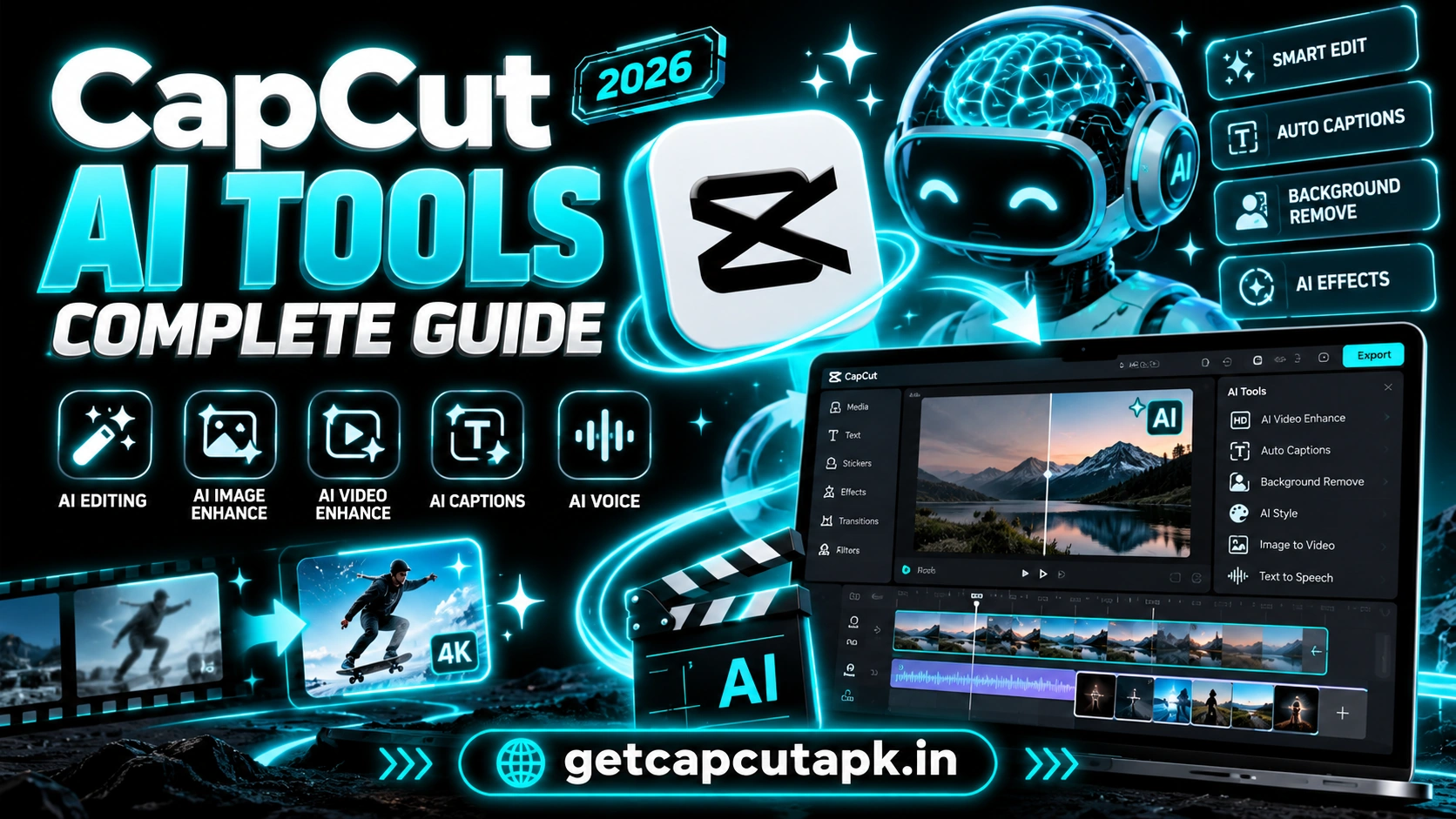
What Are CapCut AI Tools?
CapCut AI tools are smart features that use artificial intelligence to do editing tasks for you. They can listen to speech, detect people, improve image quality and create new visuals. This saves time and opens creative options for everyone.
Many AI tools live inside the CapCut editor. Others are found in a dedicated AI or AI Lab section. The exact layout can change with updates.
AI tools work on mobile, desktop and the web in most cases. Some heavy tools run on CapCut’s servers and need internet. Others run on your device.
CapCut AI Tools at a Glance
Here is a quick overview of the most popular AI tools in CapCut. Each one is explained in more detail below. Use this table to find the tool you need.
| AI Tool | What It Does | Best For |
|---|---|---|
| Auto Captions | Turns speech into subtitles | Talking videos and tutorials |
| Remove Background | Cuts out people without a green screen | Reactions and product videos |
| AutoCut | Builds a quick edit from your clips | Fast social videos |
| Text to Speech | Turns text into a voice | Faceless and explainer videos |
| Auto Reframe | Keeps the subject in frame for new ratios | Repurposing videos |
| Enhance Quality | Improves sharpness and clarity | Old or low quality clips |
| AI Effects | Turns clips into styles like cartoon or anime | Creative and fun edits |
| Image Upscaler | Makes photos sharper | Thumbnails and slideshows |
| AI Color Correction | Fixes colors automatically | Dull or dark clips |
| Noise Reduction | Cleans up background noise | Voice recordings |
Auto Captions
Auto Captions listens to the speech in your video and writes subtitles automatically. You can then edit the words, style and timing. This tool is one of the biggest time savers in CapCut.
Captions help viewers who watch without sound. They also make your videos more accessible. Many creators see better watch time when they add captions.
To use it, tap Text and then Auto captions, choose the language and tap Generate. Always review the text for mistakes. Read our guide on how to add auto captions in CapCut for full steps.
Remove Background
The Remove Background tool cuts out people from a video without a green screen. It uses AI to find the subject and hide the background. You can then place the subject over a new scene.
This is great for reaction videos, product clips and creative edits. It works best with good lighting and clear outlines. A Custom removal option lets you brush over objects for more control.
To use it, add your clip as an overlay, select it and tap Remove BG, then Auto removal. Read our guide on how to remove background in CapCut for tips. It also explains how to clean up rough edges.
AutoCut
AutoCut creates a quick edit from your clips automatically. It picks the best moments, adds music and transitions, and syncs them to the beat. It is perfect when you need a video fast.
You can choose a style, and AutoCut builds the video for you. Then you can edit the result like any other project. This makes it a great starting point for beginners.
AutoCut is especially useful for travel clips, events and photo dumps. It handles the boring work of cutting and timing. You can then focus on adding your personal touches.
Text to Speech
Text to Speech turns typed text into a spoken voice. You choose from many voices, accents and styles. This is great for faceless videos, tutorials and stories.
- Tap Text and add your script.
- Select the text and tap Text to speech.
- Choose a voice and tap apply.
The voice appears as an audio track on your timeline. You can then generate captions from it for perfect sync. Some premium voices may need a Pro plan.
Auto Reframe
Auto Reframe helps you change the shape of a video without losing the subject. For example, you can turn a wide YouTube video into a vertical TikTok. The AI keeps the main subject in the center of the new frame.
This saves time when you post the same video on many platforms. You no longer need to crop each clip by hand. It works best with clear subjects and steady camera moves.
Find Auto Reframe in the ratio or edit options. Choose your new ratio and let the AI track the subject. Check the result and adjust any clips that look off.
Enhance Quality and Upscaling
Enhance Quality and upscaling tools make clips and photos look sharper. They are useful for old videos, low light footage and small images. The AI adds detail and reduces noise.
These tools can take some time to process, especially for long clips. Some versions may need a Pro plan or have limits. Results depend on the quality of the original media.
Use them on key shots rather than every clip. This saves time and keeps your project light. Compare the before and after to make sure the result looks natural.
AI Effects and Styles
AI effects turn your clips into new visual styles. You can make cartoons, anime looks, paintings and other creative styles. These effects are fun for social media and creative projects.
Many AI effects work best with clear faces and good light. Some need internet because they run on servers. New styles appear often with updates.
Browse the Effects or AI section to see what is available in your region. Try a few styles on short clips first. Then use the best ones in your final video.
AI Audio Tools
CapCut also offers AI tools for sound. Noise reduction cleans up background hum and wind. Voice enhance makes speech clearer and louder.
Some versions offer voice effects and voice changers for fun edits. Others include tools that separate voice and music. These help you make clean, professional audio.
Good audio keeps viewers watching longer. Use these tools on any clip with speech. Always listen with headphones to check the result.
Related AI Apps From the Same Company
Beyond the CapCut editor, the same company offers other AI apps. Each one focuses on a different type of content. Here is a quick overview.
| App | Main Use |
|---|---|
| Dreamina | AI image and video generation from text or images |
| Pippit | AI product videos and marketing content |
| Hypic | AI photo editing and retouching |
Dreamina
Dreamina is an AI tool for creating images and videos from text prompts or reference images. It is great for thumbnails, concept art and creative visuals. Read our Dreamina AI guide to learn more.
Pippit
Pippit helps businesses make product videos and marketing content with AI. It can turn product details into short promo videos. Read our Pippit AI guide for full details.
Hypic
Hypic is an AI photo editor with filters, retouching and creative effects. It is a great partner app for CapCut users who also edit photos. Read our Hypic AI photo editor guide to explore it.
Best AI Tools for Different Creators
Each creator type benefits from different AI tools. Knowing which ones fit your work helps you save the most time. Here is a simple guide.
| Creator Type | Most Useful AI Tools |
|---|---|
| TikTok and Reels creators | Auto Captions, AI effects, AutoCut |
| YouTubers | Auto Captions, Noise Reduction, Enhance Quality |
| Faceless channels | Text to Speech, AI images from Dreamina |
| Small businesses | Remove Background, Pippit product videos |
| Teachers | Auto Captions, Text to Speech |
| Photographers | Hypic retouching, Image Upscaler |
Start with two or three tools from your row. Learn them well before you explore the rest. This keeps your workflow simple and fast.
How to Combine AI Tools in One Project
AI tools work even better when you use them together. One tool can prepare your clip for the next. Here is a sample workflow for a talking-head video.
- Use Noise Reduction to clean the audio.
- Use AutoCut or manual cuts to remove pauses.
- Use Auto Captions to add subtitles.
- Use Auto Reframe to make a vertical version.
- Use AI Color Correction for a clean look.
- Export versions for each platform.
This workflow can turn a raw recording into a polished video in minutes. Each step builds on the one before it. Save it as a checklist for future projects.
How AI Tools Work on Different Devices
AI tools are available on mobile, desktop and the web, but the experience can differ. Heavy tools may run faster on a computer. Mobile tools are handy for quick edits on the go.
Some AI features appear first on one platform and later on others. If you cannot find a tool on your phone, check the desktop or web version. Our guide on CapCut desktop vs mobile explains the main differences.
Free vs Pro AI Tools
Many AI tools are free to use, while others need a Pro plan or credits. The rules can change with updates and may differ by region. Here is a general guide.
| AI Tool | Typical Access |
|---|---|
| Auto Captions | Free |
| Remove Background | Free in most regions |
| AutoCut | Free |
| Text to Speech | Free with some premium voices |
| Enhance Quality | Often Pro or limited |
| Advanced AI effects | Mixed, some Pro |
If you use AI tools often, a Pro plan may save you time. Pro usually gives higher limits and more options. Read our post on CapCut Pro price for details.
Tips for Better AI Results
AI tools work best with good input. A few simple habits help them perform better. The team at getcapcutapk.in/ follows these tips daily.
- Use clear, well-lit footage
- Record audio in a quiet room
- Keep subjects sharp and in focus
- Review AI captions for mistakes
- Use AI as a starting point, then add your own touch
- Keep the app updated for the newest AI improvements
Use AI Responsibly
AI tools are powerful, so use them with care. Do not create misleading videos of real people. Respect privacy and get consent before you edit someone else’s image or voice.
Label AI-generated content when your platform asks you to. Many platforms now have rules about AI content. Following them keeps your account safe and builds trust.
Use AI to save time and boost creativity, not to deceive. Honest content builds a loyal audience. That is good for you and for your viewers.
More AI Tool Guides
Some AI tools in CapCut have their own detailed guides. Read our guide on the CapCut AI image generator to create pictures from text. For fast rough cuts, see our guide on CapCut AutoCut.
Conclusion
CapCut AI tools make video editing faster and easier for everyone. Auto Captions, Remove Background, AutoCut and Text to Speech save hours of work. Tools like Auto Reframe, Enhance Quality and AI effects add even more power.
Related apps like Dreamina, Pippit and Hypic extend these AI features to images, marketing and photos. Some tools are free, while others need Pro or credits. Good lighting and clear audio help every AI tool perform better.
For more AI guides and editing tips, keep visiting getcapcutapk.in/. We update this guide as new AI tools arrive. Happy smart editing.
Frequently Asked Questions
CapCut includes Auto Captions, Remove Background, AutoCut, Text to Speech, Auto Reframe, Enhance Quality and AI effects. It also has AI audio tools. New AI tools arrive with updates.
Many AI tools are free, like Auto Captions and AutoCut. Some advanced tools need a Pro plan or have limits. Availability depends on your region.
Many AI tools need internet because they run on servers. Some basic tools may work offline. Connect to Wi-Fi for the best results.
Dreamina is a related AI app from the same company. It focuses on AI image and video generation. You can use its creations in CapCut.
Use clear, well-lit footage and clean audio. Review the results and fix any mistakes. Keep the app updated for the latest improvements.