Dreamina AI Image and Video Generator Complete Guide 2026
AI image and video generators have become one of the hottest creative tools online. Dreamina AI is one of the popular options, and it comes from the same company family as CapCut. This guide explains what Dreamina is, what it can do and how to get great results.
You will learn about its main features, how credits work, how to write good prompts and how to use your creations in CapCut. We also cover free vs paid access, safety rules and common problems. The team at getcapcutapk.in/ has tested Dreamina for thumbnails, concept art and short AI clips.
Dreamina is easy to start with, even if you have never used AI art tools before. You type what you want, and the AI creates it. For an overview of CapCut, visit our CapCut Pro APK home page.
What Is Dreamina AI?
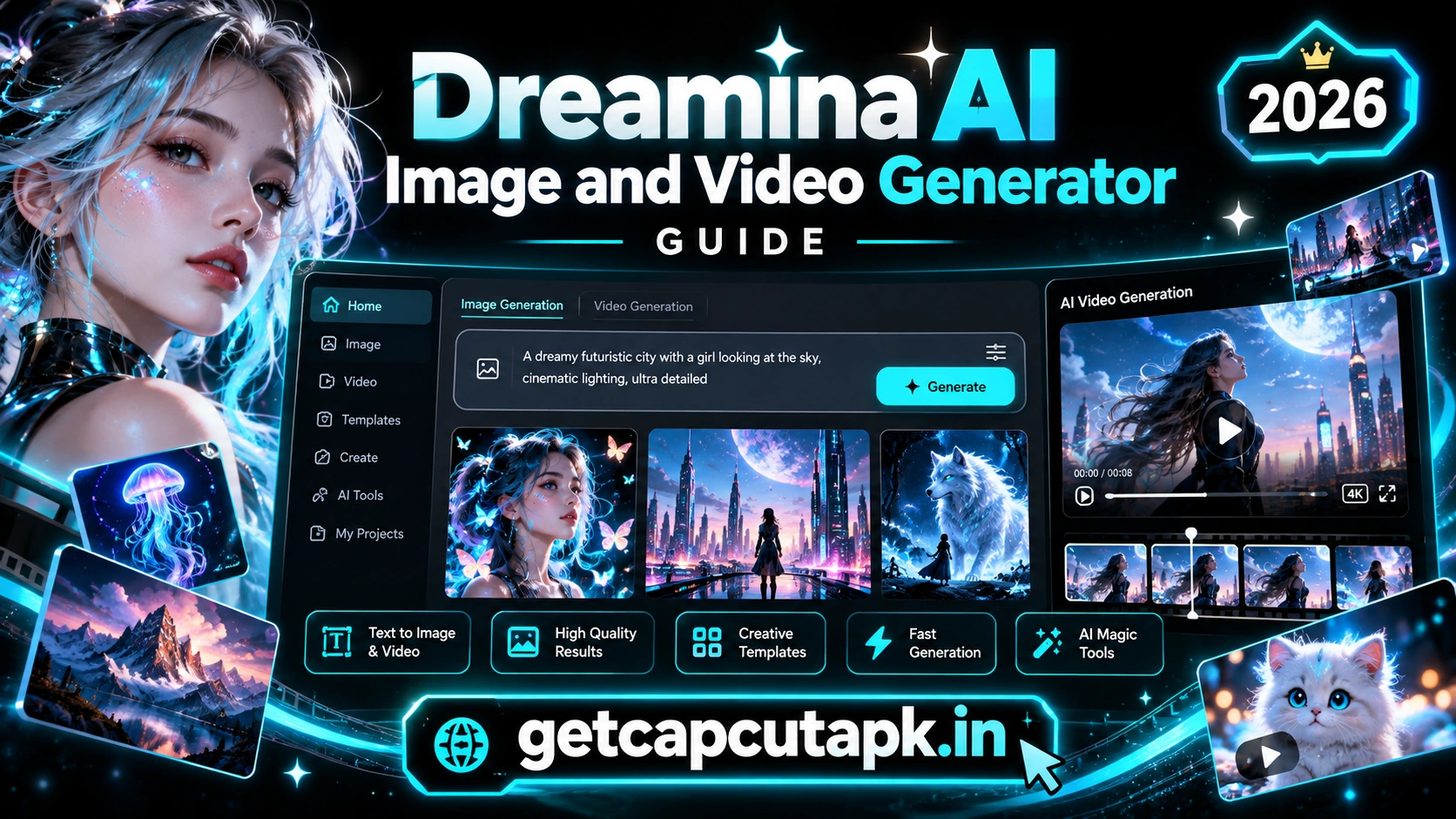
Dreamina is an AI creative platform that generates images and short videos from text prompts or reference images. It is made by the same company behind CapCut. Many users know it as the CapCut AI image and video generator.
You can describe a scene in words, and Dreamina creates matching images. You can also upload an image and turn it into a new style or a short video. It includes tools for editing, expanding and upscaling images.
Dreamina is available on the web and in apps in supported regions. You sign in with an account, often the same one you use for CapCut or TikTok. Features and access can vary by country.
Main Features of Dreamina AI
Dreamina offers several AI tools in one place. Each one helps with a different creative task. Here are the main features.
| Feature | What It Does |
|---|---|
| Text to Image | Creates images from a written prompt |
| Image to Image | Changes the style or details of an uploaded image |
| Text to Video | Creates short video clips from a prompt |
| Image to Video | Turns a still image into a moving clip |
| Canvas Editing | Edits, expands or combines parts of images |
| Upscale | Makes images sharper and larger |
| Inpaint and Remove | Changes or removes parts of an image |
Text to Image
This is the most popular feature. You write a description, choose a style and ratio, and Dreamina creates several images. You can then pick the best one and refine it.
Image to Video
This feature brings still images to life. You upload an image and describe the motion you want. Dreamina creates a short animated clip.
Canvas Tools
The canvas lets you edit images in more detail. You can expand the edges, remove objects or add new parts. This is useful for thumbnails and design work.
How Dreamina Credits Work
Dreamina uses a credit system for most AI generations. Each image or video uses a certain number of credits. Videos usually use more credits than images.
Free users often receive a number of free credits on a regular basis, such as daily. Paid plans offer more credits and extra features. The exact numbers can change, so check your account page.
| Access Type | What You Usually Get |
|---|---|
| Free account | Limited credits that refresh over time |
| Paid plan | More credits, faster generation and extra tools |
| Promotions | Bonus credits during special events |
Plan your credits by testing prompts on images before making videos. Images are cheaper and quicker to test. Once you like a style, use it for video.
How to Get Started With Dreamina
Getting started is quick and simple. You need an account and an internet connection. Here are the basic steps.
- Open the Dreamina website or app in your region.
- Sign in with your account.
- Choose a tool, such as Text to Image.
- Type your prompt in the text box.
- Choose the aspect ratio and style if available.
- Tap Generate and wait a few seconds.
- Pick your favorite result and download it.
For a full beginner walkthrough, read our guide on how to use Dreamina AI for free. It explains every step with tips for saving credits. It is the best place to start.
How to Write Good Prompts
The prompt is the text that tells Dreamina what to create. Good prompts lead to better images and videos. Here are simple tips.
Be Specific
Describe the subject, setting, lighting and style. For example, a red sports car on a rainy city street at night with neon lights is better than just a car. Details help the AI understand your idea.
Add a Style
Mention the style you want, such as cinematic, anime, watercolor, 3D or realistic photo. Style words change the look a lot. Try different styles with the same subject.
Mention the Mood and Light
Words like warm, dramatic, soft, bright or moody shape the feel of the image. Lighting words like sunset, golden hour or studio light also help. They make your results look more polished.
Keep It Clear
Avoid long, confusing prompts with too many ideas. Focus on one main scene. You can always generate more images for other ideas.
| Prompt Part | Example |
|---|---|
| Subject | A young chef holding a fresh pizza |
| Setting | In a cozy Italian kitchen |
| Style | Realistic photo |
| Light | Warm morning light from a window |
| Mood | Happy and inviting |
Best Uses for Dreamina AI
Dreamina is useful for many creative and business tasks. Here are some of the best ways to use it. Each one works well with CapCut.
- YouTube thumbnails with eye-catching scenes
- Background images for videos and green screen edits
- B-roll clips for faceless and explainer videos
- Concept art for stories and games
- Social media posts and story visuals
- Product mockups and ad ideas
- Album and podcast covers
Dreamina saves time when you need custom visuals fast. It also helps when stock images do not fit your idea. You can create exactly what you have in mind.
How to Use Dreamina Creations in CapCut
Dreamina and CapCut work well together. You create visuals in Dreamina, then edit them into videos in CapCut. Here is a simple workflow.
- Generate images or clips in Dreamina.
- Download them to your phone or computer.
- Open CapCut and create a new project.
- Import the Dreamina images or clips.
- Add music, text, transitions and effects.
- Use keyframes to add motion to still images.
- Export your final video.
This workflow is great for faceless YouTube channels and story videos. You can also use Dreamina images as backgrounds with Remove BG. Read our CapCut AI tools guide for more ideas.
Best Aspect Ratios for Dreamina Images
Choosing the right aspect ratio saves you from cropping later. Each platform prefers a different shape. Pick the ratio before you generate.
| Use | Best Ratio |
|---|---|
| YouTube thumbnail | 16:9 |
| TikTok, Reels and Shorts | 9:16 |
| Instagram post | 1:1 or 4:5 |
| Website banner | 16:9 or wider |
| Phone wallpaper | 9:16 |
If you need the same image in several shapes, use the canvas expand tool. It can extend the edges of an image to fit a new ratio. This keeps your design consistent across platforms.
Prompt Ideas to Try
Need inspiration for your first prompts? These ideas work well for social media and video projects. Change the details to fit your niche.
- A cozy coffee shop on a rainy evening with warm lights, cinematic style
- A futuristic city skyline at sunset with flying cars, 3D render
- A cute cartoon cat reading a book in a library, soft colors
- A luxury watch on a black marble table, studio product photo
- A mountain lake at sunrise with mist, realistic photo
- A gaming setup with RGB lights in a dark room, moody light
Start with these and adjust one detail at a time. Watch how each change affects the result. This is the fastest way to learn prompt writing.
How to Turn Images Into Short Videos
The Image to Video tool can bring your best images to life. It works well for intros, backgrounds and B-roll. Here is a simple method.
- Generate or upload an image you like.
- Choose Image to Video.
- Describe the motion, such as slow camera zoom or gentle wind.
- Generate the clip and preview it.
Keep motion prompts simple for smoother results. Gentle moves like zooms and pans often look the most natural. Then import the clip into CapCut to add music and text.
Dreamina vs Other AI Generators
There are many AI image and video tools online. Each one has its own strengths. The table below gives a general comparison.
| Point | Dreamina | Other Popular Generators |
|---|---|---|
| Ease of use | Very easy | Varies |
| Video generation | Yes | Some offer it |
| Free access | Free credits | Varies |
| Link to CapCut | Same company family | No direct link |
| Best for | Social media creators | Varies by tool |
Dreamina is a strong choice for creators who already use CapCut. Its simple layout and free credits make it easy to try. Results depend on your prompt and the tool’s current model.
Rules and Safe Use
Dreamina has content rules that every user must follow. These rules help keep the platform safe. Breaking them can lead to blocked prompts or account limits.
- Do not create harmful, hateful or adult content
- Do not create misleading images of real people
- Respect copyright and avoid copying famous characters or brands
- Follow your platform’s rules on AI labels
- Use AI images honestly in ads and posts
Many social platforms ask you to label AI-generated content. Follow these rules when you post Dreamina creations. Honest labels build trust with your audience.
Common Problems and Fixes
A few issues can appear when you use Dreamina. Most of them have simple fixes. The table below lists the common ones.
| Problem | Fix |
|---|---|
| Out of credits | Wait for credits to refresh or upgrade your plan |
| Prompt blocked | Rewrite it to follow content rules |
| Blurry results | Use the upscale tool |
| Strange hands or faces | Generate again or use inpaint to fix parts |
| Not available | Dreamina may not be offered in your region |
AI results can vary, so generate a few options each time. Small prompt changes can give very different images. Keep testing until you get the look you want.
Tips From Our Team
The team at getcapcutapk.in/ has created many images and clips with Dreamina. Here are the tips that help most. Try them on your next project.
- Test ideas with images first, then make videos
- Save your best prompts in a note for reuse
- Use the same style words for a consistent look
- Upscale only your final images
- Combine Dreamina visuals with CapCut motion for great videos
Key Takeaways
Here are the most important points from this guide on Dreamina AI. Keep them in mind for your next project. They cover the steps that make the biggest difference.
- Test ideas with images before videos
- Write prompts with subject, setting, style and light
- Upscale only your final images
- Bring your creations into CapCut for motion
Conclusion
Dreamina AI is a powerful and easy tool for creating images and short videos with AI. It offers text to image, image to video, canvas editing and upscaling in one place. It comes from the same company family as CapCut, so it fits well into a CapCut workflow.
Use clear, specific prompts with style, light and mood words for the best results. Plan your credits by testing on images first. Then bring your creations into CapCut to add music, text and motion.
For more AI guides and editing tips, keep visiting getcapcutapk.in/. Also read our guide on how to use Dreamina AI for free to get started today. Happy creating.
Frequently Asked Questions
Dreamina is an AI tool that creates images and short videos from text prompts or images. It comes from the same company family as CapCut. It also includes editing and upscaling tools.
Dreamina offers free credits that refresh over time. Paid plans give more credits and features. The exact amounts can change.
Yes, Dreamina offers text to video and image to video tools. Videos usually use more credits than images. Results are short clips.
Yes, download your Dreamina creations and import them into CapCut. Add music, text and motion to build a video. This works well for faceless content.
No, Dreamina may not be available in every region. Access depends on local rules and the company’s policies. Check the website or app in your area.