How to Use Dreamina AI for Free Step by Step for Beginners
Want to create stunning AI images and short videos without paying? Dreamina AI gives new users free credits to try its tools. This guide shows you how to use Dreamina AI for free, step by step.
You will learn how to sign up, how free credits work and how to create your first image and video. We also share tips to save credits, write better prompts and use your results in CapCut. The team at getcapcutapk.in/ wrote this guide after testing Dreamina with a free account.
You do not need design or AI skills to follow along. If you can type a sentence, you can create AI art. For an overview of CapCut, visit our CapCut Pro APK home page.
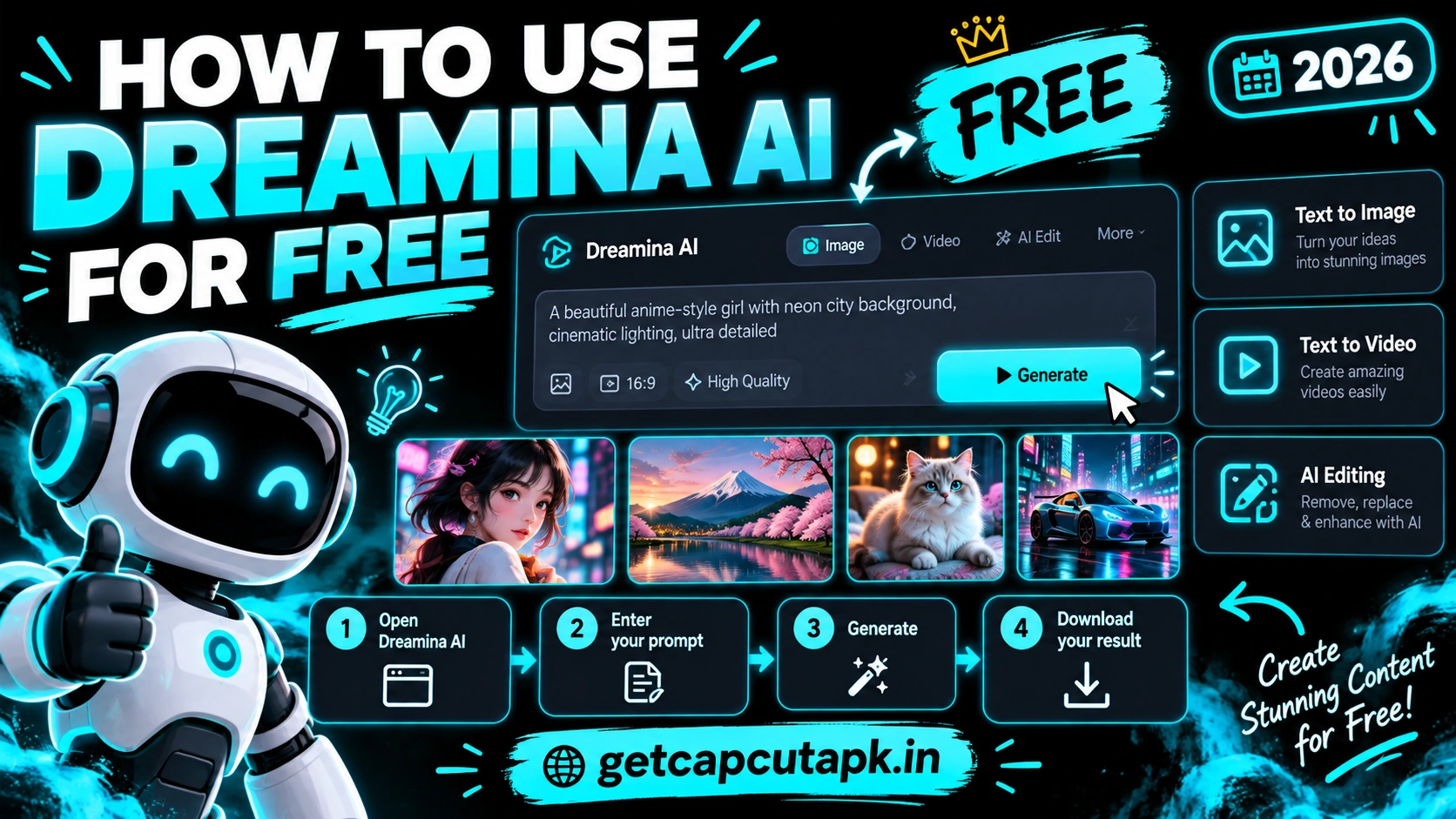
What You Need to Get Started
Dreamina is easy to start with, but a few basics help. Make sure you have these ready. Then you can create your first image in minutes.
- A phone, tablet or computer with a modern browser or the Dreamina app
- A stable internet connection
- An account, such as a CapCut, TikTok, Google or email login
- An idea for what you want to create
Dreamina may not be available in every country. If you cannot access it, the service may not be offered in your region yet. Check the official website or app store in your area.
Dreamina Tools at a Glance
Here is a quick look at the main tools you will find in Dreamina. Each one is useful for a different task. Use this table to pick the right tool.
| Tool | Best Use |
|---|---|
| Text to Image | New images from your words |
| Image to Image | New styles for an existing image |
| Image to Video | Short motion clips from a still image |
| Upscale | Sharper final images |
| Inpaint | Fixing small parts of an image |
You do not need every tool on day one, so start with Text to Image and Upscale. Add the others as your projects grow. Our CapCut AI tools guide also explains how these fit into a video workflow.
Step 1 Create Your Free Account
The first step is to sign in. A free account gives you access to free credits. Here is how to do it.
- Open the Dreamina website or app.
- Tap Sign in or Log in.
- Choose a sign-in method, such as your CapCut or TikTok account.
- Follow the steps to finish signing in.
- Accept the terms if asked.
Once you sign in, you will see the Dreamina home page. It shows tools like image generation, video generation and canvas. Your credit balance usually appears near the top of the screen.
Step 2 Understand Free Credits
Dreamina uses credits for most generations. Free accounts receive credits that refresh over time, often daily. Each generation uses a certain number of credits.
| Action | Credit Use |
|---|---|
| Image generation | Lower |
| Video generation | Higher |
| Upscale | Uses some credits |
| Editing tools | Varies |
The exact numbers can change, so check your account page for current details. Images are cheaper, so test your ideas with images first. Save video generation for when you have a style you like.
Step 3 Create Your First AI Image
Now it is time to create your first image. The Text to Image tool turns your words into pictures. Follow these steps.
- Open Image generation or Text to Image.
- Type your prompt in the text box.
- Choose a model or style if the option appears.
- Pick an aspect ratio, such as 16:9 or 9:16.
- Tap Generate.
- Wait a few seconds for the results.
- Tap an image to see it larger.
Dreamina usually shows several image options for one prompt. Pick the one you like best. If none look right, change your prompt and try again.
Example Prompt for Beginners
Try this simple prompt to start: a cozy reading corner by a window with rain outside, warm lamp light, realistic photo. It includes a subject, setting, light and style. You will see how each part shapes the image.
Step 4 Improve Your Prompts
Good prompts make a big difference in quality. A few simple habits help you write better prompts. Here is a quick guide.
| Prompt Tip | Why It Helps |
|---|---|
| Name the subject clearly | The AI knows what to focus on |
| Add a setting | Gives context and background |
| Add a style | Controls the look, like anime or realistic |
| Describe the light | Adds mood and depth |
| Keep it short and clear | Avoids confusing results |
Change one part of your prompt at a time. This shows you what each word does. Over time, you will learn which words give the best results.
Step 5 Turn an Image Into a Video
Dreamina can animate your images into short clips. This is great for intros, backgrounds and social posts. Here is how.
- Open Video generation or Image to Video.
- Upload your Dreamina image or choose one from your history.
- Describe the motion, such as slow zoom in or leaves moving in the wind.
- Choose the video length if the option appears.
- Tap Generate.
- Wait while the video is created.
Video generation takes longer than images and uses more credits. Keep motion prompts simple for smoother results. Gentle moves like zooms and pans usually look most natural.
Step 6 Edit and Upscale Your Results
Dreamina includes tools to improve your images after you create them. You can fix small problems and make images sharper. Here are the main options.
- Upscale to make images larger and sharper
- Inpaint to change part of an image
- Remove to erase unwanted objects
- Expand to extend the edges for a new ratio
Use these tools only on your final images to save credits. Upscaling every test image wastes credits. Pick your best result first, then improve it.
Step 7 Download Your Creations
When you are happy with your image or video, download it. You can then use it in CapCut, on social media or in other projects. Here is how.
- Open the image or video you want.
- Tap the Download icon.
- Choose the file format if asked.
- Save it to your device.
Some free downloads may include a small label or watermark, depending on current rules. Check the download options in your account. Paid plans may offer more download choices.
How to Save Free Credits
Free credits can run out quickly if you are not careful. A few smart habits help you get more from each credit. The team at getcapcutapk.in/ uses these tips.
- Test with images before making videos
- Write clear prompts to avoid wasted generations
- Save your best prompts in a note
- Upscale only final images
- Check for daily credit refresh and plan your work around it
- Watch for bonus credit events
Plan your creative session before you start. Know what images or clips you need. This keeps you focused and saves credits.
How to Use Dreamina Creations in CapCut
Dreamina and CapCut work great together. You make the visuals in Dreamina and build the video in CapCut. Here is a simple workflow.
- Download your Dreamina images or clips.
- Open CapCut and create a new project.
- Import your Dreamina files.
- Add keyframes to give still images gentle motion.
- Add music, text and transitions.
- Use Text to Speech for a voiceover if you like.
- Export your video.
This is a popular workflow for faceless channels and story videos. Read our guide on how to add keyframes in CapCut to animate your images. It adds life to any still picture.
Beginner Project Ideas
The best way to learn Dreamina is with small, fun projects. Each one teaches you a new skill. Try these ideas in order.
| Project | What You Learn |
|---|---|
| A phone wallpaper | Prompts and the 9:16 ratio |
| A YouTube thumbnail | Bold subjects and the 16:9 ratio |
| A cartoon version of a pet idea | Style words |
| A short animated scene | Image to video |
| A set of matching images | Consistent style across prompts |
Finish one project before moving to the next. Each step builds your confidence. After five projects, you will know the main tools well.
How to Keep a Consistent Style
If you make a series of images, a consistent style looks more professional. This matters for channels, brands and story videos. A few tricks help.
Reuse Style Words
Use the same style, light and color words in every prompt. For example, always add soft pastel colors and cinematic lighting. This keeps your images looking like one set.
Use a Reference Image
Some Dreamina tools let you upload a reference image. The AI follows its style for new images. This is a strong way to keep a series consistent.
Keep the Same Ratio
Use the same aspect ratio for all images in a series. Mixed shapes look messy in a video. Pick one ratio and stick with it.
How to Use Dreamina on Your Phone
Dreamina also works on phones in supported regions, through the app or a mobile browser. The steps are almost the same as on a computer. The smaller screen just means less space.
Use the app for quick ideas on the go. Save your favorite prompts in a notes app so you can paste them quickly. For detailed editing, a bigger screen is easier.
After you download images on your phone, open CapCut right away. Build a quick video with music and text. This mobile workflow is great for daily posts.
Free vs Paid Dreamina
The free version is great for learning and small projects. Paid plans add more credits and features. Here is a general comparison.
| Point | Free | Paid |
|---|---|---|
| Credits | Limited, refresh over time | More credits |
| Speed | Standard | Often faster |
| Video generation | Limited by credits | More video generations |
| Extra tools | Basic set | More advanced options |
Start with the free version to see if Dreamina fits your needs. Upgrade only if you need more credits often. Prices and plans vary by region.
Rules to Follow
Dreamina has content rules for every user. Following them keeps your account safe. Here are the key points.
- Do not create harmful, hateful or adult content
- Do not make fake images of real people
- Avoid copying famous characters and brands
- Label AI content when your platform asks
- Use images honestly in ads
Prompts that break the rules may be blocked. Repeated violations can lead to account limits. Use the tool responsibly.
Common Problems and Fixes
A few common problems can appear for new users. Most are easy to fix. The table below lists them.
| Problem | Fix |
|---|---|
| Cannot sign in | Try another sign-in method or check your region |
| Out of credits | Wait for the refresh or upgrade |
| Prompt blocked | Rewrite to follow the rules |
| Results look strange | Simplify the prompt and try again |
| Video takes too long | Wait, or try at a less busy time |
Conclusion
Using Dreamina AI for free is simple and fun. Sign in, use your free credits and type a clear prompt to create your first image. Then turn your favorite images into short videos and download them.
Test ideas with images first to save credits, and upscale only your final results. Write clear prompts with a subject, setting, style and light. Then bring your creations into CapCut to build complete videos.
For more AI guides, keep visiting getcapcutapk.in/. Also read our full Dreamina AI guide to learn about every feature. Happy creating.
Frequently Asked Questions
Yes, Dreamina offers free credits for new and returning users. Credits refresh over time. Paid plans offer more credits.
Open the Dreamina website or app and tap Sign in. You can often use a CapCut, TikTok, Google or email account. Follow the steps to finish.
It depends on your free credits and how many each image uses. Check your credit balance in your account. Images use fewer credits than videos.
Your prompt may break the content rules. Remove anything harmful, adult or about real people. Then try again.
You can use your creations in videos, following Dreamina’s terms and YouTube’s rules. Label AI content when required. Avoid copying famous characters or brands.