CapCut Audio Editing Guide to Extract Audio and Cut Noise
Viewers will forgive a slightly blurry video, but bad audio makes them leave fast. Clear sound is one of the biggest signs of a professional video. This CapCut audio editing guide shows you how to extract audio, cut noise and make your sound clean.
You will learn how to extract audio from a video, reduce background noise, control volume and add fades. We also cover voiceovers, voice effects, beat marks, music balance and fixes for common audio problems. The team at getcapcutapk.in/ edits audio in every video we make.
CapCut has many audio tools that are easy to use, even for beginners. A few simple steps can make a huge difference. For an overview of the app, visit our CapCut Pro APK home page.
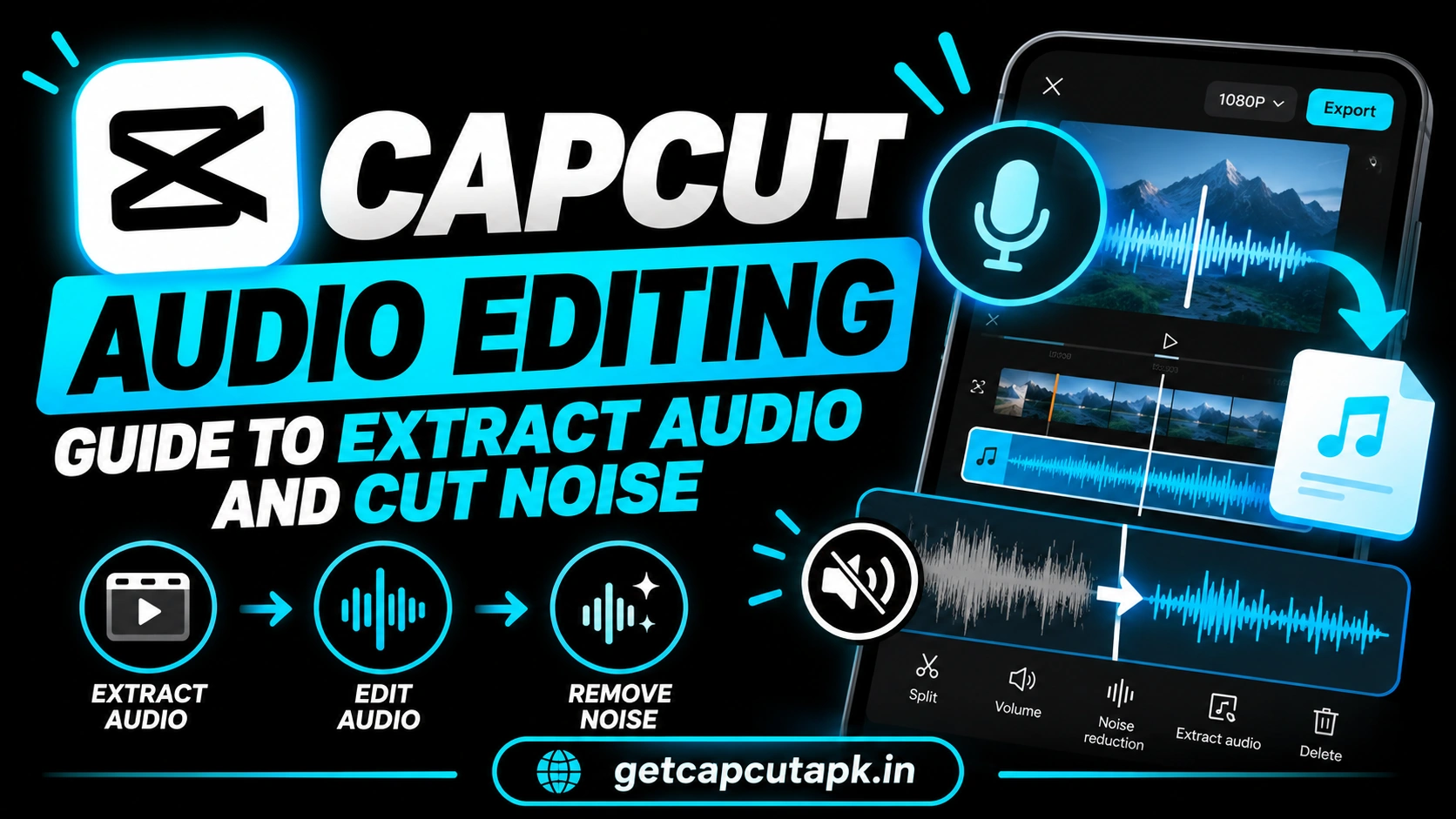
CapCut Audio Tools at a Glance
CapCut groups its audio tools under the Audio menu and the clip editing toolbar. Here is a quick overview. Each tool is explained below.
| Tool | What It Does |
|---|---|
| Sounds | Adds music from the library |
| Extract audio | Pulls sound out of a video clip |
| Sound effects | Adds short sounds like whooshes and clicks |
| Record | Records a voiceover |
| Volume | Changes how loud a clip is |
| Fade | Smoothly raises or lowers volume |
| Noise reduction | Removes background hum and hiss |
| Voice effects | Changes how a voice sounds |
| Beats | Marks the rhythm of music |
How to Extract Audio From a Video
Extract audio pulls the sound out of a video and puts it on its own track. This is useful when you want to reuse the sound, edit it separately or keep it while changing the visuals. Here is how.
- Tap Audio in the bottom toolbar.
- Tap Extract audio.
- Choose the video you want the sound from.
- Tap Import sound only.
- The audio appears as a new track on your timeline.
You can also extract audio from a clip already on your timeline. Select the clip and look for Extract audio in the toolbar. The original clip is then muted, and the sound sits on its own track.
When to Extract Audio
- To keep the original sound while reversing or speeding the video
- To use the sound from one clip over different visuals
- To edit speech separately from the picture
- To reuse music from your own video
Only extract audio from videos you have the right to use. Do not reuse music or sound from other creators without permission. Respect copyright to keep your account safe.
How to Reduce Background Noise
Background noise like fans, wind, traffic and hum makes speech hard to hear. CapCut’s noise reduction tool removes much of it. Here is how to use it.
- Select the clip or audio track with noise.
- Look for Noise reduction or Reduce noise in the toolbar.
- Turn it on.
- Play the clip to check the result.
Noise reduction works best on steady sounds like hum and hiss. Sudden noises like barking or car horns are harder to remove. For the best results, record in a quiet place.
Tips for Cleaner Recordings
- Record in a small, soft room with curtains or furniture
- Turn off fans and air conditioning while recording
- Keep the microphone close to your mouth
- Use an external microphone if you can
- Avoid recording outdoors in wind without a windscreen
How to Adjust Volume
Balanced volume keeps your video comfortable to watch. Music that is too loud covers speech, while quiet speech is hard to hear. Here is how to change volume.
- Select a clip or audio track.
- Tap Volume.
- Drag the slider up or down.
- Tap the check mark.
| Audio Type | Suggested Volume |
|---|---|
| Main speech | 100 percent or higher if quiet |
| Background music under speech | 15 to 30 percent |
| Music with no speech | 70 to 100 percent |
| Sound effects | 40 to 80 percent |
These are starting points, not strict rules. Always listen with headphones and with phone speakers. Your audio should sound clear on both.
How to Add Fade In and Fade Out
Sudden starts and stops in music sound harsh. Fades make sound start and end smoothly. Here is how to add them.
- Select a music or audio track.
- Tap Fade.
- Drag the Fade in slider to set how long the start fades.
- Drag the Fade out slider for the ending.
- Tap the check mark.
A fade of one to two seconds works well for most music. Short fades of half a second can smooth out sound effects. Fades are one of the easiest ways to sound polished.
How to Use Volume Keyframes
Sometimes you want music to get quieter only while someone speaks. Volume keyframes let you change volume over time. This is called ducking.
- Select the music track.
- Move the playhead to just before the speech.
- Add a keyframe at the current volume.
- Move forward slightly and lower the volume.
- At the end of the speech, raise the volume again with new keyframes.
This keeps music strong during quiet parts and soft during speech. It sounds much more professional than one fixed volume. Read our guide on how to add keyframes in CapCut for more help.
How to Record a Voiceover
A voiceover adds narration to your video. CapCut lets you record it directly in the app. Here is how.
- Move the playhead to where the voiceover should start.
- Tap Audio, then Record.
- Hold or tap the record button and speak.
- Release or tap stop when you finish.
- Play the video to check the timing.
Record a few practice lines first to check your volume. Speak clearly and at a steady pace. You can trim and move the voiceover clip like any other track.
How to Use Voice Effects
Voice effects change how a voice sounds. You can make it deeper, higher, robotic or echoey. These effects are fun for creative and comedy videos.
- Select a voiceover or a clip with speech.
- Tap Voice effects or Voice changer.
- Choose an effect to preview it.
- Tap the check mark to apply.
Use voice effects carefully in serious videos. A light effect can add character, but strong effects may be hard to understand. For your own custom voice, read our guide on how to clone your voice in CapCut.
How to Add Sound Effects
Sound effects make edits feel alive. A whoosh on a transition or a pop on text adds energy. CapCut has a large free library.
- Tap Audio, then Sound effects.
- Search for a sound, like whoosh, click or laugh.
- Tap a sound to preview it.
- Tap Use or the plus icon to add it.
- Move it to the right spot on the timeline.
Place sound effects exactly on the action they match. Keep them short and not too loud. A few well-timed sounds are better than many random ones.
How to Use Beats for Music Sync
The Beats tool marks the rhythm of your music. This helps you cut clips and add effects on the beat. It is key for music-driven edits.
- Select your music track.
- Tap Beats.
- Turn on Auto generate or tap to add marks by hand.
- Use the marks as guides for your cuts.
Beat-synced edits feel smooth and satisfying. They are popular for trends, travel videos and montages. Read our guide on how to make velocity edits in CapCut to see beats in action.
How to Remove Silences and Pauses
Long pauses make talking videos feel slow. Cutting them keeps viewers engaged. CapCut gives you a few ways to do this.
On mobile, split the clip before and after each pause and delete the silent part. Use the waveform to spot quiet sections. Zoom in on the timeline for precise cuts.
On desktop, some versions offer tools to remove pauses or filler words automatically. These save a lot of time on long recordings. Read our guide on how to remove filler words in CapCut for details.
How to Make Your Voice Sound Better
A few simple steps can make a phone recording sound much richer. You do not need expensive gear. Try these steps on your next voiceover.
- Record close to the microphone in a quiet room.
- Turn on noise reduction.
- Raise the volume so your voice is clear.
- Add a short fade in to avoid clicks.
- Lower background music under your voice.
Some versions also include a voice enhance option. It boosts clarity and balances tone automatically. Try it and compare with the original.
Audio Editing on CapCut PC
The desktop app offers the same audio tools with more precise control. You can see waveforms clearly and zoom in for exact cuts. This is helpful for podcasts and long videos.
Select an audio clip and open the Audio tab in the properties panel. You will find volume, fades, noise reduction and voice options. The larger waveform makes it easy to remove pauses and mistakes.
Audio Export Settings
Most CapCut exports keep your audio at good quality by default. Still, a few checks help your sound stay clear. Look at these before you export.
Make sure no important clip is muted on the timeline. Play the last few seconds to check that fades finish cleanly. If your version offers audio quality options, choose the highest setting.
Common Audio Problems and Fixes
A few audio problems are very common. Most of them are easy to fix. The table below lists them.
| Problem | Fix |
|---|---|
| No sound in export | Check that clips are not muted |
| Music covers speech | Lower music volume or use keyframes |
| Background hum | Turn on noise reduction |
| Audio out of sync | Re-import the clip or realign the track |
| Music muted on social apps | Use music cleared for that platform |
| Sudden loud sounds | Lower that clip or add a fade |
Tips From Our Editors
The team at getcapcutapk.in/ pays close attention to sound in every edit. These tips help most. Try them on your next project.
- Always edit audio with headphones
- Keep music low under speech
- Add fades to every music track
- Use sound effects on key moments only
- Record voiceovers in a quiet room
- Check your video on phone speakers before posting
Key Takeaways
Here are the most important points from this guide on audio editing. Keep them in mind for your next project. They cover the steps that make the biggest difference.
- Extract audio to edit sound separately from video
- Use noise reduction for hum and hiss
- Keep music around 15 to 30 percent under speech
- Add fades and use beat marks for smooth edits
Conclusion
Good audio makes your videos easier and more enjoyable to watch. CapCut gives you tools to extract audio, reduce noise, balance volume and add fades. You can also record voiceovers, use voice effects and sync edits to beats.
Keep speech clear, music balanced and sound effects well timed. Record in a quiet room and always check your sound with headphones. These small habits make your videos sound professional.
For more feature guides and editing tips, keep visiting getcapcutapk.in/. Also explore our full list of CapCut features to learn more tools. Happy editing.
Frequently Asked Questions
Tap Audio, then Extract audio, and choose a video. Tap Import sound only. The audio appears as its own track.
Select the clip and turn on Noise reduction. It works best on steady sounds like hum. Record in a quiet place for best results.
Keep music around 15 to 30 percent under speech. Raise it when no one is speaking. Always check with headphones.
Move the playhead to the start point. Tap Audio, then Record, and speak. Trim and move the clip as needed.
Some platforms mute music that is not cleared for use. Use music from the platform library or royalty-free tracks. Check the rules for business accounts.