How to Crop and Resize Video in CapCut for Every Platform
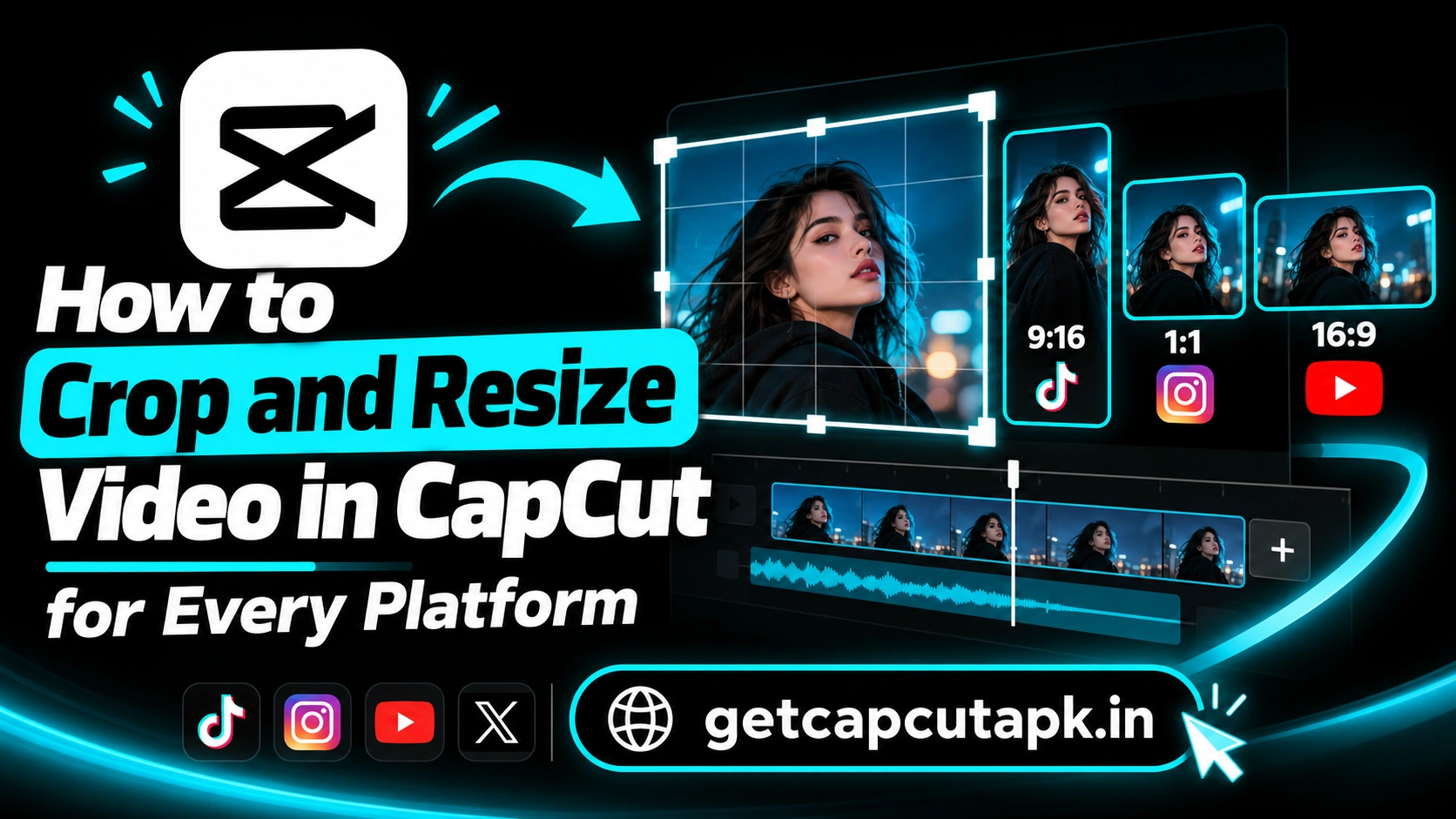
A video that looks perfect on YouTube can look awkward on TikTok. Different platforms need different shapes, and that is where cropping and resizing come in. This guide shows you how to crop video in CapCut and resize it for every platform.
You will learn the difference between cropping and resizing, how to change the ratio and how to use the crop tool. We also cover canvas backgrounds, Auto Reframe, platform sizes and common mistakes. The team at getcapcutapk.in/ resizes videos for different platforms every week.
Once you understand these tools, you can turn one video into many versions in minutes. This saves time and helps your content look native on each app. For an overview of the app, visit our CapCut Pro APK home page.
Cropping vs Resizing
Many users mix up cropping and resizing. They are related but do different jobs. Knowing the difference helps you pick the right tool.
| Action | What It Does | CapCut Tool |
|---|---|---|
| Crop | Cuts away parts of the image | Crop |
| Resize the frame | Changes the shape of the whole video | Ratio |
| Scale a clip | Zooms a clip in or out inside the frame | Pinch or Scale |
| Fill empty space | Adds color or blur around a clip | Canvas |
Most projects use more than one of these tools. For example, you might change the ratio to 9:16, then crop and scale each clip to fit. Then you add a blurred canvas behind any clip that does not fill the frame.
Common Video Sizes for Each Platform
Each platform has its own preferred shape. Using the right one makes your video fill the screen. Here are the most common sizes.
| Platform | Ratio | Resolution |
|---|---|---|
| TikTok | 9:16 | 1080 by 1920 |
| Instagram Reels | 9:16 | 1080 by 1920 |
| YouTube Shorts | 9:16 | 1080 by 1920 |
| YouTube videos | 16:9 | 1920 by 1080 |
| Instagram feed | 4:5 or 1:1 | 1080 by 1350 or 1080 by 1080 |
| Facebook feed | 4:5 or 1:1 | 1080 by 1350 or 1080 by 1080 |
| WhatsApp status | 9:16 | 1080 by 1920 |
For a full guide to sizes, read our post on CapCut video size. It explains each platform in detail. It also covers safe areas for text.
How to Change the Video Ratio
The Ratio tool changes the shape of your whole project. Set it before you add text and stickers. Here is how.
- Open your project in CapCut.
- Tap an empty area of the timeline so no clip is selected.
- Tap Ratio in the bottom toolbar.
- Choose a ratio, such as 9:16, 16:9, 1:1 or 4:5.
- Check the preview to see the new shape.
Your clips will now sit inside the new frame. Some clips may not fill the frame, leaving black space. You can fix this with scaling or a canvas background.
How to Crop a Video Clip
The Crop tool cuts away the edges of a clip. Use it to remove distractions or focus on your subject. Follow these steps.
- Select a clip on the timeline.
- Tap Edit, then Crop.
- Choose a crop shape, such as Free, 9:16 or 1:1.
- Drag the corners to choose the area you want to keep.
- Move the clip inside the crop box to frame the subject.
- Tap the check mark to apply.
Cropping zooms into the clip, which can lower sharpness. Avoid cropping too much on low resolution clips. Clips filmed in 4K handle heavy cropping much better.
How to Scale and Position a Clip
Sometimes you just need to zoom a clip so it fills the frame. You can do this with simple gestures. Here is how.
- Select the clip on the timeline.
- Pinch outward on the preview to zoom in.
- Drag the clip to move it.
- Use two fingers to rotate if needed.
This method is quick and works for most clips. Keep important details, like faces, in the center. Check the edges so nothing important is cut off.
How to Use Canvas Backgrounds
When a clip does not fill the frame, CapCut can fill the empty space with a canvas. This looks much better than black bars. You can choose color, blur or an image.
- Select your clip.
- Tap Canvas in the bottom toolbar.
- Choose Color, Blur or Image.
- Pick the style you like.
- Tap Apply to all to use it on every clip.
Blur is the most popular choice for turning landscape videos into vertical ones. It fills the space with a soft, blurred copy of the same clip. This keeps the full image visible while filling the screen.
How to Use Auto Reframe
Auto Reframe is an AI tool that resizes your video and keeps the subject in view. It is great for turning wide videos into vertical ones. The AI tracks faces and motion for you.
- Select your clip or open the ratio options.
- Look for Auto Reframe.
- Choose your new ratio.
- Let CapCut process the clip.
- Check the result and fix any shots that drift.
Auto Reframe saves a lot of time on long videos. It works best with one clear subject. Busy scenes with many people may need manual fixes.
How to Turn a YouTube Video Into Shorts
Many creators repurpose long videos as Shorts, Reels and TikToks. CapCut makes this simple. Here is a quick workflow.
- Import your 16:9 video into a new project.
- Change the ratio to 9:16.
- Use Auto Reframe or scale the clip to fill the frame.
- Cut the best 30 to 60 seconds.
- Add Auto Captions in the center of the frame.
- Export at 1080 by 1920.
Pick moments that make sense on their own without the full video. A strong hook in the first second is important. Read our guide on how to make YouTube Shorts in CapCut for more tips.
How to Crop and Resize on CapCut PC
The desktop app gives you precise control over cropping and resizing. You can type exact values for scale and position. This is useful for clean, consistent framing.
Use the Ratio menu under the player to change the shape. Select a clip and use the Crop tool or the scale and position values in the properties panel. For more desktop tips, read our guide on how to use CapCut on PC.
How to Make One Video in Three Sizes
Many creators post the same video on several platforms. Making three versions from one edit saves a lot of time. Here is a simple method.
- Finish your main edit in 16:9 for YouTube.
- Duplicate the project from the drafts list.
- Change the copy to 9:16 and reframe each clip.
- Duplicate again and change it to 4:5 for feeds.
- Move text and captions into the safe areas for each version.
- Export each project with its own name.
Duplicating keeps your edits, music and effects in every version. You only need to fix framing and text. This workflow turns one video into content for a whole week.
How to Crop Photos in CapCut
Photos in your video may also need cropping. A photo that is too wide or tall can leave empty space. The same tools work for photos.
Select the photo on the timeline and use Crop or pinch to scale it. For tall photos in a wide video, a blur canvas fills the sides nicely. Add a slow keyframe zoom so the photo feels alive.
Cropping for Close-Up Effects
Cropping is not only for fixing frames. You can also use it to create close-ups from wide shots. This adds variety without filming again.
Duplicate a clip, then crop the copy tightly on a face or detail. Cut between the wide shot and the close-up on the beat. This trick makes a single camera angle look like two cameras.
Safe Areas for Text
Social apps place buttons, captions and usernames over your video. Text near the edges can get covered. Keeping text in safe areas makes it readable.
| Platform | Avoid Placing Text |
|---|---|
| TikTok | Bottom fifth and right side |
| Instagram Reels | Bottom fifth and right side |
| YouTube Shorts | Bottom area and right side |
| YouTube videos | Bottom right corner on some players |
The center of the frame is usually the safest place for text. Place captions a little above the bottom third. Preview your video in the app before you post if you can.
Best Ratio by Content Type
Sometimes the platform allows more than one shape. Picking the right one for your content helps it stand out. Here is a quick guide.
| Content | Best Ratio |
|---|---|
| Talking head | 9:16 or 4:5 |
| Landscape travel | 16:9 or 9:16 with blur canvas |
| Product showcase | 1:1 or 4:5 |
| Tutorial on screen | 16:9 |
Common Cropping Mistakes
A few common mistakes can make cropped videos look poor. Avoiding them keeps your content sharp and clear. Here are the main ones.
- Cropping too much on low resolution clips
- Cutting off heads or important details
- Leaving black bars instead of using a canvas
- Changing ratio after adding text and stickers
- Forgetting safe areas for captions
Common Problems and Fixes
A few problems can come up when you crop or resize. Most are easy to fix. The table below lists them.
| Problem | Fix |
|---|---|
| Black bars on video | Scale the clip or add a blur canvas |
| Video looks blurry after crop | Crop less or use higher resolution footage |
| Text moved after ratio change | Set ratio first, then add text |
| Subject cut off | Reposition the clip or use Auto Reframe |
| Ratio option missing | Deselect all clips and look again |
Tips From Our Editors
The team at getcapcutapk.in/ resizes videos for many platforms. These tips save the most time. Try them on your next project.
- Choose the ratio first before any other edits
- Film in 4K if you plan to crop heavily
- Use a blur canvas for landscape clips in vertical videos
- Keep faces centered for easy reframing
- Make a separate project for each platform version
- Save a draft copy before big ratio changes
Key Takeaways
Here are the most important points from this guide on cropping and resizing. Keep them in mind for your next project. They cover the steps that make the biggest difference.
- Use Ratio to change the frame shape for each platform
- Use Crop and scaling to frame your subject
- Fill empty space with a blur canvas
- Keep text inside safe areas
Conclusion
Cropping and resizing in CapCut help your videos look right on every platform. Use the Ratio tool to set the shape, then crop and scale clips to fit. Fill empty space with a blur canvas and use Auto Reframe for long videos.
Set the ratio before you add text, and keep text in safe areas. Film in high resolution if you plan to crop a lot. With these steps, one video can become many platform-ready versions.
For more feature guides and editing tips, keep visiting getcapcutapk.in/. Also explore our full list of CapCut features to learn more tools. Happy editing.
Frequently Asked Questions
Select the clip, tap Edit and then Crop. Drag the corners to choose the area you want. Tap the check mark to apply.
Deselect all clips and tap Ratio. Choose 9:16 for TikTok, Reels and Shorts. Then scale your clips to fill the frame.
Scale the clip so it fills the frame, or add a canvas background. Blur canvas is the most popular choice. Tap Apply to all for every clip.
Cropping zooms into the clip, which can reduce sharpness. Low resolution clips lose more quality. Film in 4K if you plan to crop.
Auto Reframe is an AI tool that resizes video and keeps the subject in view. It is useful for turning wide videos into vertical ones. Check the result for any drifting shots.