How to Make YouTube Shorts in CapCut Step by Step for Free
YouTube Shorts are one of the fastest ways to grow a channel today. They are short, vertical and easy for new viewers to find. This guide shows you how to make YouTube Shorts in CapCut step by step for free.
You will learn how to set up a vertical project, write a strong hook, edit for pace and add captions and music. We also cover the best length, export settings, upload tips and how to turn long videos into Shorts. The team at getcapcutapk.in/ makes Shorts every week using these steps.
You do not need expensive gear or paid software to make great Shorts. A phone, CapCut and a clear idea are enough. For an overview of the app, visit our CapCut Pro APK home page.
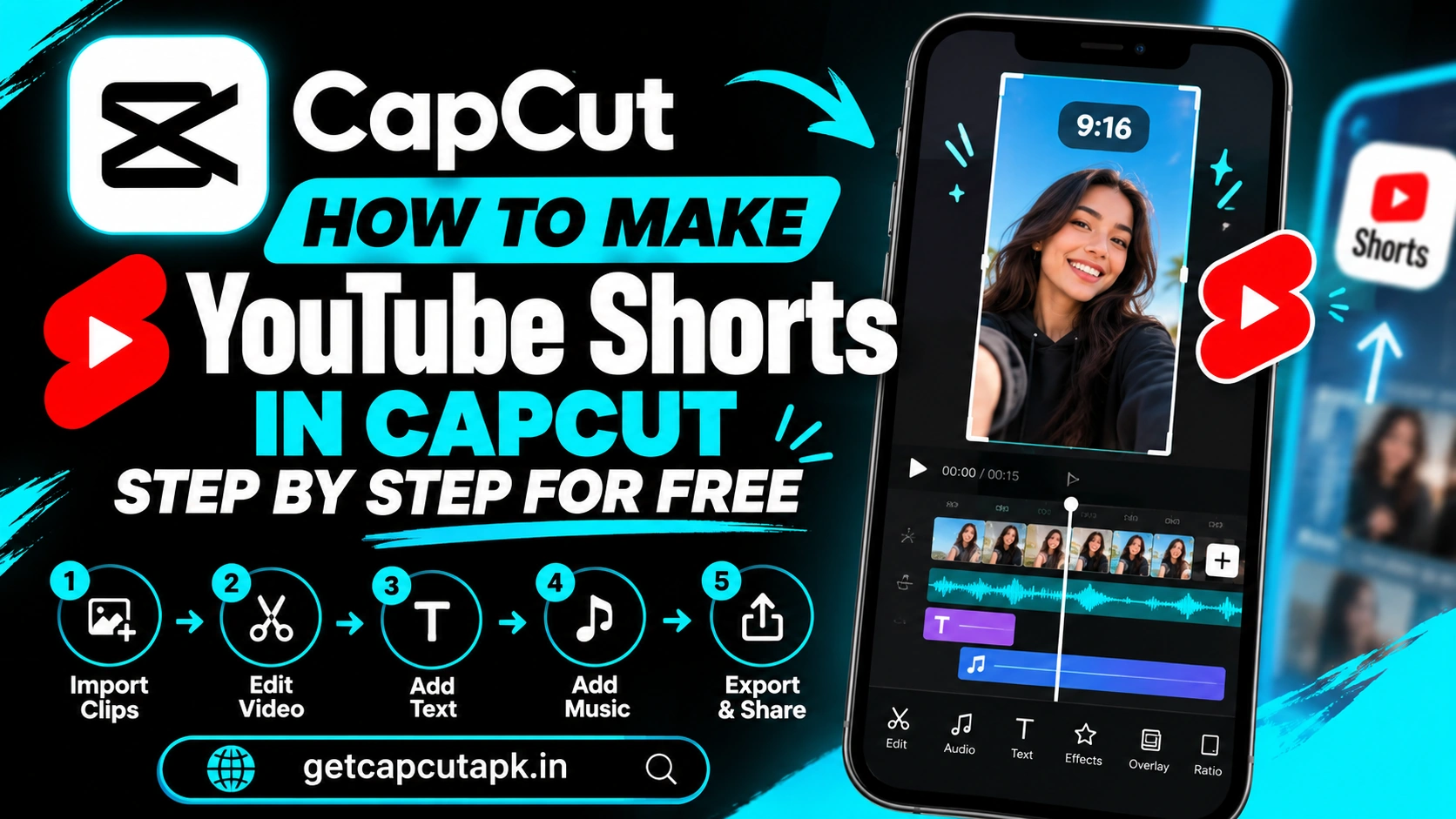
What Are YouTube Shorts?
YouTube Shorts are short vertical videos shown in a special feed on YouTube. Viewers swipe from one Short to the next, much like TikTok and Reels. Shorts can help new viewers discover your channel quickly.
Shorts are usually under one minute, though YouTube has allowed longer Shorts in recent years. Check the current length limit in YouTube’s help pages. Short and punchy videos still perform best.
Shorts work for almost every niche, from cooking and gaming to education and comedy. They are also a great way to promote your longer videos. Many channels grow mainly through Shorts.
Best Settings for YouTube Shorts
Using the right settings makes your Short fill the screen and look sharp. These are the most important ones. Set them before you start editing.
| Setting | Recommended Choice |
|---|---|
| Ratio | 9:16 vertical |
| Resolution | 1080 by 1920 |
| Frame rate | 30 or 60 fps |
| Length | 15 to 60 seconds for most content |
| Format | MP4 |
Vertical video is essential for Shorts. Horizontal videos may show with black bars or not appear in the Shorts feed. Always set 9:16 before you add text.
Step 1 Plan Your Short
Great Shorts start with a clear idea. Viewers decide in a second or two whether to keep watching. Planning helps you make every second count.
Pick One Idea
Each Short should focus on one idea, tip or moment. Trying to cover too much makes it confusing. Keep it simple and clear.
Write a Hook
Your hook is the first line or moment of the video. It should grab attention right away. Questions, bold claims and surprising visuals all work well.
Plan the Ending
Think about how the Short ends. A strong ending, a loop or a call to action keeps viewers engaged. Some creators make the end flow back to the start for a seamless loop.
Step 2 Set Up a Vertical Project
Now open CapCut and set up your project. The ratio decides the shape of your video. Here is how.
- Open CapCut and tap New project.
- Select your clips and tap Add.
- Tap an empty area to deselect clips.
- Tap Ratio and choose 9:16.
- Scale each clip so it fills the frame.
If a clip was filmed horizontally, use a blur canvas or Auto Reframe. This keeps the subject in view. Read our guide on how to crop and resize video in CapCut for full steps.
Step 3 Edit for Fast Pace
Shorts need a fast pace to hold attention. Remove anything slow or boring. Here are editing tips.
- Trim the start so the action begins right away.
- Cut pauses and filler words.
- Keep each shot short, often two to four seconds.
- Use jump cuts to keep speech moving.
- Add a quick zoom on key moments.
A fast pace does not mean rushing your message. It means removing anything that does not add value. Every second should help tell your story.
Step 4 Add Captions
Many people watch Shorts with the sound off. Captions help them follow along. They also keep eyes on the screen longer.
- Tap Text, then Auto captions.
- Choose the spoken language.
- Tap Generate.
- Review and fix any mistakes.
- Pick a bold caption style.
- Place captions in the center of the frame.
Keep captions away from the bottom and right edges, where YouTube places buttons. Highlight one key word per line for emphasis. Read our guide on how to add auto captions in CapCut for more tips.
Step 5 Add Music and Sound
Music adds energy and emotion to your Short. Sound effects make cuts feel exciting. Here is how to add them.
- Tap Audio, then Sounds or Sound effects.
- Choose a track that fits the mood.
- Lower the music under any speech.
- Add whooshes or pops on key cuts.
- Add a fade at the end.
Use music you have the right to use on YouTube. Some music may cause claims or be muted. You can also add music from YouTube’s own library when uploading.
Step 6 Add Text and Effects
Text and effects highlight important points. Use them to guide the viewer’s eye. Keep them simple and readable.
- Add a title in the first second to explain the topic
- Use arrows or circles to point at details
- Add zoom effects on key moments
- Use transitions sparingly
- Keep fonts bold and easy to read
Too many effects can distract from your message. Use them where they add clarity or energy. Clean, simple edits often perform best.
Step 7 Export Your Short
When your Short is ready, export it with the right settings. This keeps it sharp after upload. Here is how.
- Tap Export in the top right corner.
- Choose 1080p resolution.
- Choose 30 fps or 60 fps.
- Tap Export and wait for it to finish.
- Save the video to your device.
Some versions let you share straight to YouTube from the export screen. You can also upload from the YouTube app. Either way works well.
How to Upload Your Short to YouTube
Uploading a Short is quick in the YouTube app. A few details help it perform better. Follow these steps.
- Open the YouTube app and tap the plus button.
- Choose Upload a video or Create a Short.
- Select your exported video.
- Write a short, clear title.
- Add a description with relevant keywords.
- Add #Shorts if you like.
- Choose visibility and tap Upload.
Write titles that tell viewers what they will get. Use simple keywords people might search for. Respond to comments after posting to boost engagement.
How to Turn Long Videos Into Shorts
If you already make long YouTube videos, you can repurpose them as Shorts. This saves time and brings viewers to your main videos. Here is how.
- Import your long video into CapCut.
- Find a moment that works on its own.
- Cut a 30 to 60 second section.
- Change the ratio to 9:16 and reframe.
- Add captions and a quick title.
- Export and upload as a Short.
Pick moments with a clear point, joke or tip. Add a line like full video on my channel at the end. This helps viewers find your longer content.
Best Shorts Ideas for Beginners
Not sure what to make? These ideas work well for new channels. Try one that fits your niche.
| Idea | Example |
|---|---|
| Quick tip | One CapCut trick in 30 seconds |
| Before and after | A room makeover or photo edit |
| Behind the scenes | How you make your content |
| Top three list | Three tools you use daily |
| Reaction | Your response to a trend |
| Mini tutorial | One simple step by step task |
Post consistently to build momentum. Many channels post several Shorts a week. Track which ideas get the most views and make more like them.
How to Write Hooks That Work
The hook is the most important part of any Short. If the first second does not grab attention, viewers swipe away. Here are hook styles that work well.
| Hook Style | Example |
|---|---|
| Question | Did you know CapCut can do this |
| Bold result | I edited this in two minutes |
| Warning | Stop making this editing mistake |
| Curiosity | Watch what happens at the end |
| Number | Three tricks every beginner needs |
Say the hook out loud and show it as text at the same time. This works for viewers with and without sound. Start with action on screen, not a slow intro.
How to Make a Short That Loops
Looping Shorts can get more watch time, since viewers often watch them again. A smooth loop makes the end flow back to the start. Here is how to plan one.
- End your Short on a shot that matches the first shot.
- Make the last line lead into the first line.
- Avoid an obvious ending like a long fade out.
- Keep music running to the very last frame.
Watch your Short a few times to check the loop. If viewers cannot tell where it starts, it is working. This simple trick can boost your results.
Shorts Templates for Fast Creation
CapCut templates can speed up your Shorts. Many templates are already vertical and beat-synced. You just add your clips.
Search for a trend in the Templates tab and pick one that fits your niche. Replace the sample media and edit the text. Read our guide on how to use CapCut templates for step by step help.
Tips to Grow With Shorts
Good editing is only part of growing with Shorts. Strategy and consistency matter too. The team at getcapcutapk.in/ recommends these tips.
- Hook viewers in the first second
- Keep Shorts short and focused
- Use captions on every Short
- Post on a regular schedule
- Make Shorts that loop smoothly
- Link Shorts to your long videos
- Study your analytics to learn what works
Common Problems and Fixes
A few problems can come up when making Shorts. Most are easy to fix. The table below lists them.
| Problem | Fix |
|---|---|
| Short shows with black bars | Set ratio to 9:16 and fill the frame |
| Short not in Shorts feed | Check vertical format and length |
| Music claimed or muted | Use cleared music or YouTube’s library |
| Blurry after upload | Export at 1080p and upload over Wi-Fi |
| Captions covered by buttons | Move captions to the center |
Shorts Posting Schedule
Consistency helps Shorts grow a channel. A simple schedule keeps you on track without burning out. Here is a starter plan.
Post two or three Shorts a week at first. Batch film and edit them on one day. Then schedule uploads across the week.
Key Takeaways
Here are the most important points from this guide on YouTube Shorts. Keep them in mind for your next upload. They cover the steps that make the biggest difference.
- Use 9:16 at 1080 by 1920
- Hook viewers in the first second
- Add captions in the center of the frame
- Post consistently and learn from analytics
Conclusion
Making YouTube Shorts in CapCut is simple and free. Set your project to 9:16, plan a strong hook and edit with a fast pace. Add captions, music and simple effects, then export at 1080p.
Upload with a clear title and description, and post on a regular schedule. Turn your long videos into Shorts to reach new viewers. With practice, Shorts can become your biggest growth tool.
For more guides and editing tips, keep visiting getcapcutapk.in/. Also read our guide on CapCut video size for every platform. Happy creating.
Frequently Asked Questions
Use a 9:16 ratio at 1080 by 1920 pixels. This fills the phone screen. Set the ratio before you add text.
Shorts are often under one minute, but YouTube has allowed longer Shorts. Check YouTube’s current limits. Short, punchy videos usually perform best.
Yes, the main tools for Shorts are free in CapCut. Some premium effects and templates need Pro. You can make great Shorts without paying.
It is optional, since YouTube detects vertical short videos. Some creators still add it. Focus more on a clear title and strong content.
Cut a strong 30 to 60 second section in CapCut. Change the ratio to 9:16 and reframe. Add captions and upload it as a Short.