How to Use Teleprompter in CapCut for Smooth Talking Videos
Talking to a camera is hard when you have to remember every word. Many creators lose their place, repeat lines or fill gaps with um and uh. The teleprompter in CapCut helps you read your script while you record, so your delivery stays smooth.
This guide explains where to find the teleprompter, how to set it up and how to record a natural-looking video. We also cover script writing, scroll speed, eye contact, camera position and common problems. The team at getcapcutapk.in/ uses a teleprompter for tutorials, product videos and announcements.
Teleprompter features may appear on mobile, desktop or the web depending on your version. Names can vary, such as Teleprompter or Prompter. For an overview of the app, visit our CapCut Pro APK home page.
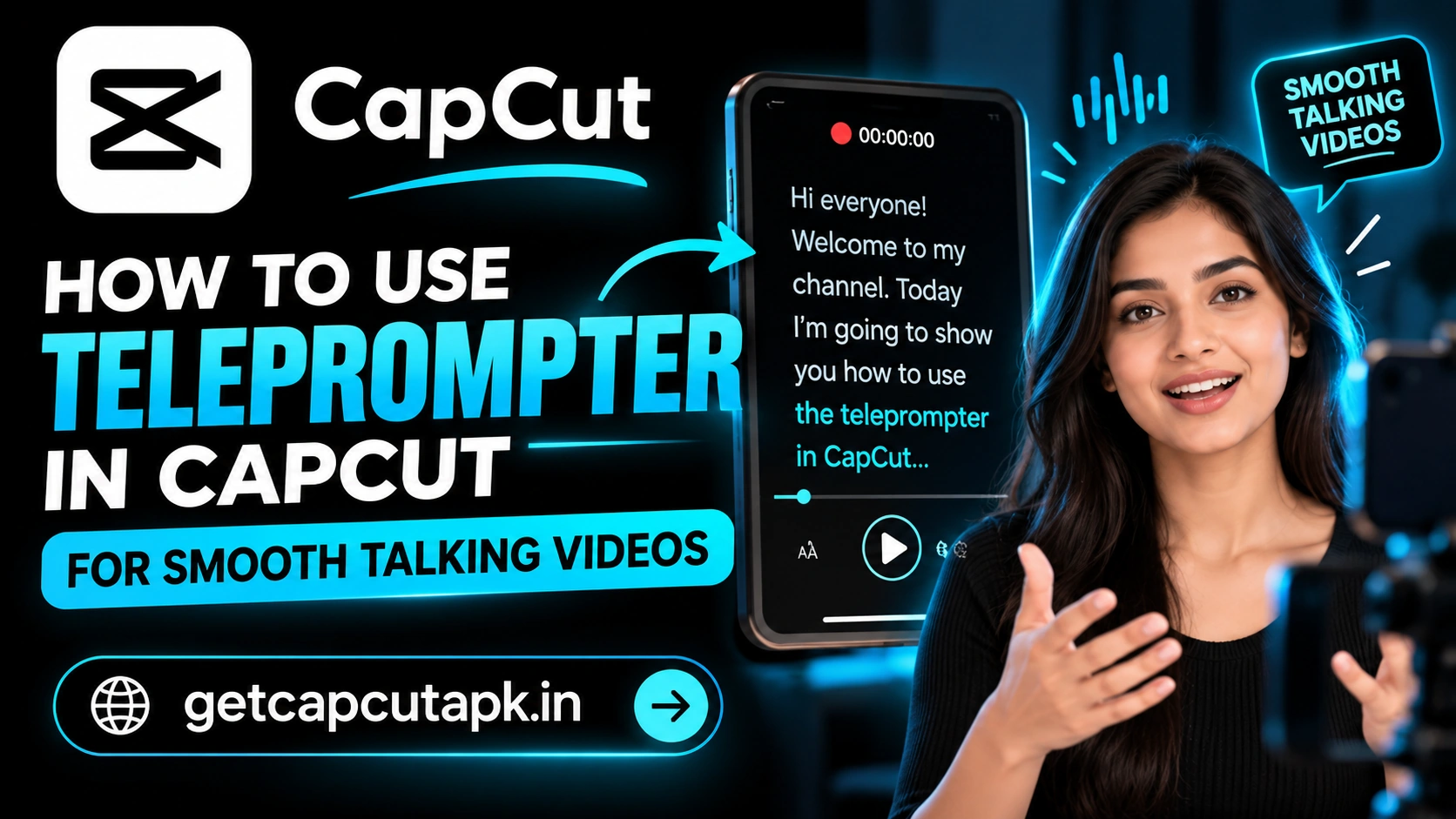
What Is a Teleprompter?
A teleprompter shows your script on screen while you record. The text scrolls at a set speed, so you can read it naturally. This helps you speak smoothly without memorizing.
Professional teleprompters use special glass in front of the camera lens. Phone and computer teleprompters show text near the camera instead. This keeps your eyes close to the lens.
CapCut’s teleprompter is built into the recording flow. You write or paste your script, set the speed and start recording. The text scrolls while the camera films you.
Why Use a Teleprompter?
A teleprompter can make your videos much easier to film. It saves time and reduces stress. Here are the main benefits.
- Fewer mistakes and retakes
- Smoother delivery with fewer filler words
- Faster recording for long scripts
- Consistent messaging for business videos
- Less stress for camera-shy creators
- Easier editing with cleaner takes
Teleprompters are great for tutorials, explainers, ads and announcements. They are less needed for casual vlogs. Use them when exact wording matters.
Where to Find the Teleprompter in CapCut
The teleprompter is usually part of the camera or recording tools. Its location depends on your version. Here are common places to look.
On Mobile
- Open CapCut.
- Look for the Camera or Record option on the home screen.
- Look for a Teleprompter icon in the camera tools.
On Desktop
- Open CapCut on your computer.
- Look for Record or camera options.
- Check for a Teleprompter setting in the recording panel.
If you cannot find it, update CapCut. Some features roll out by region. You can also check CapCut’s web tools for prompter options.
How to Set Up the Teleprompter
Setting up the teleprompter takes only a few minutes. Have your script ready before you start. Follow these steps.
- Open the Teleprompter tool.
- Paste or type your script.
- Set the font size so it is easy to read.
- Set the scroll speed.
- Position the text near the camera.
- Do a quick practice run.
Choose a large font size so you can read from a comfortable distance. Too-small text makes you squint or lean forward. Test it before the real recording.
How to Record With the Teleprompter
Once the teleprompter is set up, recording is simple. Find a quiet place with good light. Then follow these steps.
- Place your phone or webcam at eye level.
- Start the recording with the teleprompter on.
- Read the script at a natural pace.
- Pause the scroll if you need a break, if your version allows it.
- Stop recording when you finish.
- Review the take and record again if needed.
Take a breath between paragraphs. Natural pauses make you sound more relaxed. You can cut long pauses later in editing.
How to Write a Teleprompter Script
Scripts for a teleprompter should sound like natural speech. Writing for reading aloud is different from writing an article. Here are tips.
| Tip | Why It Helps |
|---|---|
| Short sentences | Easier to read in one breath |
| Simple words | Fewer stumbles |
| One idea per paragraph | Natural pause points |
| Write how you talk | Sounds less robotic |
| Mark pauses with line breaks | Helps pacing |
Read the script out loud before recording. Change any line that feels awkward to say. A natural script makes a natural video.
How to Choose the Right Scroll Speed
Scroll speed is one of the most important settings. Too fast makes you rush, and too slow makes you wait. Find a speed that matches your natural pace.
Start at a medium speed and do a test read. If you catch up to the bottom, slow it down. If the text runs away from you, slow it down more.
Most people speak around 130 to 160 words per minute. Set your speed to match a calm, steady pace. Adjust it for each script.
How to Keep Eye Contact
The biggest teleprompter challenge is looking natural. If your eyes move too much while reading, viewers notice. A few tricks help.
Place Text Near the Lens
Position the text as close to the camera lens as possible. This keeps your eyes looking almost straight at the viewer. Small eye movements are less noticeable.
Sit Farther Back
Sitting a little farther from the camera makes eye movements less visible. Use a larger font so you can still read. This simple change helps a lot.
Narrow the Text Column
A narrow column of text means your eyes move less side to side. Increase font size to make lines shorter. Your reading will look more natural.
Camera Position and Lighting
Good setup makes teleprompter videos look professional. Camera height and light matter most. Here is a simple guide.
| Setting | Recommendation |
|---|---|
| Camera height | At eye level |
| Distance | Arm’s length or a little farther |
| Light | Soft light in front of you |
| Background | Clean and simple |
| Audio | Quiet room, mic close to you |
Use a phone tripod or stand to keep the camera steady. A shaky camera distracts from your message. Good audio matters as much as good video.
Editing Teleprompter Videos
Teleprompter takes usually need less editing, but a few touches help. Clean up pauses and add captions. Here is a quick workflow.
- Trim the start and end.
- Remove long pauses and mistakes.
- Add Auto Captions.
- Add B-roll to cover cuts.
- Add light background music.
- Export at 1080p.
Read our guide on how to remove filler words in CapCut for cleanup tips. It explains automatic pause removal. This can make your final video tighter.
Teleprompter for Different Video Types
Different videos need different teleprompter styles. Some need a full script, while others work better with notes. Here is a simple guide.
| Video Type | Best Approach |
|---|---|
| Product ads | Full script for exact wording |
| Tutorials | Full script or detailed bullet points |
| Announcements | Full script |
| Vlogs | Short bullet notes |
| Interviews | Question list only |
| YouTube Shorts | Short punchy script |
Choose the style that fits your content and comfort. Full scripts give control, while notes give freedom. Many creators mix both in one video.
How to Practice for a Natural Delivery
Practice makes teleprompter reading feel natural. A few minutes of rehearsal improves your recording a lot. Try these steps.
Read Out Loud Twice
Read the full script out loud twice before recording. This helps you learn the flow. You will stumble less on camera.
Mark Emphasis
Bold or capitalize words you want to stress. This adds energy to your voice. Viewers stay more engaged.
Smile and Relax
Relax your shoulders and smile before you start. A relaxed face looks friendly on camera. It also makes your voice sound warmer.
Recording Long Scripts in Sections
Long scripts can feel tiring to read in one take. Breaking them into sections makes recording easier. It also makes editing faster.
Split your script into short parts of one or two paragraphs. Record each part as a separate take. Join them in CapCut with cuts or B-roll.
The team at getcapcutapk.in/ records long tutorials this way. Mistakes only affect one short section. You can redo that part without starting over.
Using a Second Device as a Prompter
If your phone is filming, it can be hard to read the screen. A second device can act as a separate prompter. Place it right behind or below the camera.
Use a tablet or another phone with a teleprompter app. Set the font large and the speed steady. Keep the device as close to the lens as you can.
Teleprompter Alternatives
If your version does not include a teleprompter, you have other options. These keep the benefits of reading a script. Here are a few.
- Use a separate teleprompter app on the same device or another device
- Place a tablet with your script behind the camera
- Use bullet notes instead of a full script
- Record in short sections and join them
Bullet notes can sound more natural than full scripts. You speak freely while staying on track. Many creators prefer this approach for casual videos.
Common Problems and Fixes
A few problems can come up when using a teleprompter. Most have simple fixes. The table below lists them.
| Problem | Fix |
|---|---|
| Teleprompter not found | Update CapCut and check the camera tools |
| Text scrolls too fast | Lower the scroll speed |
| Eyes look like they are reading | Sit farther back and narrow the text |
| Hard to read text | Increase font size |
| Robotic delivery | Rewrite the script in a natural voice |
Teleprompter Checklist
Use this checklist before you record. It helps you get a smooth take on the first try. Run through it quickly.
- Is the script short, clear and natural?
- Is the font size large enough?
- Is the scroll speed set for your pace?
- Is the camera at eye level with soft light?
- Did you do a practice run?
Teleprompter Tips for Shorts
Short videos need fast, punchy delivery. A teleprompter helps you hit every point without wasting seconds. Keep these tips in mind.
Write a hook as the very first line. Keep the whole script under 100 words for most Shorts. Read our guide on how to make YouTube Shorts in CapCut for hook ideas and editing tips.
Common Script Mistakes
A few script mistakes make teleprompter videos sound stiff. Avoid long sentences, formal words and big blocks of text. Write the way you speak to a friend.
Key Takeaways
Here are the most important points from this guide on the teleprompter. Keep them in mind for your next talking video. They cover the steps that make the biggest difference.
- Write short, natural sentences for reading aloud
- Set a scroll speed that matches your pace
- Place text near the lens and sit a little farther back
- Clean up pauses and add captions after recording
Conclusion
The teleprompter in CapCut helps you deliver smooth talking videos without memorizing your script. Paste your script, set the font size and scroll speed and start recording. Keep the camera at eye level and the text close to the lens.
Write short, natural sentences and practice before recording. Sit a little farther back to make eye movements less visible. Then clean up pauses, add captions and export.
For more desktop and recording guides, keep visiting getcapcutapk.in/. Also read our guide on how to record your screen in CapCut for tutorial videos. Happy recording.
Frequently Asked Questions
Many versions include a teleprompter in the camera or recording tools. Availability depends on your version and region. Update the app to check.
Open the teleprompter settings and adjust the scroll speed. Do a test read to find your pace. Slow it down if you feel rushed.
Place text near the lens and sit farther back. Use a larger font with shorter lines. Practice the script before recording.
Some desktop versions include teleprompter tools with recording. Check the recording panel in your app. You can also use a separate teleprompter app.
The teleprompter is often free where available. Some advanced recording tools may need Pro. Check the labels in your app.