How to Remove the CapCut Ending Watermark From Your Videos
You finish a great edit, export it and then notice a CapCut logo clip at the end. Many users see this short ending and wonder how to get rid of it. This guide shows you how to remove the CapCut ending watermark from your videos in a few easy steps.
You will learn how to delete the ending clip, how to turn it off for good and how to handle template exports. We also explain the difference between the ending clip and Pro labels, plus fixes for common problems. The team at getcapcutapk.in/ has tested each method on Android, iPhone and the desktop app.
All the methods in this guide use official CapCut settings. They are free, safe and take less than a minute. For an overview of the app, visit our CapCut Pro APK home page.
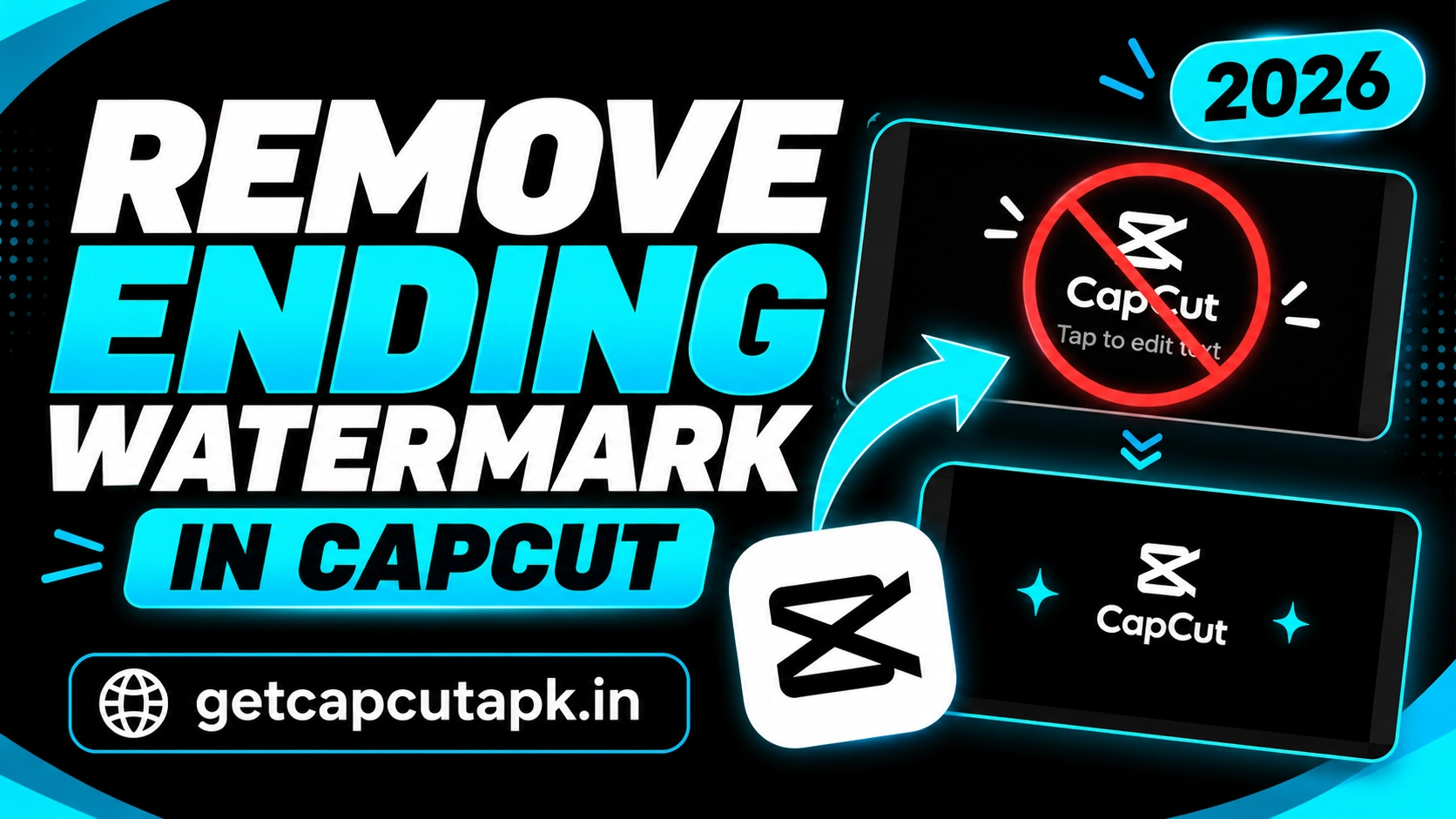
What Is the CapCut Ending Watermark?
The CapCut ending is a short clip that the app adds to the end of new projects. It shows the CapCut logo for a couple of seconds. It is a simple way for the app to share its brand.
This ending is not burned into your main video. It sits as a separate clip at the end of your timeline. That means you can delete it before you export.
You can also turn it off in the settings so it never appears again. Once it is off, every new project starts without the ending clip. This saves you a step on every video.
Why Remove the CapCut Ending?
The ending clip is harmless, but many creators prefer a clean finish. A logo at the end can feel off-brand or distracting. Here are common reasons to remove it:
- Cleaner look that ends on your own content
- Better flow for loops on TikTok and Reels
- Brand control for business and client videos
- Shorter videos without extra seconds
- Room for your own outro with a call to action
Removing it is fully allowed, since CapCut gives you the setting to turn it off. You do not need any outside tools or tricks. Everything happens inside the app.
Method 1 Delete the Ending Clip From the Timeline
The quickest way is to delete the ending clip before you export. This works on any project that already has it. Follow these steps on Android or iPhone.
- Open your project in CapCut.
- Scroll to the end of the timeline.
- Find the clip with the CapCut logo.
- Tap it to select it.
- Tap Delete in the bottom toolbar.
- Play the end of your video to check it.
The ending clip is now gone from this project. When you export, your video will end on your own content. Repeat these steps for any older projects that still have the ending.
Method 2 Turn Off the Default Ending for Good
If you do not want the ending in any future project, turn it off in the settings. This takes only a few seconds. Here is how.
- Open CapCut and go to the home screen.
- Tap the Settings gear icon in the top right corner.
- Find Add default ending.
- Turn the switch off.
- Go back to the home screen.
Now every new project will start without the ending clip. Older projects will still have it, so delete it by hand in those. This setting stays off until you turn it back on.
How to Remove the Ending on CapCut PC
The desktop app may also add an ending clip in some versions. You can delete it from the timeline just like on mobile. Here is how.
- Open your project on your computer.
- Scroll to the end of the timeline.
- Click the ending clip to select it.
- Press Delete on your keyboard.
- Check the Settings menu for a default ending option and turn it off.
The desktop version usually focuses on your own content without extra branding. If you do not see an ending clip, there is nothing to remove. For more desktop tips, read our guide on how to use CapCut on PC.
Ending Clip vs Pro Labels vs Template Logos
Users often mix up three different things: the ending clip, Pro labels and template logos. Each one works differently. The table below explains them.
| Type | What It Is | How to Handle It |
|---|---|---|
| Ending clip | A logo clip at the end of the timeline | Delete it or turn off Add default ending |
| Pro labels | Marks on premium effects, fonts or templates | Replace the item or use a Pro plan |
| Template logo | A small CapCut mark on some template exports | Use the export options shown in the app |
Knowing which one you see helps you pick the right fix. The ending clip is the easiest to remove. Pro labels need a different approach, explained below.
What If Your Video Uses Pro Items?
If your project uses Pro effects, fonts, filters or templates, the export screen may stop you. It will ask you to remove the Pro items or start a Pro plan. This is not the same as the ending watermark.
To export for free, find the Pro items in your project. They are marked with a small Pro or diamond label. Replace them with free versions that look similar.
If you use Pro items often, a Pro plan may be worth it. It unlocks premium effects, templates and AI tools. Read our post on CapCut Pro price for full details.
How to Export Template Videos Cleanly
Templates are a fast way to make trending videos. Some template exports may include a small CapCut mark. The export screen usually shows your options.
- Open a template and add your clips.
- Tap Export in the top right corner.
- Look at the export options shown.
- Choose the option that saves the video to your device.
- Check the final video before you post.
Export options for templates can change with updates and may differ by region. If you want full control over branding, build the video from scratch in a normal project. You can copy the style of a template with your own edits.
How to Add Your Own Outro Instead
Once the CapCut ending is gone, you can add your own outro. This is a great place for your logo, social handles or a call to action. It helps viewers remember your brand.
- Move the playhead to the end of your video.
- Add a short clip, photo or solid color background.
- Tap Text to add your name or a message like Follow for more.
- Add a sticker or your own logo as an overlay.
- Add a short sound effect or music sting.
Keep your outro short, around two to three seconds. Long outros can make viewers swipe away. A quick, clean ending works best on short-form platforms.
Outro Ideas for Different Creators
Your outro should fit your content and audience. Here are some simple ideas. Pick one and make it your own.
| Creator Type | Outro Idea |
|---|---|
| Vlogger | Wave goodbye with your channel name |
| Business | Logo, website and offer text |
| Gamer | Highlight clip with your gamer tag |
| Teacher | Summary line and next lesson title |
| Musician | Song title and streaming link text |
Save your outro as a draft so you can reuse it in every video. Copy it into new projects and change only the details. This keeps your branding consistent and saves time.
How to Remove the Ending From Many Old Projects
If you have many older drafts, each one may still have the ending clip. You need to remove it from each project one by one. A simple routine makes this quick.
- Open the oldest draft you plan to post.
- Jump to the end of the timeline.
- Delete the ending clip.
- Save and close the project.
- Repeat for the next draft.
You only need to do this for drafts you will actually export. Drafts you never post can stay as they are. Once the setting is off, new projects will never need this cleanup.
Does Removing the Ending Affect Video Quality?
No, removing the ending clip does not change the quality of your video. It only removes the extra seconds at the end. Your main clips, effects and audio stay the same.
The final file may even be a little smaller, since it is shorter. Your export resolution and frame rate do not change. Everything else in your project stays exactly as you set it.
If your video looks blurry after export, the cause is the export settings, not the ending. Check that you chose 1080p or higher on the export screen. Our guide on CapCut system requirements explains which settings your phone can handle.
Ending Removal on iPhone vs Android
The steps are almost the same on iPhone and Android. Both versions have the same timeline and settings menu. Only small design details may differ.
| Step | Android | iPhone |
|---|---|---|
| Open settings | Gear icon on the home screen | Gear icon on the home screen |
| Setting name | Add default ending | Add default ending |
| Delete ending clip | Tap clip, then Delete | Tap clip, then Delete |
If your menus look different, check that both apps are on the latest version. Layouts change from time to time with updates. The setting name usually stays close to the same wording.
Common Problems and Fixes
A few small issues can appear when you remove the ending. Most of them are easy to fix. The table below covers the common ones.
| Problem | Fix |
|---|---|
| Ending still appears in new projects | Turn off Add default ending in Settings |
| Cannot find the setting | Update CapCut to the latest version |
| Ending clip will not delete | Tap the clip itself, not the track, then tap Delete |
| Export blocked | Remove Pro items or use a Pro plan |
| Black frame at the end | Trim the last clip so no empty space remains |
If the settings menu looks different, the option may have moved after an update. Look for words like ending, outro or default. Our guide on how to update CapCut on Android helps you get the newest version.
Tips for a Clean Final Video
A clean ending is just one part of a polished video. These tips help your whole video look professional. The editors at getcapcutapk.in/ follow them on every export:
- Turn off the default ending once and forget about it
- Check the last second of every video before export
- Remove any empty space at the end of the timeline
- Replace Pro items if you use a free account
- Add a short custom outro with your brand
- Export at 1080p for social media
Conclusion
Removing the CapCut ending watermark is quick, free and fully supported by the app. Delete the ending clip from the timeline, or turn off Add default ending in the settings. Both methods take less than a minute.
Remember that the ending clip is different from Pro labels and template marks. Pro items need to be replaced or unlocked with a plan. Templates have their own export options inside the app.
Once the ending is gone, add your own short outro to build your brand. For more feature guides and editing tips, keep visiting getcapcutapk.in/. Also explore our full list of CapCut features for more tools.
Frequently Asked Questions
Scroll to the end of your timeline and tap the logo clip. Tap Delete to remove it. Your export will end on your own content.
Open Settings from the home screen and turn off Add default ending. New projects will no longer include it. Older projects need the clip deleted by hand.
Yes, CapCut gives you the option to remove it in the settings. It is a normal feature of the app. No outside tools are needed.
Your project likely uses a Pro effect, font or template. Find the items with a Pro label and replace them. Or start a Pro plan to unlock them.
The desktop version usually does not add an ending clip. If you see one, select it and delete it. Check the settings for a default ending option.