CapCut Video Size for TikTok Instagram and YouTube Guide
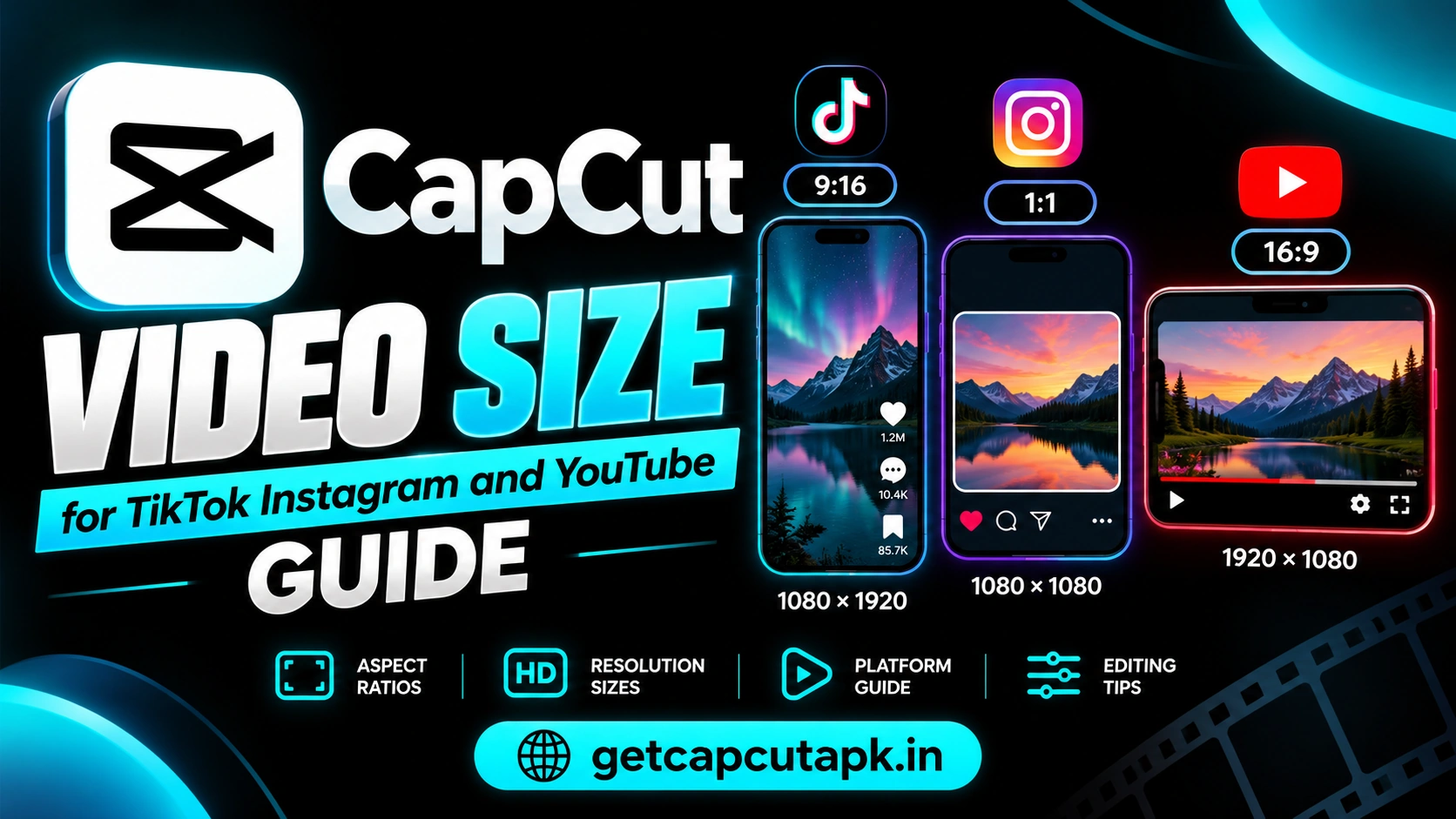
Using the wrong video size can leave black bars, cut off text or make your video look blurry. Each platform prefers its own shape and resolution. This guide explains the right CapCut video size for TikTok, Instagram, YouTube and more.
You will learn the best ratio and resolution for each platform and how to set them in CapCut. We also cover safe areas for text, export settings, how to resize one video for many platforms and quick fixes. The team at getcapcutapk.in/ exports videos for every major platform each week.
Platforms update their rules from time to time. Check each platform’s help pages for the latest limits. For an overview of the app, visit our CapCut Pro APK home page.
Understanding Ratio and Resolution
Two settings decide your video size. The ratio is the shape, and the resolution is the number of pixels. Both matter for a sharp, full-screen video.
| Term | Meaning | Example |
|---|---|---|
| Ratio | Shape of the frame | 9:16 is tall, 16:9 is wide |
| Resolution | Pixel size | 1080 by 1920 |
| Frame rate | Frames per second | 30 fps or 60 fps |
Choose the ratio first, then the resolution. CapCut sets the ratio in your project. You choose resolution and frame rate when you export.
Video Size Quick Reference
Here is a quick summary of the best sizes for each platform. Use it as a cheat sheet. Each platform is explained in more detail below.
| Platform | Ratio | Resolution |
|---|---|---|
| TikTok | 9:16 | 1080 by 1920 |
| Instagram Reels | 9:16 | 1080 by 1920 |
| Instagram feed | 4:5 or 1:1 | 1080 by 1350 or 1080 by 1080 |
| Instagram Stories | 9:16 | 1080 by 1920 |
| YouTube videos | 16:9 | 1920 by 1080 or 3840 by 2160 |
| YouTube Shorts | 9:16 | 1080 by 1920 |
| Facebook feed | 4:5 or 1:1 | 1080 by 1350 or 1080 by 1080 |
| Facebook Reels and Stories | 9:16 | 1080 by 1920 |
| WhatsApp status | 9:16 | 1080 by 1920 |
| X (Twitter) | 16:9 or 1:1 | 1920 by 1080 or 1080 by 1080 |
| 1:1 or 16:9 | 1080 by 1080 or 1920 by 1080 |
TikTok Video Size
TikTok is built for vertical video. A full-screen vertical video looks best in the feed. Use these settings.
- Ratio: 9:16
- Resolution: 1080 by 1920
- Frame rate: 30 or 60 fps
Keep text away from the bottom and right side, where TikTok places buttons and captions. Place important text near the center. Use bold captions for silent viewers.
Instagram Video Sizes
Instagram uses different sizes for Reels, the feed and Stories. Using the right one keeps your video looking native. Here is a guide.
| Format | Ratio | Resolution |
|---|---|---|
| Reels | 9:16 | 1080 by 1920 |
| Feed video | 4:5 | 1080 by 1350 |
| Square feed | 1:1 | 1080 by 1080 |
| Stories | 9:16 | 1080 by 1920 |
The 4:5 ratio takes up more space in the feed than square. It is a great choice for feed posts. Reels and Stories should always be vertical.
YouTube Video Sizes
YouTube supports both wide videos and vertical Shorts. Each has its own best size. Here is a guide.
Regular YouTube Videos
- Ratio: 16:9
- Resolution: 1920 by 1080 or 3840 by 2160 for 4K
- Frame rate: Match your footage, often 30 or 60 fps
YouTube Shorts
- Ratio: 9:16
- Resolution: 1080 by 1920
- Length: Short, with current limits shown in YouTube’s help pages
Upload regular videos in the highest quality you have. YouTube processes them for different screens. Read our guide on how to make YouTube Shorts in CapCut for Shorts tips.
Facebook Video Sizes
Facebook supports feed videos, Reels and Stories. Vertical and square formats work well on phones. Here is a quick guide.
Use 4:5 or 1:1 for feed posts. Use 9:16 for Reels and Stories. Export at 1080p for sharp results.
Other Platforms
Many other platforms also host video. Here are good defaults. Check each platform for current limits.
| Platform | Recommended Size |
|---|---|
| WhatsApp status | 9:16 at 1080 by 1920 |
| Snapchat | 9:16 at 1080 by 1920 |
| X (Twitter) | 16:9 or 1:1 |
| 1:1 or 16:9 | |
| Pinterest video | 2:3 or 9:16 |
How to Set Video Size in CapCut
CapCut makes it easy to set the right size. You set the ratio in your project and the resolution when you export. Here is how.
Set the Ratio
- Open your project.
- Tap an empty area so no clip is selected.
- Tap Ratio.
- Choose 9:16, 16:9, 1:1, 4:5 or another option.
Set the Resolution
- Tap the export settings near Export.
- Choose 1080p for most platforms.
- Choose 4K for YouTube if your footage supports it.
- Pick the frame rate.
- Tap Export.
Set the ratio before adding text and stickers. Changing it later can move or cut off your text. Read our guide on how to crop and resize video in CapCut for more tips.
Safe Areas for Text
Social apps place buttons, captions and usernames over your video. Text in these areas may be covered. Keeping text in safe areas keeps it readable.
| Platform | Avoid Placing Text |
|---|---|
| TikTok | Bottom area and right side |
| Instagram Reels | Bottom area and right side |
| YouTube Shorts | Bottom area and right side |
| Stories | Very top and very bottom |
The center of the frame is the safest place for important text. Captions often work well a little above the bottom third. Preview your video in each app if you can.
How to Resize One Video for Many Platforms
Many creators post the same video on several platforms. You can make platform versions from one edit. Here is a simple workflow.
- Finish your main edit.
- Duplicate the project in your drafts list.
- Change the copy’s ratio for the next platform.
- Reframe clips and move text into safe areas.
- Export each version with a clear name.
Use Auto Reframe to speed up resizing wide videos into vertical ones. Use a blur canvas to fill empty space. This lets one video work everywhere.
Best Export Settings
Export settings affect quality and file size. These defaults work well for most platforms. Adjust them if a platform has special rules.
| Setting | Recommended |
|---|---|
| Resolution | 1080p, or 4K for YouTube |
| Frame rate | 30 fps, or 60 fps for fast motion |
| Format | MP4 |
| Quality or bitrate | Recommended or high |
Upload over Wi-Fi and turn on high quality uploads in each app. This helps your video stay sharp after the platform compresses it. Read our guide on how to compress and convert video in CapCut if you need smaller files.
Best Frame Rate for Each Platform
Frame rate controls how smooth your video looks. Most platforms accept both 30 fps and 60 fps. The best choice depends on your content.
| Content Type | Best Frame Rate | Why |
|---|---|---|
| Talking videos | 30 fps | Natural look and smaller files |
| Gaming and sports | 60 fps | Smooth fast motion |
| Cinematic edits | 24 fps | Classic film feel |
| Slow motion clips | 60 fps or higher when filming | More frames to slow down |
Always match your export frame rate to your footage when you can. Exporting 30 fps footage at 60 fps does not make it smoother. It only makes the file bigger.
Thumbnail and Cover Sizes
A good cover image helps people click on your video. Each platform uses its own cover shape. Here are common sizes.
| Platform | Cover Size |
|---|---|
| YouTube thumbnail | 1280 by 720 at 16:9 |
| YouTube Shorts cover | Picked from a frame of the video |
| TikTok cover | 1080 by 1920 at 9:16 |
| Instagram Reels cover | 1080 by 1920, shown as 4:5 or 1:1 in the grid |
You can design covers in CapCut with text, stickers and a bright frame. Keep the main subject in the center so it shows in square and vertical crops. Use large text with only a few words.
Vertical or Horizontal Video?
Many creators wonder which shape to choose first. The answer depends on where most of your viewers watch. Here is a simple guide.
- Choose vertical 9:16 for TikTok, Reels, Shorts and Stories
- Choose horizontal 16:9 for long YouTube videos and websites
- Choose 4:5 for feed posts on Instagram and Facebook
- Choose 1:1 when you want one file for many feeds
If you film for both shapes, keep the subject near the center of the frame. This makes it easy to crop for vertical and horizontal versions. The team at getcapcutapk.in/ films this way for every multi-platform project.
Video Sizes for Ads
Paid ads often follow the same sizes as regular posts. Ad tools may also ask for several versions of one video. Plan your edit so it works in more than one shape.
Make a 9:16 version for Stories and Reels ads, a 4:5 version for feeds and a 16:9 version for in-stream ads. Keep your product and logo inside the center safe area. Add captions, since many ads play without sound.
Check each ad platform for its current file size and length limits. Ad rules change more often than normal post rules. Export a test file and preview it in the ad tool before you launch.
Common Problems and Fixes
A few problems come up often with video size. Most are easy to fix. The table below lists them.
| Problem | Fix |
|---|---|
| Black bars | Set the correct ratio and fill the frame |
| Text cut off | Set ratio first and keep text in safe areas |
| Blurry upload | Export at 1080p and upload over Wi-Fi |
| Video cropped by the app | Use the platform’s preferred ratio |
| File too large | Lower resolution or trim the video |
Video Size Checklist
Use this checklist before you export. It helps every video look right on its platform. It only takes a moment.
- Is the ratio correct for the platform?
- Is the resolution 1080p or higher?
- Is text inside the safe area?
- Does the video fill the frame without black bars?
- Is the file format MP4?
Check Your Video on a Real Phone
Your editor screen can hide small problems that show up on a real phone. After export, send the file to your phone and watch it full screen before you post. Look for cut off text, black bars and blurry areas, then fix them in CapCut and export again.
Key Takeaways
Here are the most important points from this guide on video sizes. Keep them in mind for every export. They cover the steps that make the biggest difference.
- Use 9:16 at 1080 by 1920 for TikTok, Reels, Shorts and Stories
- Use 16:9 for regular YouTube videos and 4:5 for feeds
- Set the ratio before adding text
- Keep text in safe areas and export as MP4
Conclusion
The right CapCut video size makes your content look native on every platform. Use 9:16 at 1080 by 1920 for TikTok, Reels, Shorts and Stories. Use 16:9 for regular YouTube videos and 4:5 or 1:1 for feed posts.
Set the ratio before adding text, keep text in safe areas and export at 1080p as MP4. Duplicate projects to make versions for each platform. Upload over Wi-Fi with high quality settings turned on.
For more export guides and editing tips, keep visiting getcapcutapk.in/. Check each platform's help pages for the latest limits. Happy creating.
Frequently Asked Questions
Use a 9:16 ratio at 1080 by 1920 pixels. This fills the phone screen. Keep text away from the bottom and right side.
Reels use 9:16 at 1080 by 1920. For feed posts, use 4:5 at 1080 by 1350. Stories also use 9:16.
Use 1920 by 1080 for HD or 3840 by 2160 for 4K. Use a 16:9 ratio. Shorts use 9:16 at 1080 by 1920.
Tap Ratio with no clip selected and choose a shape. Then set resolution in export settings. Set the ratio before adding text.
The video ratio does not match the platform or the clips do not fill the frame. Change the ratio and scale clips. Use a blur canvas if needed.