How to Add Auto Captions in CapCut for Free in Easy Steps
Most people scroll through social media with the sound off. If your video has no captions, many viewers will swipe away before they hear a word. This guide shows you how to add auto captions in CapCut for free in a few easy steps.
You will learn how to create captions on mobile and PC, how to edit mistakes and how to style the text. We also cover language options, caption templates and fixes for common problems. The team at getcapcutapk.in/ adds auto captions to almost every video we make.
Auto captions save hours of typing and make your videos easier to follow. They also help viewers who are deaf or hard of hearing. For an overview of the app, visit our CapCut Pro APK home page.
What Are Auto Captions in CapCut?
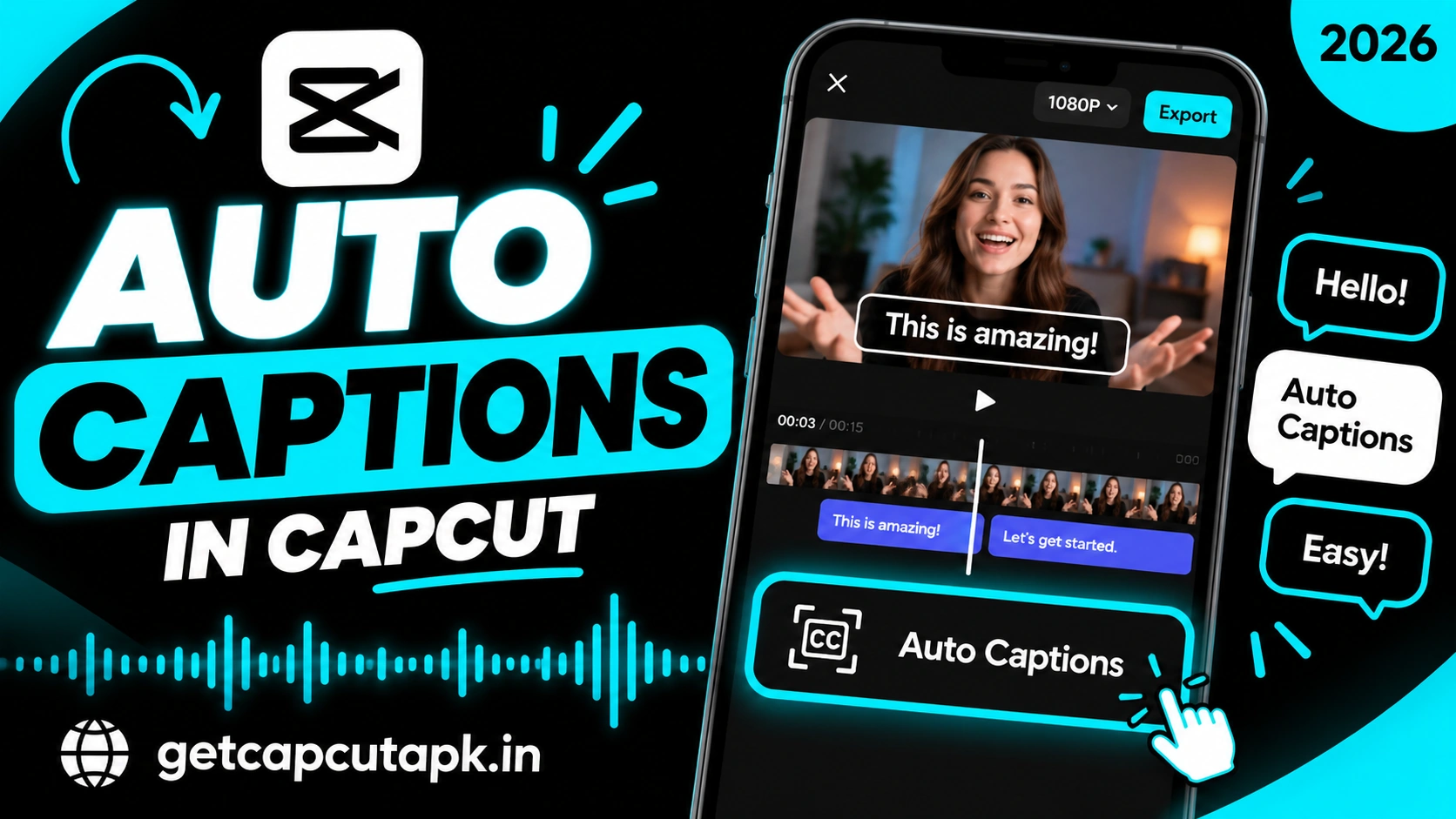
Auto Captions is a CapCut tool that listens to the speech in your video and turns it into text. It uses speech recognition to write each line and place it on the timeline. The captions match the timing of the words.
You can edit the text, change the style and move the captions anywhere on screen. Each caption appears as its own text block on the timeline. This makes it easy to fix small mistakes.
The tool works on videos with clear speech, like vlogs, tutorials, interviews and podcasts. It can also caption voiceovers you record in the app. Music lyrics work in some cases, but speech gives the best results.
Why Add Captions to Your Videos?
Captions do much more than show words on screen. They can boost how long people watch and how much they understand. Here are the main benefits:
- Sound-off viewers can follow your video
- Watch time often goes up when viewers can read along
- Accessibility improves for deaf and hard of hearing viewers
- Clarity improves for viewers who speak another language
- Key points stand out when you highlight words
- Search and discovery may improve on some platforms
Captions have become a standard part of short-form video. Most top creators on TikTok, Reels and Shorts use them. Adding them is one of the easiest ways to improve your content.
How to Add Auto Captions in CapCut on Mobile
The steps are the same on Android and iPhone. The Auto Captions tool lives inside the Text menu. Follow these steps:
- Open CapCut and create or open a project with speech.
- Tap Text in the bottom toolbar.
- Tap Auto captions.
- Choose the spoken language.
- Choose the source, such as Video or Voiceover.
- Tap Generate or Start.
- Wait a few seconds while CapCut writes the captions.
- Play the video to check the result.
The captions appear as text blocks on a new track. Each block matches one phrase or sentence. You can now edit, style and move them as you like.
How to Add Auto Captions in CapCut on PC
The desktop app gives you a larger view for checking and editing captions. This is great for long videos and tutorials. Here is how to do it.
- Open your project in CapCut on your computer.
- Click the Text tab at the top.
- Choose Auto captions from the left menu.
- Select the spoken language.
- Click Create or Generate.
- Wait for the captions to appear on the timeline.
- Click any caption to edit it in the properties panel.
On PC, you can also see a list of all captions in one panel. This makes it fast to read through and fix errors. For more desktop tips, read our guide on how to use CapCut on PC.
How to Edit Auto Captions
Speech recognition is good, but it is not perfect. Names, slang and technical words often need fixes. Always review your captions before you export.
Fix a Word
- Tap the caption on the timeline.
- Tap Edit or double tap the text.
- Change the wrong word.
- Tap the check mark.
Split or Merge Captions
Long captions are hard to read on small screens. Split them into shorter lines so each one fits easily. You can also merge very short captions to reduce flashing text.
Adjust Timing
Drag the edges of a caption block to change when it starts and ends. Make sure each caption stays on screen long enough to read. A good rule is to keep short lines on screen for at least one second.
How to Style Your Captions
Stylish captions look professional and match your brand. CapCut offers many text styles, fonts and animations. You can apply a style to all captions at once.
- Tap any caption on the timeline.
- Tap Style or Edit.
- Choose a font, color, stroke and shadow.
- Turn on Apply to all captions if the option appears.
- Tap Animation to add an in, out or loop motion.
Caption Style Tips
| Style Choice | Recommendation |
|---|---|
| Font | Bold, easy to read sans-serif |
| Color | White or yellow text |
| Outline | Black stroke for contrast |
| Size | Large enough to read on a phone |
| Position | Lower middle, away from app buttons |
| Lines | One or two short lines at a time |
Many creators use word-by-word highlight styles for an energetic look. CapCut offers caption templates with built-in highlights. Try a few and pick one that fits your video style.
How to Use Caption Templates
Caption templates are ready-made styles with fonts, colors and animations. They make your captions look trendy with one tap. Many popular TikTok caption styles come from these templates.
- Generate your auto captions first.
- Tap any caption on the timeline.
- Tap Templates or Caption styles.
- Browse the options and tap one to preview it.
- Apply it to all captions.
Some caption templates are free, while others may need a Pro plan. Pro templates show a small label. If you use one on a free account, you may need to switch styles before export.
How to Highlight Key Words in Captions
Highlighted words grab attention and help viewers remember your message. Many top creators color one or two key words in each line. CapCut makes this easy.
- Tap the caption that holds the key word.
- Tap Edit and select the word.
- Change its color, such as yellow or green.
- Make it bold or larger if the option is available.
Do not highlight too many words, or nothing will stand out. One key word per line is a good rule. Pick words that carry the main idea, like numbers, names or results.
Best Caption Position for Each Platform
Each social app places buttons and text in different spots. Captions in the wrong place can be hidden behind likes, comments or the description. Use this table as a guide.
| Platform | Safe Caption Area |
|---|---|
| TikTok | Middle of the screen, above the description |
| Instagram Reels | Upper middle or center |
| YouTube Shorts | Center, away from the bottom and right side |
| YouTube videos | Bottom center |
| Bottom center or center |
Preview your video in each app before you post if you can. Upload it as a draft and check where the buttons sit. Move your captions up if any part is covered.
How to Save Your Caption Style
If you use the same caption look in every video, save it as a preset. This keeps your videos consistent and saves time. CapCut lets you save text styles on mobile and PC.
Style one caption with your favorite font, color and stroke. Look for a Save or Favorite option in the text style menu. Next time, apply your saved style to all captions with one tap.
Supported Languages
CapCut supports auto captions in many languages. The exact list can change with updates and may vary by region. Common supported languages include:
| Language Group | Examples |
|---|---|
| European | English, Spanish, Portuguese, French, German, Italian |
| Asian | Chinese, Japanese, Korean, Indonesian, Vietnamese, Thai |
| Others | Arabic, Russian, Turkish and more |
Always pick the language that is spoken in your video. If the wrong language is selected, the captions will be full of errors. Check the language menu in the app for the full current list.
How to Translate Captions
Some versions of CapCut let you translate captions into another language. This helps you reach viewers around the world. Look for Translate or Bilingual captions in the caption options.
You can show one language or two languages at the same time. Bilingual captions show the original speech and the translation together. This is great for language learners and global audiences.
Always review translated captions, since machine translation can miss context. Ask a native speaker to check important videos if possible. Clean, accurate captions build trust with your viewers.
Captions for Videos Without Speech
If your video has no speech, auto captions will not work. You can still add text by hand with the Text tool. Many creators also add a voiceover and then caption it.
Another option is Text to Speech, which turns typed text into a voice. You type your script, choose a voice and add it to the timeline. Then you can generate captions from that voice.
This method is great for faceless videos, tutorials and story content. It also keeps your captions and voice perfectly matched. Read our full list of CapCut features to learn about more text tools.
Common Auto Caption Problems and Fixes
Auto captions work well in most cases, but a few issues can appear. Most of them come from audio quality or settings. The table below lists quick fixes.
| Problem | Cause | Fix |
|---|---|---|
| No captions created | No clear speech or no internet | Check audio and connect to the internet |
| Many wrong words | Wrong language or background noise | Pick the right language and reduce noise |
| Captions out of sync | Clip moved after captions were made | Regenerate captions or adjust timing |
| Auto captions option missing | Old app version | Update CapCut to the latest version |
| Text too small | Default style | Increase size and add a stroke |
Auto captions often need an internet connection to process speech. If the tool does not work offline, connect to Wi-Fi and try again. Updating the app also fixes many caption errors.
Tips for Better Auto Captions
Good audio is the secret to accurate captions. A few simple tips can greatly improve the results. The editors at getcapcutapk.in/ follow these every time:
- Record in a quiet room with little echo
- Use an external microphone if you can
- Speak clearly and at a steady pace
- Lower background music while people speak
- Generate captions after you finish trimming clips
- Review every caption before you export
Generating captions after your final cuts saves a lot of time. If you trim clips after captioning, the text may fall out of sync. Do your main edit first, then add captions at the end.
Conclusion
Adding auto captions in CapCut is quick, free and easy on both mobile and PC. Open the Text menu, tap Auto captions, choose the language and let CapCut do the work. Then review the text, fix any mistakes and style the captions to match your video.
Captions help sound-off viewers, improve accessibility and can boost watch time. Use bold fonts, high contrast colors and short lines for the best readability. Clear audio gives the most accurate results.
For more feature guides and editing tips, keep visiting getcapcutapk.in/. Also check our guide on how to make velocity edits in CapCut for more creative ideas. Happy editing.
Frequently Asked Questions
Yes, the Auto captions tool is free in CapCut. Some caption templates and styles may need a Pro plan. Basic captions work without paying.
Check that your video has clear speech and that you picked the right language. Auto captions often need internet to work. Update CapCut if the option is missing.
Yes, tap any caption on the timeline to edit the text. You can also change the timing, style and position. Always review captions before export.
Yes, CapCut supports auto captions in many languages. Pick the spoken language before you generate captions. Some versions also offer translation.
Tap one caption and choose your style. Turn on Apply to all captions if the option appears. You can also use a caption template for all lines.