CapCut Standard vs Pro Plan Which One Should You Choose
CapCut offers paid plans for users who want more than the free version. In some regions, you may see more than one plan, such as Standard and Pro. This guide compares CapCut Standard vs Pro so you can choose the right one.
We explain what each plan usually includes, how they compare with the free version and who each plan suits best. We also cover cloud storage, AI limits, pricing basics and how to switch plans. The team at getcapcutapk.in/ has used different CapCut plans to understand the real differences.
Plan names, features and prices change by region and over time. Always check the plan page inside your app for the latest details. For an overview of the app, visit our CapCut Pro APK home page.
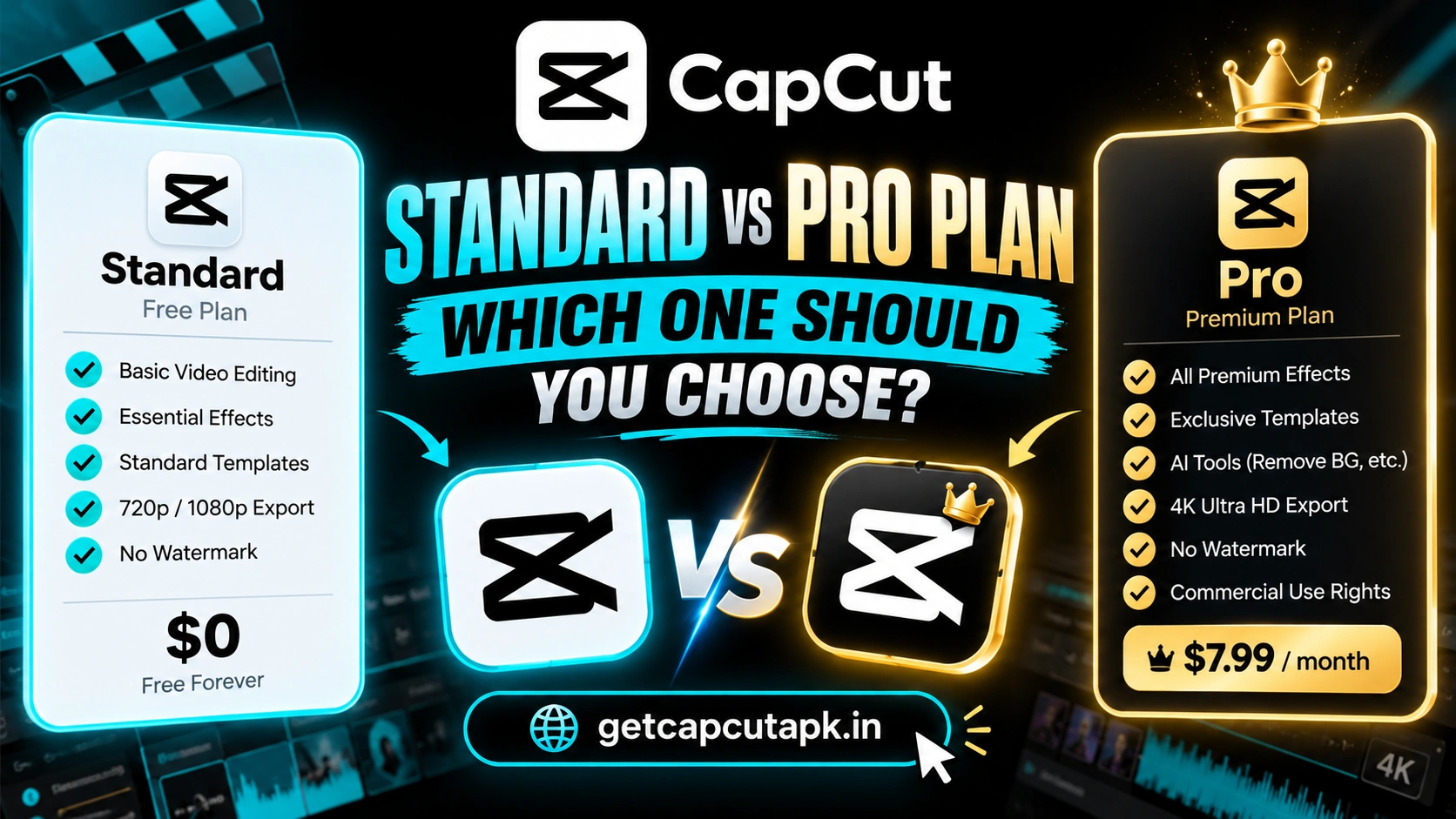
CapCut Plans at a Glance
CapCut usually offers a free version plus one or more paid plans. In regions with two paid tiers, Standard is the lighter option and Pro is the full option. Here is a general overview.
| Plan | Who It Suits | Typical Focus |
|---|---|---|
| Free | Casual users and beginners | Core editing tools |
| Standard | Regular creators on a budget | Extra storage and some premium tools |
| Pro | Heavy creators and businesses | Full premium library and AI tools |
Not every region offers a Standard plan. Some regions only show Free and Pro. Your app shows which plans are available for you.
What the Free Version Includes
Before you pay, it helps to know how much the free version already offers. Many creators never need to upgrade. Here are the main free tools.
- Timeline editing with trim, split and speed
- Text, stickers and many effects
- Keyframes, masks and Chroma Key
- Auto Captions in many languages
- Music library and sound effects
- Export up to 4K on supported devices
- Templates, except Pro templates
- Limited cloud storage
For many social media creators, these tools are enough. You can make professional videos without paying. Upgrade only when you keep reaching the limits.
What CapCut Standard Usually Includes
Standard is designed as a middle option in regions that offer it. It adds useful extras without the full Pro price. The exact list varies.
Standard plans often include more cloud storage than the free version. They may also unlock some premium effects, templates or fonts. Some AI tools may have higher limits than free.
Standard is a good fit for creators who need storage and a few extras. It suits people who post regularly but do not rely heavily on AI. Check the plan details in your app to see exactly what is included.
What CapCut Pro Usually Includes
Pro is the full premium plan. It unlocks most premium content and tools in CapCut. It also offers the highest limits for AI and storage.
- Full premium library of effects, filters and transitions
- All Pro templates
- Premium fonts and text styles
- More AI tools and higher usage limits
- Larger cloud storage
- Advanced features that may change by region
Pro suits creators who post often, use templates heavily or rely on AI tools. Businesses and agencies often choose Pro. Read our post on CapCut Pro price for more details.
Standard vs Pro Comparison
Here is a general comparison of the two paid plans. Details vary by region, so treat this as a guide. Always confirm in your app.
| Feature | Standard | Pro |
|---|---|---|
| Basic editing | Yes | Yes |
| Premium effects | Some | Most or all |
| Pro templates | Limited or none | Yes |
| AI tools | Limited extra use | Higher limits |
| Cloud storage | More than free | Most storage |
| Price | Lower | Higher |
| Best for | Regular creators on a budget | Heavy creators and businesses |
The biggest differences are usually premium content and AI limits. If you rarely use AI or Pro templates, Standard may be enough. If you use them every day, Pro may save more time.
Cloud Storage Compared
Cloud storage lets you save projects online and open them on other devices. Each plan offers a different amount. This matters if you edit across phone and PC.
| Plan | Cloud Storage |
|---|---|
| Free | Small amount |
| Standard | More space |
| Pro | Largest space |
If you only edit on one device, you may not need much cloud space. If you sync large projects or work with a team, more storage helps. Check the exact amounts shown in your app.
AI Tools and Limits
AI tools are one of the main reasons people upgrade. Many AI features use credits or daily limits. Paid plans usually raise these limits.
Free users can use many AI tools with limits. Standard may offer more uses of some tools. Pro usually gives the highest limits and access to more advanced AI features.
If you use AI tools like background removal, enhance quality or AI video often, compare the limits carefully. Read our guide on CapCut AI tools to see what each tool does. This helps you judge how much AI you really need.
How to Choose the Right Plan
The right plan depends on how you create content. Ask yourself a few simple questions. Your answers point to the best choice.
| If You | Choose |
|---|---|
| Edit a few videos a month | Free |
| Need more cloud storage | Standard or Pro |
| Use Pro templates often | Pro |
| Use AI tools daily | Pro |
| Want premium effects on a budget | Standard |
| Run a business or agency | Pro |
Start with the free version and notice which limits you hit. Upgrade only when a limit slows you down. This way, you pay only for what you need.
Monthly vs Yearly Billing
Both paid plans are usually offered monthly or yearly. Yearly plans often cost less per month. Monthly plans give you more flexibility.
Choose monthly if you only need premium tools for a short project. Choose yearly if you edit often and know you will use the plan all year. Prices vary by region and store.
Watch for free trials and special offers in the app. These can help you test a plan before committing. Always cancel trials you do not plan to keep.
How to Switch Between Plans
You may want to move from Standard to Pro or back again. Switching is usually done through the same store you used to subscribe. The steps vary by platform.
On Google Play and the App Store, open your subscriptions and choose CapCut. Look for options to change or upgrade your plan. On the website, open your account settings and manage your plan.
Upgrades often start right away, while downgrades may start at the next billing date. Check the details before you confirm. Read our guide on how to cancel CapCut Pro subscription if you want to stop paying completely.
Plan Picks by Creator Type
Different creators get different value from each plan. Matching your work style to a plan helps you avoid paying for tools you never use. Here is a simple guide.
| Creator Type | Suggested Plan | Why |
|---|---|---|
| Student making school videos | Free | Core tools are enough |
| Weekly TikTok poster | Free or Standard | Templates and captions cover most needs |
| Daily Reels creator | Standard or Pro | More storage and premium styles |
| Faceless YouTube channel | Pro | Heavy use of AI voices and visuals |
| Small business owner | Standard or Pro | Brand videos and product ads |
| Agency or team | Pro | Shared projects and high limits |
These are starting points, not strict rules. Your own habits matter most. Try a plan for a month and see if it fits.
Hidden Costs to Watch For
Paid plans are simple, but a few details can surprise new subscribers. Knowing them helps you budget. Here are the main ones.
Taxes
Some regions add tax on top of the listed price. The final price may be higher than you expect. Check the total at checkout.
Auto Renewal
Plans renew automatically unless you cancel. A yearly plan renews at the yearly price. Set a reminder before the renewal date.
Separate Store Purchases
Buying on both mobile and the website can create two subscriptions. You may pay twice for the same benefits. Use one store only.
What Happens to Projects When You Change Plans
Your projects stay in your account when you switch plans. Only access to premium items changes. Here is what to expect.
If you move from Pro to Standard or Free, Pro items in your projects may lock. You may need to replace them before export. Cloud files above your new storage limit may become read-only until you free space.
If you upgrade, locked items unlock right away in most cases. Restart the app if they do not. Your old projects will then export normally.
Is Upgrading Worth It?
For casual users, the free version is often enough. For regular creators, Standard can be a smart middle step. For heavy creators and businesses, Pro often pays for itself in saved time.
Think about the value of your time. If Pro templates and AI tools save you hours each week, the cost may be worth it. If you rarely use them, save your money.
The team at getcapcutapk.in/ suggests a simple test. Use the free version for a month and note every time a limit stops you. If it happens often, upgrade to the plan that removes those limits.
Avoid Unofficial Pro Offers
Some websites offer cheap Pro accounts or modified apps that claim to unlock Pro. These are risky and break CapCut’s terms. They can lead to stolen accounts and malware.
Always buy plans through the official app, app stores or website. This keeps your account and payment details safe. Read our guide on is CapCut safe to learn more.
How to Check Your Current Plan
If you are not sure which plan you have, check your account. This helps before you upgrade or cancel. It only takes a moment.
- Open CapCut and tap your profile.
- Look for a plan badge or name.
- Open Settings to see subscription details.
- Check your store subscriptions for the renewal date.
Your plan name and renewal date tell you exactly what you pay for each month or year. Compare them with how often you actually use premium tools. Then decide whether to keep, upgrade, downgrade or cancel your current plan.
Key Takeaways
Here are the most important points from this guide on Standard vs Pro. Keep them in mind when you choose a plan. They cover the steps that make the biggest difference.
- The free version already covers most editing needs
- Standard adds storage and some premium tools at a lower price
- Pro unlocks the full library and the highest AI limits
- Plans and prices vary by region, so check your app
Conclusion
CapCut Standard and Pro are both paid upgrades over the free version. Standard is a budget-friendly middle option with extra storage and some premium tools. Pro is the full plan with the complete premium library and the highest AI limits.
The free version already covers most editing needs for casual creators. Choose Standard if you need more storage and a few extras. Choose Pro if you use templates, premium effects and AI tools every day.
For more plan guides and tips, keep visiting getcapcutapk.in/. Always confirm plan details in your app, since they change by region. Happy editing.
Frequently Asked Questions
Standard is a lighter paid plan with extra storage and some premium tools. Pro unlocks the full premium library and higher AI limits. Details vary by region.
No, not every region offers a Standard plan. Some regions show only Free and Pro. Check the plan page in your app.
Most beginners should start with the free version. Upgrade later if you keep hitting limits. Standard can be a good first paid plan.
Yes, you can usually upgrade through the store or website where you subscribed. Upgrades often start right away. Check the details before you confirm.
Yes, one plan usually works across devices with the same account. Sign in on each device to use your benefits. You do not need to pay twice.