CapCut Template Playing in Slow Motion Easy Fixes That Work
You pick a trending template, add your clips and press play, but everything looks slow and laggy. The beat cuts feel off, and the effects stutter. If your CapCut template is playing in slow motion, this guide gives you easy fixes that work.
We explain the real causes, from short clips and unusual frame rates to preview lag, storage and old app versions. Each fix has simple steps you can follow on your phone. The team at getcapcutapk.in/ has fixed this problem many times while making template videos.
Often the template is fine, and only the preview is slow. Other times the clips themselves cause the slowdown. For an overview of the app, visit our CapCut Pro APK home page.
Why Do Templates Play in Slow Motion?
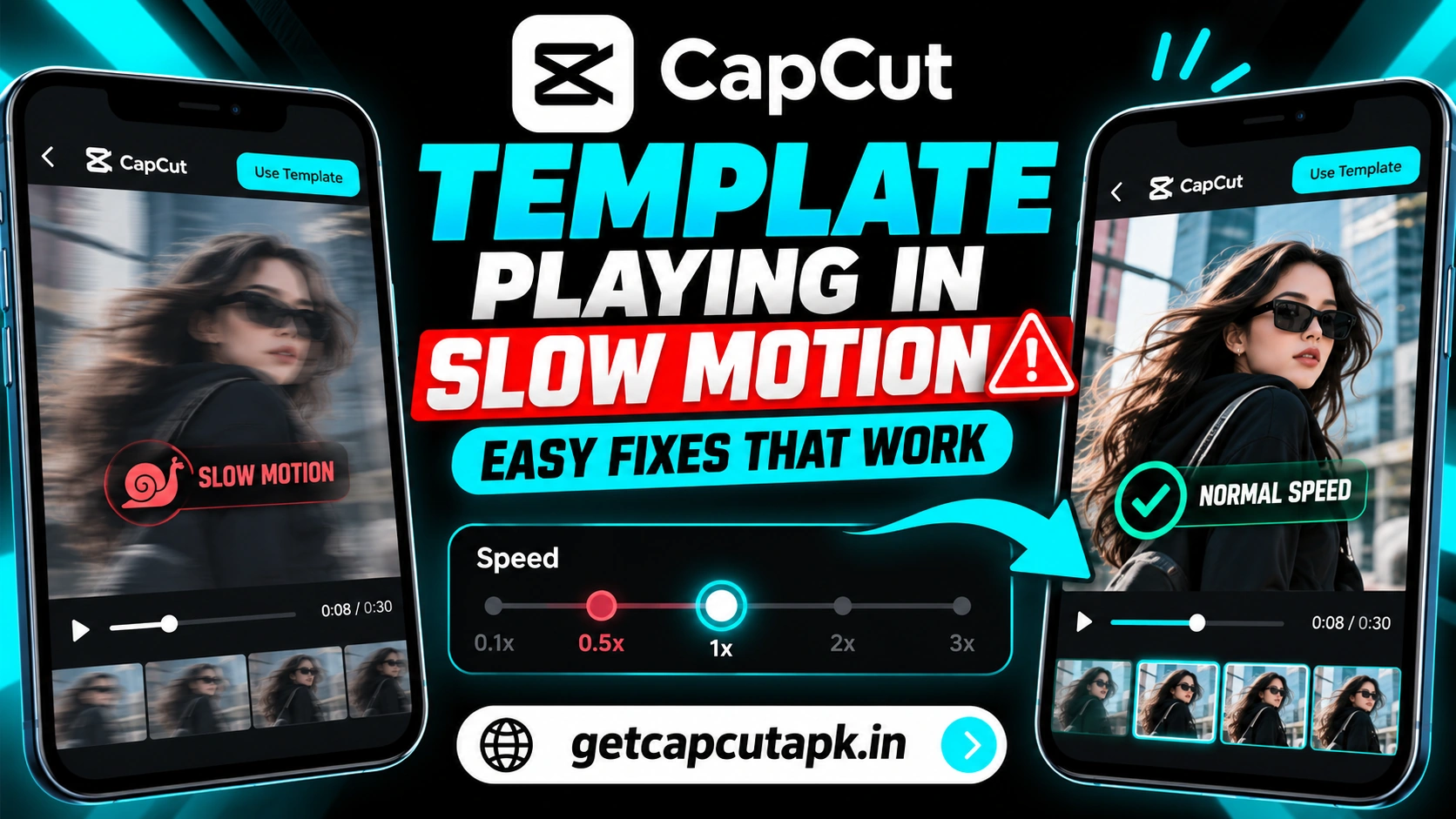
Templates are built with fixed timing for each clip. If your clip does not fit that timing, CapCut may slow it down to fill the space. Other causes come from your phone or the file.
| Cause | What Happens |
|---|---|
| Clip shorter than the slot | CapCut stretches it, which looks slow |
| Slow motion clip from your camera | It already plays slowly |
| Unusual frame rate or format | Playback looks choppy |
| Low memory or storage | Preview lags and looks slow |
| High preview quality on older phones | Preview stutters |
| Template uses slow motion by design | Some styles are meant to be slow |
| Old app version | Playback bugs |
Is It Only the Preview?
Before you change anything, check whether the problem is real. Sometimes the preview lags, but the exported video plays normally. This is common on older phones.
- Export the template video at 720p.
- Open it in your gallery.
- Watch it at full speed.
If the exported video looks fine, the problem is only the preview. You can lower preview quality or simply export as normal. If the export is also slow, try the fixes below.
Fix 1 Use Longer Clips
Each template slot expects a clip of a certain length. If your clip is shorter, CapCut may slow it down to fill the slot. This creates an unwanted slow motion effect.
- Check the clip length each slot needs, often shown in the template.
- Choose clips that are longer than the slot.
- Replace short clips with longer ones.
- Preview the template again.
A good rule is to use clips at least a little longer than needed. CapCut can then trim instead of stretch. This keeps motion at normal speed.
Fix 2 Avoid Slow Motion Camera Clips
Many phones can record slow motion video. These clips already play slowly when imported. A template will keep them slow.
Check your gallery for clips marked Slo-mo or recorded at high frame rates for slow motion. On iPhone, you can edit a slo-mo clip in Photos and set it to play at normal speed. On Android, check your camera app for similar options.
Use normal speed clips for fast templates. Save slow motion clips for templates designed for dramatic slow effects. This keeps the style matched to the music.
Fix 3 Convert Unusual Files
Some files use frame rates or formats that cause choppy playback. Screen recordings and videos from other apps are common examples. Converting them to a standard format helps.
| File Type | Common Problem | Fix |
|---|---|---|
| Screen recording | Variable frame rate | Convert to a constant frame rate |
| High frame rate video | Plays slow or choppy | Use a 30 fps copy |
| HEVC on older phones | Slow decoding | Convert to H.264 MP4 |
| Very large 4K file | Lag | Use a 1080p copy |
On iPhone, setting the camera to Most Compatible avoids many format issues. Read our guide on how to compress and convert video in CapCut for more help. Converted files usually play much more smoothly.
Fix 4 Lower the Preview Quality
High preview quality can make older phones struggle. The preview then lags and looks like slow motion. Lowering it makes playback smoother.
- Open CapCut Settings.
- Find the preview or playback quality option.
- Choose a lower setting.
- Open your template again.
Preview quality does not change your final export. It only affects how the video looks while editing. This makes it a safe fix to try.
Fix 5 Free Up Memory and Storage
Templates load music, effects and your clips at the same time. If your phone is low on memory or storage, playback can slow down. Clearing space helps a lot.
- Close all other apps before using templates
- Clear the CapCut cache in settings
- Delete old videos and drafts
- Keep at least 2 GB of free storage
- Restart your phone
Older phones with 2 or 3 GB of RAM are most affected. Use fewer and shorter clips on these devices. Read our guide on CapCut system requirements to see what your phone can handle.
Fix 6 Check If the Template Is Meant to Be Slow
Some templates use slow motion on purpose. Cinematic, aesthetic and emotional templates often slow down key moments. This is part of the style.
Watch the original template preview carefully. If it looks slow there too, the effect is intentional. Pick a different template if you want a faster feel.
You can also open the template in the full editor if allowed. Then change the speed of each clip. This gives you full control over the timing.
Fix 7 Change Speed in the Full Editor
If a template lets you open it in the editor, you can fix speed by hand. This is useful when only a few clips look slow. Here is how.
- Open the template result in the full editor.
- Select a slow clip.
- Tap Speed and set it to 1x or faster.
- Trim the clip so it still lands on the beat.
- Repeat for other slow clips.
Keep the music timing in mind as you change speed. Clips that change length may shift the beat cuts. Read our guide on how to make velocity edits in CapCut to learn about speed control.
Fix 8 Update CapCut
Old app versions can have playback bugs. Templates are also updated to work with the newest app. Updating often fixes slow playback.
Open the Play Store or App Store and update CapCut. Restart the app and try the template again. If problems continue, reinstall from the official store.
Slow Templates on Android vs iPhone
The causes are similar on both platforms, but a few details differ. Knowing them helps you find the fix faster. Here is a quick comparison.
| Point | Android | iPhone |
|---|---|---|
| Common cause | Low RAM on budget phones | Slo-mo or HEVC clips |
| Quick fix | Close apps and lower preview | Use Most Compatible format |
| Storage check | Settings, Storage | Settings, General, iPhone Storage |
How to Check Clip Length Before Using a Template
Checking your clip lengths first saves time later. Many slow motion problems come from clips that are too short. Here is a quick way to check.
Open your gallery and look at the length of each clip. Compare it with the template length divided by the number of clips. Pick clips that are longer than that average.
For example, a 15 second template with five clips needs about three seconds per clip. Choose clips of four seconds or more to be safe. CapCut will trim the extra footage.
Best Clips for Fast Templates
Fast templates need clips with clear, quick motion. The right footage makes beat cuts feel sharp and energetic. Here are good choices.
- Walking or turning shots
- Dance moves with clear steps
- Hair flips and outfit spins
- Sports moments like a kick or jump
- Car or bike shots in motion
Avoid long, static shots in fast templates. They look slow even at normal speed. Short clips with movement work best.
Templates on Low RAM Phones
Phones with 2 or 3 GB of RAM often struggle with heavy templates. Effects, music and several clips all load at once. A few changes make a big difference.
Choose simpler templates with fewer effects and clips. Close every other app and restart your phone first. Export at 720p if 1080p fails or lags.
Slow Motion Fix Checklist
Use this checklist when a template looks slow. Work through it in order. Most problems are solved quickly.
- Does the exported video also look slow?
- Are your clips longer than each slot?
- Are any clips slo-mo or screen recordings?
- Is preview quality set low on older phones?
- Is there enough free storage and memory?
Tips to Keep Templates Smooth
A few habits keep templates fast and smooth. The team at getcapcutapk.in/ follows these every time. Try them.
- Use clips longer than each slot
- Record in normal speed for fast templates
- Use standard MP4 files at 30 fps
- Keep storage free
- Lower preview quality on older phones
- Keep CapCut updated
Common Problems and Fixes
Here is a quick summary of the main problems and fixes. Use it as a fast reference. Most problems are solved in a few minutes.
| Problem | Fix |
|---|---|
| Preview slow, export fine | Lower preview quality |
| Clips look stretched | Use longer clips |
| Slo-mo clips in a fast template | Use normal speed clips |
| Screen recordings look choppy | Convert to a constant frame rate |
| Whole app lags | Free up memory and storage |
For other template problems, read our guide on CapCut templates not showing. It covers loading and region issues. Together, these guides fix most template problems.
When to Choose a Different Template
Sometimes the best fix is simply picking another template. If a template needs many long clips and you only have short ones, it will never look right. A better match saves time.
Look for templates with fewer slots or shorter lengths. Check that the original preview matches the speed you want. Fast music with quick cuts suits short clips best.
How to Report a Broken Template
If a template looks slow for everyone, it may have a problem. You can help by reporting it. Look for a report or feedback option on the template page.
Include a short note about what looks wrong. Mention your device and app version. This helps the team fix templates for all users.
Key Takeaways
Here are the most important points from this guide on slow templates. Keep them in mind for your next template video. They cover the steps that make the biggest difference.
- Test with a quick export to see if only the preview is slow
- Use clips longer than each template slot
- Avoid slo-mo and unusual files in fast templates
- Lower preview quality and free up memory
Conclusion
A CapCut template playing in slow motion is usually caused by short clips, slow motion footage, unusual files or a lagging preview. First, export a quick test to see if only the preview is slow. Then use longer, normal speed clips in standard formats.
Lower preview quality, free up memory and keep CapCut updated. Some templates are slow by design, so check the original preview. If allowed, open the template in the editor and set clip speed by hand.
For more template guides and fixes, keep visiting getcapcutapk.in/. Also explore our main CapCut templates page for the latest trends. Happy creating.
Frequently Asked Questions
Your clips may be shorter than the template slots, so CapCut stretches them. Slo-mo clips and unusual files can also cause it. Use longer, normal speed clips.
Sometimes yes, especially on older phones. Export a quick test and watch it in your gallery. If it plays normally, lower the preview quality.
Use clips longer than each slot and record at normal speed. If allowed, open the template in the editor and set speed to 1x. Keep the beat timing in mind.
Screen recordings often use variable frame rates. Convert them to a standard 30 fps MP4. Then replace them in the template.
It can, since updates fix playback bugs. Update from the official store and restart the app. Reinstall if the problem continues.