CapCut Text Not Showing on Video How to Fix It Step by Step
You add a title or caption in CapCut, but it does not appear on your video. Or it shows in the editor but disappears after export. If you are dealing with CapCut text not showing, this guide will help you fix it step by step.
We cover every common cause, from hidden layers and wrong timing to color, opacity, fonts and export settings. Each fix has simple steps that work on phone and PC. The team at getcapcutapk.in/ has solved this problem many times while editing.
Most text problems come from a small setting or position issue. Once you know where to look, the fix usually takes less than a minute. For an overview of the app, visit our CapCut Pro APK home page.
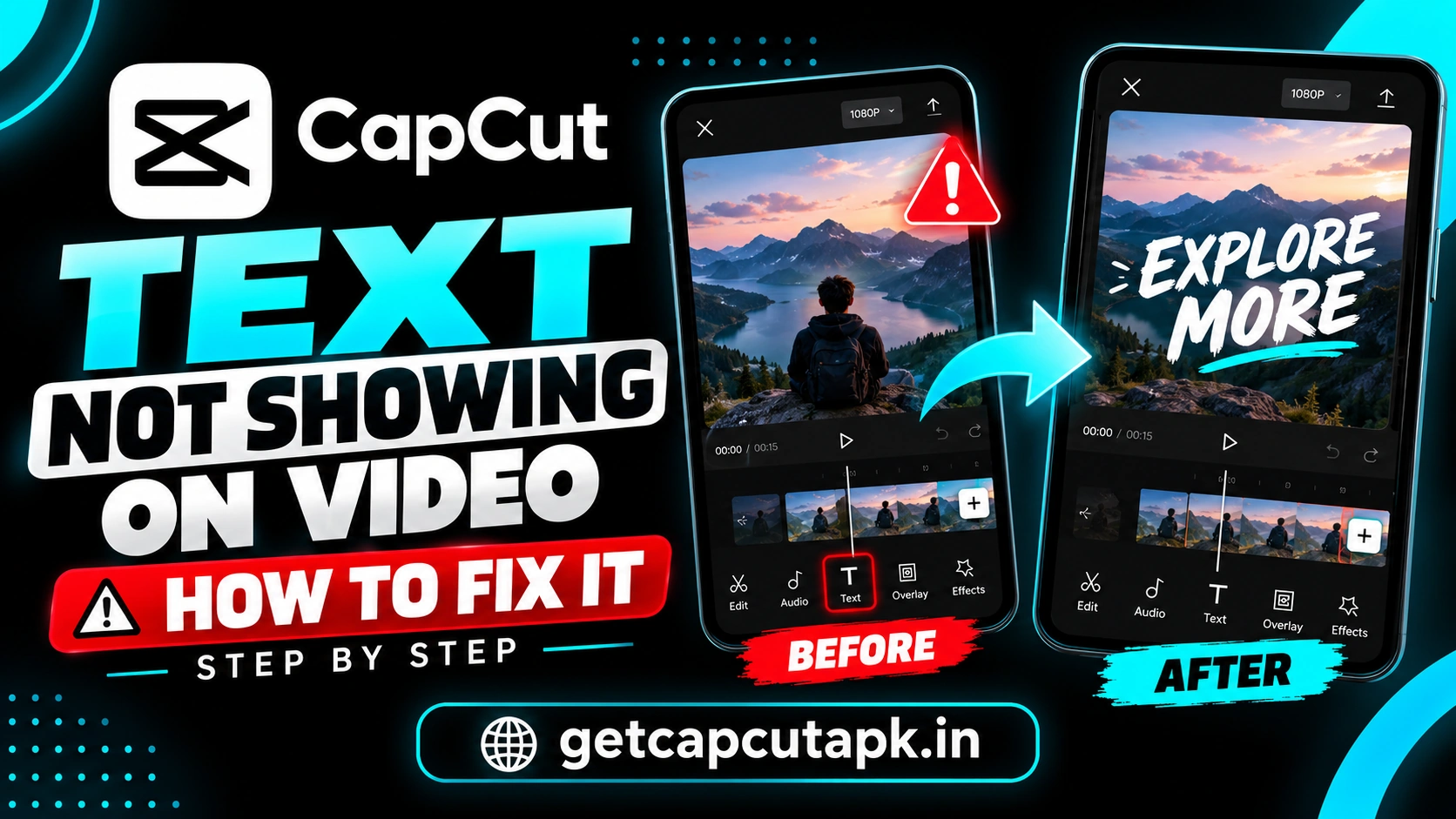
Why Is My Text Not Showing in CapCut?
Text can disappear for several reasons. Some are about where the text sits, while others are about how it looks. Here are the most common causes.
| Cause | What Happens |
|---|---|
| Text outside the playhead time | Text exists but not at that moment |
| Text behind another layer | A clip or overlay covers it |
| Text off screen | It sits outside the frame |
| Same color as background | It blends in and looks invisible |
| Opacity set to zero | The text is fully transparent |
| Font not downloaded | Text fails to render |
| Animation hides it | Text animates out too fast |
| Old app version | Rendering bugs |
Go through the fixes below in order. Check the timeline first, since most problems start there. Then move on to style and export settings.
Fix 1 Check the Text Timing
Text only shows during the time it sits on the timeline. If the playhead is outside that range, the text will not appear. This is the most common cause.
- Look at the timeline for the text track.
- Find the text block and note where it starts and ends.
- Move the playhead inside that block.
- Check if the text appears in the preview.
If the text is too short, drag its edges to make it longer. Text that lasts less than a second may flash by too fast to see. Most titles should stay on screen for at least two seconds.
Fix 2 Check the Layer Order
Text can hide behind overlays or other clips. CapCut shows higher tracks on top of lower tracks. If an overlay sits above your text, it may cover it.
- Look at the tracks above your text.
- Find any overlay, sticker or effect that covers the same time.
- Select the text and use Layer or Bring to front if available.
- Or move the overlay below the text track.
On PC, you can drag the text track above other tracks. Higher tracks appear in front. Check the preview after each change.
Fix 3 Check the Text Position
Text may be outside the visible frame. This often happens after changing the video ratio. The text keeps its old position and ends up off screen.
- Select the text on the timeline.
- Look for a selection box on the preview.
- If you cannot see it, pinch or zoom out on the preview.
- Drag the text back into the frame.
Always set the video ratio before you add text. This avoids position problems later. Read our guide on how to crop and resize video in CapCut to learn about ratios.
Fix 4 Check Color, Opacity and Size
Sometimes the text is there but invisible. White text on a white background or tiny text can look like nothing at all. Check the style settings.
| Setting | What to Check | Fix |
|---|---|---|
| Color | Same as the background | Pick a contrasting color |
| Opacity | Set very low | Raise it to 100 percent |
| Size | Too small | Increase the size |
| Stroke | Missing on busy backgrounds | Add a dark outline |
| Shadow | Missing | Add a shadow for contrast |
High contrast makes text easy to read. White text with a black stroke works on almost any background. You can also add a background box behind the text.
Fix 5 Check the Animation
Text animations can make words appear or disappear. If the in or out animation is too long, the text may barely be visible. Some loop animations can also hide text at certain moments.
- Select the text.
- Tap Animation.
- Check the In, Out and Loop settings.
- Shorten long animations or remove them.
- Play the text again to test.
A good rule is to keep in and out animations under half a second. This gives the text time to stay fully visible. Remove animations if you are not sure what is causing the problem.
Fix 6 Download or Change the Font
Some fonts download from CapCut’s servers when you first use them. If the download fails, the text may not show. Changing the font can fix this.
- Select the text and open Font.
- Check if the font is still loading.
- Connect to stable internet and wait.
- If it fails, choose a different font.
Pro fonts may also cause export problems on free accounts. Look for a Pro label on the font. Choose a free font if you do not have Pro.
Fix 7 Text Shows in Editor but Not After Export
This problem is frustrating, but it usually has a simple cause. Text may be outside the exported range, or the export may have failed partway. Here is what to check.
- Make sure the text is within the main video length
- Check that the text track does not extend past the last clip
- Remove Pro fonts or effects if you are on a free account
- Free up storage and export again
- Update CapCut and restart your device
If text sits after the last video clip, it may not be included. Move it inside the video length. Then export again and check the result.
Fix 8 Text Covered on Social Media
Your text may show in CapCut but get covered after you upload. Social apps place buttons, captions and usernames over your video. Text near the edges can be hidden.
| Platform | Avoid |
|---|---|
| TikTok | Bottom area and right side |
| Instagram Reels | Bottom area and right side |
| YouTube Shorts | Bottom area and right side |
Keep important text near the center of the frame. Place captions slightly above the bottom third. Preview in each app if possible.
Fix 9 Auto Captions Not Showing
Auto captions are text too, and they can face similar problems. They may not generate, or they may disappear after editing. Here are quick checks.
- Make sure the clip has clear speech
- Pick the correct language
- Connect to internet, since captions often need it
- Generate captions after final cuts
- Check caption style for color and size
If you trim clips after making captions, they may fall out of sync. Regenerate them after your final edit. Read our guide on how to add auto captions in CapCut for full steps.
Fix 10 Update or Reinstall CapCut
If none of the fixes above work, the problem may be a bug. Updating the app often fixes rendering issues. Reinstalling clears deeper problems.
- Update CapCut from the Play Store or App Store.
- Restart your device.
- Open the project and check the text.
- If it still fails, back up drafts and reinstall.
Always reinstall from official sources. Modified versions often have broken text and fonts. Read our guide on is CapCut safe to learn why.
Text Not Showing on CapCut PC
The desktop app can show similar problems with a few extra causes. Graphics drivers and display settings can affect text rendering. Here are PC-specific fixes.
| Problem | Fix |
|---|---|
| Text invisible in preview | Update graphics drivers |
| Text blurry or missing after export | Turn off hardware encoding and export again |
| Font missing | Choose another font or reconnect to the internet |
| Text behind video | Drag the text track above other tracks |
Text Not Showing in Templates
Templates often include text you can edit. Sometimes that text does not appear or will not change. This has a few common causes.
The template may use a font that has not finished loading. Connect to stable internet and reopen the template. If the text still fails, open the template in the full editor and replace the font.
Some templates lock certain text elements. Only the text marked as editable can be changed. Look for the Text tab in the template edit screen to see which words you can edit.
Text Disappears When You Move Clips
Text does not always move with your clips. If you move or delete a clip, the text may stay in its old spot. It can then appear at the wrong time or vanish.
On some versions, you can link text to a clip so they move together. If not, select both and move them as a group on PC. On mobile, move the text track after you rearrange clips.
Check the full video after any big timeline change. Look for text that now sits over the wrong scene. A quick check saves an awkward upload.
Best Text Settings for Clear Titles
Good default settings make text easy to see on any video. Use this table as a starting point. Adjust it to fit your style.
| Setting | Recommended |
|---|---|
| Font | Bold sans-serif |
| Color | White or yellow |
| Stroke | Black, medium width |
| Shadow | Soft, slightly offset |
| Duration | At least two seconds |
| Position | Center or upper middle |
Tips to Prevent Text Problems
A few good habits stop most text problems before they happen. The team at getcapcutapk.in/ follows these on every project. Try them.
- Set the ratio first, then add text
- Use high contrast colors with a stroke
- Keep text inside the safe area
- Use short animations
- Stick to free fonts on free accounts
- Watch the final export before posting
Quick Text Fix Checklist
Use this checklist when text goes missing. It covers the most likely causes in order. Most problems are solved by step three.
- Is the playhead inside the text block?
- Is the text on a track above the video?
- Is the text inside the frame?
- Is the color different from the background?
- Is the font free and fully loaded?
Key Takeaways
Here are the most important points from this guide on text problems. Keep them in mind when text goes missing. They cover the steps that make the biggest difference.
- Move the playhead inside the text block to see it
- Check layer order, position, color and opacity
- Use free fonts and short animations
- Keep text within the video length and safe areas
Conclusion
CapCut text not showing is usually caused by timing, layers, position or style settings. Move the playhead inside the text block, bring the text to the front and drag it back into the frame. Then check color, opacity, size and animations.
If text disappears after export, make sure it sits within the video length and avoid Pro fonts on free accounts. Keep text in safe areas so social apps do not cover it. Update or reinstall the app if a bug is the cause.
For more fixes and editing tips, keep visiting getcapcutapk.in/. Also read our guide on CapCut video not showing if your clips also go missing. Happy editing.
Frequently Asked Questions
The playhead may be outside the text block, or another layer may cover it. The text may also be off screen or the same color as the background. Check these first.
The text may sit past the end of the video or use a Pro font. Move it inside the video length and choose a free font. Then export again.
Select the text and use the layer option if available. On PC, drag the text track above other tracks. Higher tracks appear in front.
Low export resolution can make text blurry. Export at 1080p or higher. Use bold fonts and avoid very small sizes.
Check that the clip has clear speech and the right language is selected. Connect to the internet and regenerate captions. Do this after your final cuts.