CapCut Video Translator and AI Dubbing Guide for Creators
Your videos could reach millions more people if they were in other languages. Translation used to need expensive services, but AI makes it much easier now. This guide shows you how to use the CapCut video translator and AI dubbing tools.
You will learn how to translate captions, create AI dubbed voice tracks and match them with your video. We also cover review tips, language choices, limits and responsible use. The team at getcapcutapk.in/ has tested translation tools to create multilingual versions of tutorials.
Translation features may have different names and may not be available in every region. Some may need credits or a Pro plan. For an overview of the app, visit our CapCut Pro APK home page.
What Is the CapCut Video Translator?
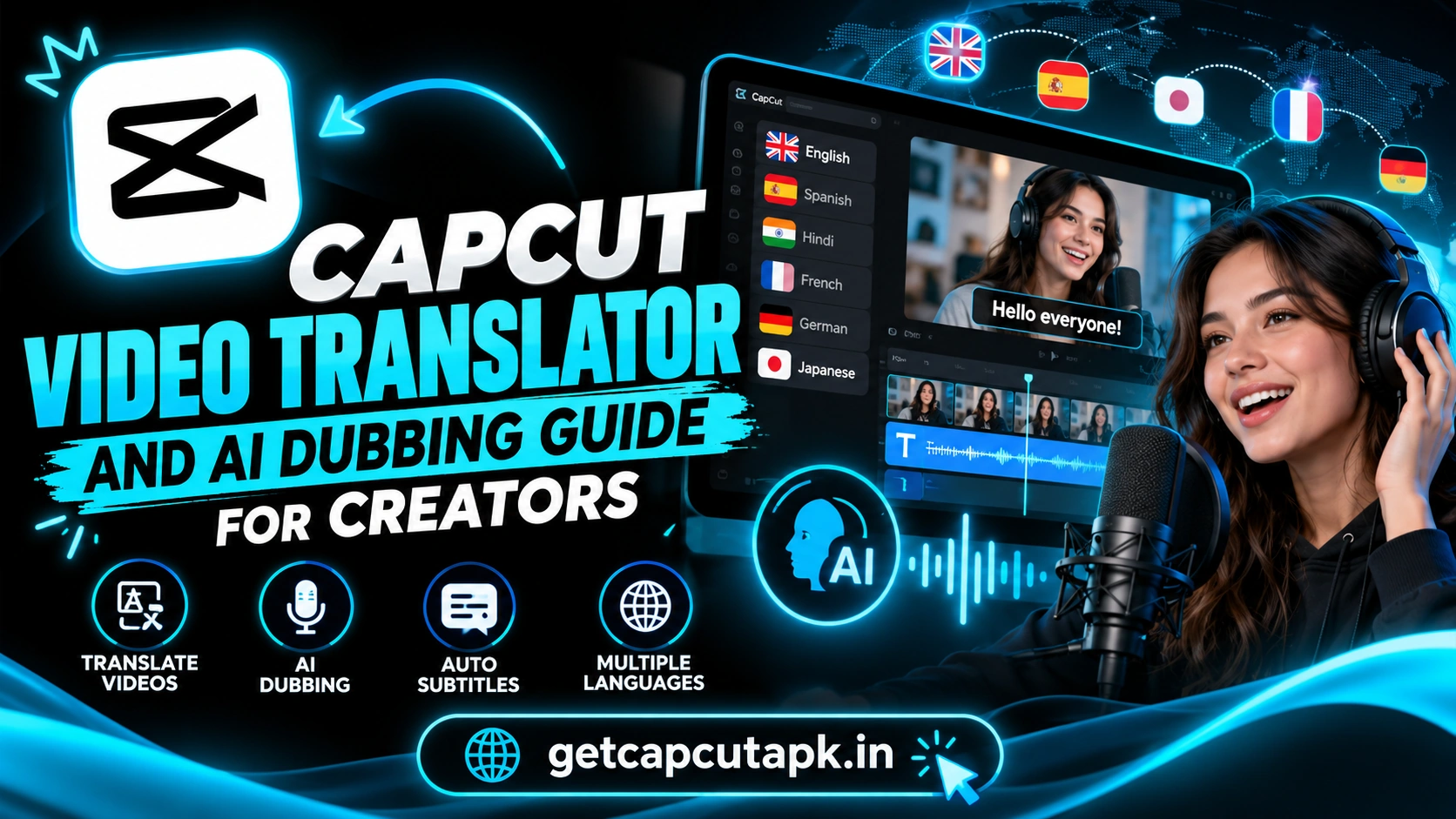
The video translator is a set of AI tools that turn your video into another language. It can translate captions, create a dubbed voice track and sometimes adjust lip movements. You can then share the video with viewers who speak that language.
There are usually two levels of translation. The first is translated captions, where subtitles appear in another language. The second is AI dubbing, where a new voice speaks the translated words.
Some tools also try to keep your voice style in the new language. Others use stock AI voices. Features depend on your version and region.
Why Translate Your Videos?
Translation helps you reach new audiences without making new videos. It also makes your content more accessible. Here are the main benefits.
- Reach global viewers in their own language
- Grow faster in new markets
- Reuse content instead of filming again
- Help language learners with bilingual captions
- Serve customers in different countries
- Make content accessible to more people
Many creators see new growth after adding translated versions. Even simple translated captions can make a big difference. Start with the languages your audience already uses.
Translated Captions vs AI Dubbing
Both options help viewers in other languages, but they work differently. Each has its own strengths. Here is a comparison.
| Point | Translated Captions | AI Dubbing |
|---|---|---|
| What changes | Text on screen | Spoken audio |
| Original voice | Kept | Replaced or mixed |
| Effort | Low | Medium |
| Best for | Tutorials and vlogs | Explainers and ads |
| Viewer experience | Read while watching | Listen naturally |
Captions are faster and keep your real voice. Dubbing feels more natural for viewers who prefer listening. Many creators start with captions and add dubbing later.
How to Translate Captions
Translated captions are the easiest place to start. You create captions in your language, then translate them. Here is the general flow.
- Add Auto captions in your original language.
- Review and fix any mistakes.
- Look for Translate or Bilingual captions.
- Choose the target language.
- Choose to show one language or both.
- Review the translated text.
- Export your video.
Always fix the original captions first. Mistakes in the original will carry into the translation. Read our guide on how to add auto captions in CapCut for steps.
How to Use AI Dubbing
AI dubbing creates a new voice track in another language. The exact steps vary by version. Here is a typical flow.
- Open the video translator or AI dubbing tool.
- Upload or select your video.
- Choose the original language.
- Choose the target language.
- Select a voice or keep a voice style if offered.
- Tap Translate or Generate.
- Wait while the AI creates the new audio.
- Review the result and export.
Processing can take time for long videos. Start with a short clip to test quality. Check that the timing matches the video.
Lip Sync With Translation
Some tools can adjust lip movements to match the new language. This makes dubbed videos look more natural. It works best with clear, front-facing faces.
Lip sync translation may need credits or a Pro plan. Results vary with the video quality and language. Read our guide on the CapCut lip sync generator to learn more about lip sync tools.
How to Review Translations
AI translation is helpful, but it is not perfect. Errors can confuse or even offend viewers. Always review the result.
Check Key Terms
Product names, brand terms and technical words may translate poorly. Keep them in the original form if needed. Fix them by hand in the captions.
Ask a Native Speaker
If possible, ask a native speaker to watch your translated video. They can spot awkward phrases and errors. This is especially important for business content.
Watch Timing
Translated text can be longer or shorter than the original. Check that captions do not flash too fast. Adjust timing if needed.
Best Languages to Start With
Choosing the right languages helps you get the most value. Look at your analytics to see where viewers come from. Here are common starting choices.
| Language | Why Creators Choose It |
|---|---|
| Spanish | Large global audience |
| Portuguese | Big audience in Brazil |
| Hindi | Large audience in South Asia |
| Arabic | Many countries and viewers |
| Indonesian | Fast-growing online audience |
| French | Europe and Africa |
Start with one or two languages that match your audience. Expand once you see results. Quality matters more than quantity.
How to Publish Translated Videos
There are a few ways to share translated versions. The best one depends on your platform. Here are options.
- Upload separate videos for each language
- Use multi-language audio features where platforms support them
- Add translated captions to one video
- Create separate channels for big languages
Some platforms let you upload multiple audio tracks or subtitle files to one video. This keeps views on one upload. Check each platform’s current features.
How to Prepare Videos for Translation
Some videos translate much better than others. A little planning makes translation smoother and more accurate. Try these tips when you make new videos.
Speak Clearly
Clear speech gives the AI better captions to translate. Speak at a steady pace and avoid mumbling. Reduce background music while you talk.
Use Simple Language
Short sentences and common words translate more accurately. Avoid slang, idioms and long complex sentences. Simple writing helps every viewer.
Leave Space for Captions
Translated text can be longer than the original. Leave room at the bottom or center of the frame. Avoid placing important visuals where captions will sit.
Avoid Text Baked Into Video
Text you add as graphics will not translate automatically. Use CapCut text layers instead of burned-in text from other apps. This makes it easier to change text for each language.
How to Make Bilingual Captions
Bilingual captions show two languages at once. They are popular with language learners and global audiences. Here is how to use them well.
- Generate captions in your original language.
- Choose Bilingual or Show both in the translation options.
- Style the original and translated lines differently.
- Keep both lines short and readable.
Use different colors or sizes for each language. Put the main audience language on top. Make sure the captions do not cover faces or key visuals.
Translation for Business Videos
Businesses can use translation to reach customers in new markets. Product videos, tutorials and ads all benefit. A few extra steps keep business content professional.
Always have important business videos checked by a native speaker. Keep product names and prices accurate. The team at getcapcutapk.in/ recommends starting with your best-selling product video.
How Long Does Translation Take?
Processing time depends on video length, language and server load. Short clips often finish in a few minutes. Long videos can take much longer.
Test with a short clip before translating a long video. This shows you the quality and timing. You can then decide if the full translation is worth it.
Limits of AI Translation
AI translation is a big help, but it has limits. Knowing them helps you avoid problems. Here are the main ones.
- Idioms and jokes may not translate well
- Names and slang can be wrong
- Tone may change in the new language
- Timing may not match perfectly
- Some languages may have lower quality
Use translation for clear, informative content first. Humor and wordplay need extra care. Always review before you publish.
Use Translation Tools Responsibly
AI voice and translation tools must be used honestly. Do not make it sound like someone said something they did not say. Respect consent and accuracy.
- Translate your own content or content you have rights to
- Get permission before dubbing other people’s voices
- Label AI dubbing when platforms ask
- Check translations for accuracy, especially in news or health content
- Follow CapCut’s terms and local laws
Common Problems and Fixes
A few problems can come up with translation tools. Most have simple fixes. The table below lists them.
| Problem | Fix |
|---|---|
| Translator not found | Update CapCut and check your region |
| Wrong translation | Fix original captions and edit the translation |
| Dubbing out of sync | Use shorter clips and adjust timing |
| Voice sounds robotic | Try another voice or simplify the script |
| Processing stuck | Check internet and try a shorter video |
Translation Checklist
Use this checklist before you publish a translated video. It helps you catch mistakes early. Run through it every time.
- Are the original captions correct?
- Did you review key terms in the translation?
- Does the timing match the video?
- Did a native speaker check it, if possible?
- Is AI dubbing labeled where required?
Translation on CapCut PC
The desktop app often makes translation work easier. The larger screen helps you review long caption lists. You can also edit timing more precisely.
Look for translation options in the captions or text tools. Review each translated line in the caption list. Fix errors before you export.
Translating Shorts and Reels
Short videos are a great place to start with translation. They are quick to review and fast to process. They also help you test which languages perform well.
Pick your best performing short video. Translate the captions into one new language. Post it and compare results with the original.
If the translated version does well, translate more videos in that language. Build a small library before expanding further. Read our guide on how to make YouTube Shorts in CapCut for short video tips.
Track Results by Language
Once you publish translated videos, watch how each language performs. Look at views, watch time and comments in each language. Focus your effort on the languages that bring real engagement.
Key Takeaways
Here are the most important points from this guide on translation. Keep them in mind for your next multilingual video. They cover the steps that make the biggest difference.
- Fix original captions before you translate
- Start with translated captions, then try dubbing
- Review key terms and timing carefully
- Use AI voices honestly and label dubbing when needed
Conclusion
The CapCut video translator and AI dubbing tools help you reach new audiences in other languages. Start with translated captions, which keep your real voice. Then try AI dubbing for a more natural listening experience.
Fix your original captions first, then review translations for key terms and timing. Ask a native speaker when possible, and start with languages your audience already uses. Use these tools honestly and label AI audio when needed.
For more AI guides, keep visiting getcapcutapk.in/. Also explore our CapCut AI tools guide for more smart features. Happy creating.
Frequently Asked Questions
Yes, CapCut offers translation tools for captions and, in some versions, AI dubbing. Availability depends on your region and version. Update the app to check.
Create auto captions in your language and fix mistakes. Then use Translate or Bilingual captions. Choose your target language.
It may be limited or need credits or Pro. Check the label on the tool. Translated captions are often easier to access.
It is helpful but not perfect. Names, slang and jokes may be wrong. Always review and ask a native speaker if possible.
Some tools try to keep your voice style in the new language. Results vary by version and language. Check your app for voice options.