How to Reverse a Video in CapCut in Seconds Easy Guide 2026
Reverse videos are fun, surprising and great for grabbing attention. A drink can jump back into a glass, or a jump can turn into a magic float. This guide shows you how to reverse a video in CapCut in just a few seconds.
You will learn the steps for Android, iPhone and PC, plus how to reverse only part of a clip. We also share creative ideas, audio tips and fixes for common problems. The team at getcapcutapk.in/ has tested these steps on phones and computers with many kinds of clips.
The Reverse tool is free, simple and works on any CapCut version. You only need a clip and a few taps. For an overview of the app, visit our CapCut Pro APK home page.
What Does Reverse Do in CapCut?
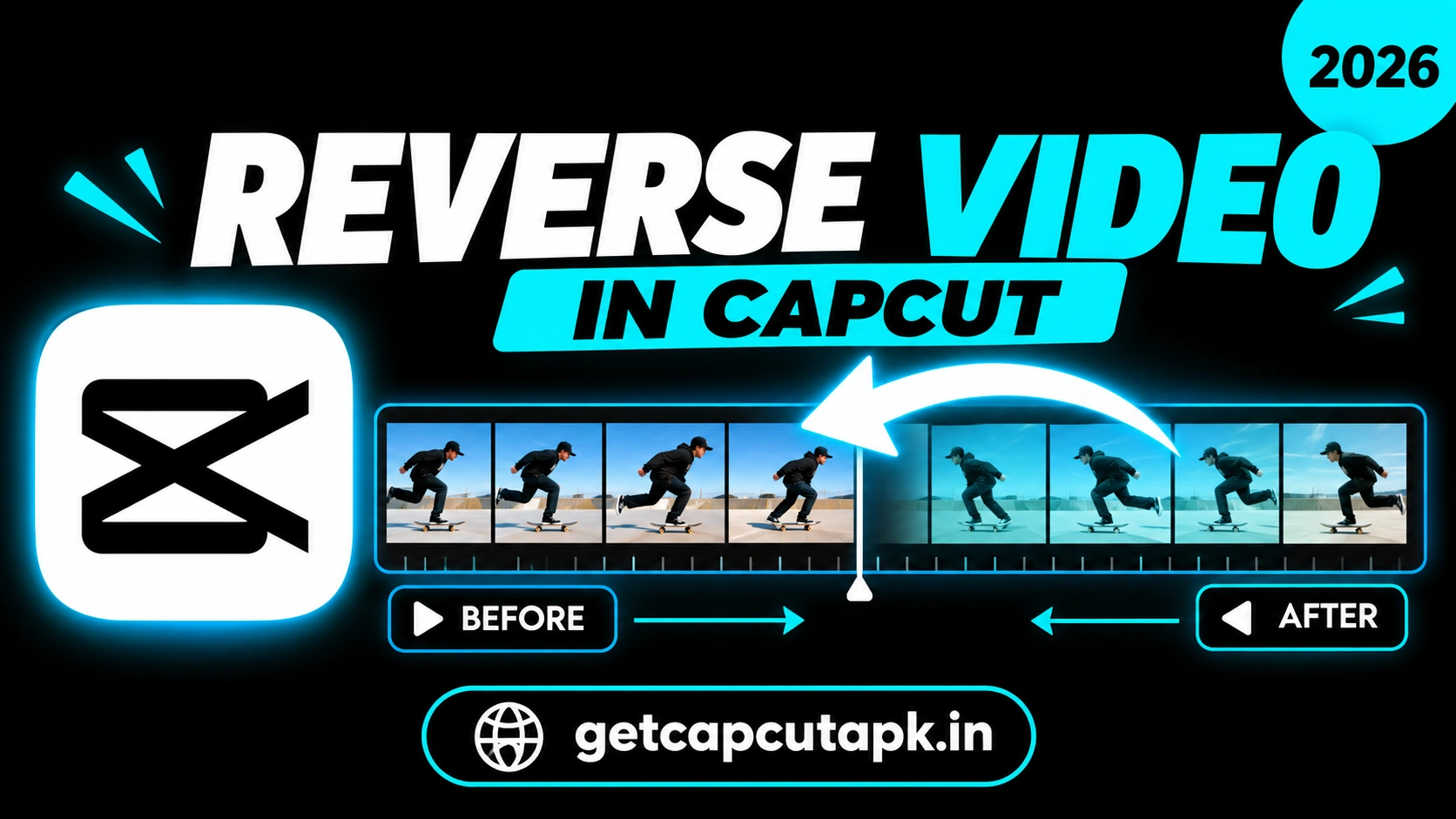
The Reverse tool plays your clip backward, from the last frame to the first. Everything in the clip moves in the opposite direction. Water flows up, people walk backward and objects fly back into place.
CapCut creates a new reversed copy of the clip and places it on your timeline. Your original clip is not lost, since you can undo the change at any time. The reversed clip keeps its effects and position on the timeline.
By default, the audio is also reversed, which can sound strange. Most creators mute the original audio and add music instead. We explain how to do this later in the guide.
How to Reverse a Video in CapCut on Android and iPhone
The steps are the same on Android and iPhone. The Reverse button sits inside the Edit menu. Follow these steps:
- Open CapCut and tap New project.
- Select the clip you want to reverse and tap Add.
- Tap the clip on the timeline to select it.
- Scroll the bottom toolbar to the right.
- Tap Reverse.
- Wait a few seconds while CapCut processes the clip.
- Play the clip to see it run backward.
The time needed depends on the clip length and your phone speed. Short clips reverse in a second or two. Long or 4K clips may take a little longer.
How to Reverse a Video in CapCut on PC
The desktop app also has a Reverse tool. It sits in the toolbar above the timeline or in the right click menu. Here is how to use it.
- Open CapCut on your computer and create a project.
- Import your clip and drag it to the timeline.
- Select the clip.
- Click the Reverse icon above the timeline.
- Or right click the clip and choose Reverse.
- Wait for processing to finish and play the clip.
The desktop app often reverses long clips faster thanks to more power. You can also reverse many clips one after another. For more desktop tips, read our guide on how to use CapCut on PC.
How to Reverse Only Part of a Clip
Sometimes you only want a short moment to play backward. You can do this by splitting the clip first. Then reverse only the part you need.
- Move the playhead to where the reverse should start.
- Tap Split.
- Move the playhead to where the reverse should end.
- Tap Split again.
- Select the middle part.
- Tap Reverse.
Now only that short section plays backward. The rest of the clip plays as normal. This is great for quick surprise moments in a longer video.
How to Make a Forward and Backward Loop
A popular effect plays a moment forward and then backward right after. It looks like a smooth rewind or boomerang. Here is how to make it.
- Select the clip or part you want to loop.
- Tap Duplicate to make a copy.
- Select the copy, which sits right after the original.
- Tap Reverse.
- Play the two clips together.
The video now plays forward and then rewinds. Repeat the pair a few times for a boomerang loop. Add a beat-matched song to make it feel even more fun.
How to Fix Reversed Audio
When you reverse a clip, its audio plays backward too. Reversed speech and music usually sound odd. Here are your options.
Mute the Clip
- Select the reversed clip.
- Tap Volume and slide it to 0.
- Or tap Mute clip audio on the left of the timeline.
Add New Music
- Tap Audio in the bottom toolbar.
- Choose Sounds or Your sounds.
- Pick a track and tap Use.
Keep the Original Audio Forward
- Before you reverse, select the clip.
- Tap Extract audio to pull the sound onto its own track.
- Mute the video clip, then reverse it.
Now the video plays backward while the original sound plays forward. This trick works well for vlogs and reaction clips. It keeps speech clear while the visuals rewind.
Creative Reverse Video Ideas
Reverse effects are easy to make and fun to watch. Here are some ideas that work well on TikTok, Reels and Shorts. Try a few in your next project.
| Idea | How It Looks Reversed |
|---|---|
| Pouring a drink | Liquid jumps back into the bottle |
| Jumping into water | You fly out of the pool |
| Throwing a ball | The ball flies back into your hand |
| Tearing paper | The paper fixes itself |
| Eating food | Food reappears on the plate |
| Walking down stairs | You float up the stairs |
| Dropping clothes | Clothes fly onto you for a fast outfit change |
The best reverse ideas use simple, clear motion. Film in good light and keep your camera steady. Your viewers will love the surprise.
Combine Reverse With Other Effects
Reverse becomes even more exciting when you mix it with other tools. Speed, transitions and effects can make a simple rewind look cinematic. Here are some popular combos.
- Reverse plus slow motion for a dreamy rewind
- Reverse plus speed ramp for a dramatic snap back
- Reverse plus rewind sound effect for a VHS feel
- Reverse plus glitch effect for a time travel look
- Reverse plus freeze frame to pause the moment before rewind
To add a speed ramp, select the reversed clip and tap Speed, then Curve. Pick a preset or make your own curve. Read our guide on how to make velocity edits in CapCut for more speed tricks.
Reverse a Video for a Rewind Effect
A rewind effect looks like an old tape rewinding fast. It is great for showing a moment again or adding a funny twist. Here is a quick way to make it.
- Duplicate the clip you want to rewind.
- Reverse the copy.
- Tap Speed and set it to 3x or 4x.
- Add a VHS or glitch effect on top.
- Add a rewind sound effect from the audio library.
This makes a quick, stylish rewind in just a few seconds. Then cut back to the original clip at normal speed. Viewers will see the moment again with fresh eyes.
How to Film Clips That Look Great in Reverse
Not every clip looks interesting when it plays backward. The best reverse videos start with smart filming. A little planning makes the final effect much more fun.
Plan the Action
Think about how the action will look in reverse before you hit record. Ask yourself what would surprise a viewer if it happened backward. Simple actions like throwing, pouring and jumping work best.
Keep the Camera Still
A shaky camera makes reverse clips hard to watch. Place your phone on a tripod, shelf or table. A still frame lets the reversed motion stand out.
Shoot at a High Frame Rate
If your phone can record at 60 fps, use it. Higher frame rates make reversed motion look smoother. They also work well when you add slow motion later.
Best Settings for Reverse Videos
The right settings help your reverse clip look sharp and smooth. Here are the settings our editors use most. Adjust them to match your project.
| Setting | Recommended Choice | Reason |
|---|---|---|
| Clip Length | 2 to 5 seconds | Quick and easy to follow |
| Speed | 0.5x to 1x | Shows the reversed motion clearly |
| Audio | Muted with new music | Avoids strange reversed sounds |
| Export Resolution | 1080p | Sharp and quick to upload |
| Frame Rate | 30 or 60 fps | Smooth motion |
These settings work for most reverse clips on TikTok, Reels and Shorts. For YouTube, you can export at 4K if your phone supports it. Always preview the clip once before you export.
How to Reverse a Template Clip
Some CapCut templates already include reverse effects. When you use these templates, the app reverses your clips automatically. This saves time if you want a quick trend video.
Search for reverse or rewind in the Templates tab. Pick a template, add your clips and tap export. For more template tips, read our guide on how to use CapCut templates.
Common Reverse Problems and Fixes
The Reverse tool is simple, but a few issues can appear. Most are linked to clip length or phone storage. The table below lists quick fixes.
| Problem | Fix |
|---|---|
| Reverse takes too long | Split long clips and reverse only the part you need |
| Reverse stuck at a percentage | Free up storage and restart CapCut |
| Reverse button missing | Select a video clip, since photos cannot be reversed |
| Audio sounds strange | Mute the clip or extract the audio first |
| App crashes during reverse | Lower the clip resolution or update CapCut |
If processing still fails, try a shorter clip or lower resolution source. Very long 4K clips take a lot of power to reverse. Splitting them first is the easiest fix.
Tips for Better Reverse Videos
A few simple tips will make your reverse videos look clean and fun. The editors at getcapcutapk.in/ use these on every rewind effect. Try them on your next project:
- Use a tripod or steady surface for a stable shot
- Keep the action clear and easy to follow
- Film in bright light to avoid blur
- Keep reverse clips short, usually under five seconds
- Add music instead of reversed sound
- Use slow motion to show more detail
Reverse vs Rewind Effect
Some users confuse the Reverse tool with rewind effects. They are similar but not the same. The table below explains the difference.
| Point | Reverse Tool | Rewind Effect |
|---|---|---|
| What It Does | Plays the clip backward | Adds a styled rewind look |
| Speed | Normal unless you change it | Usually fast |
| Visual Style | No change | Glitch, VHS or lines |
| Best For | Magic tricks and loops | Showing a moment again |
You can use both together for the best result. Reverse the clip, speed it up and add a rewind effect. This gives you a quick, stylish rewind.
Conclusion
Reversing a video in CapCut takes only a few seconds on any device. Select your clip, tap Reverse and let CapCut do the rest. You can also reverse just part of a clip or create a forward and backward loop.
Mute or extract the audio to avoid strange sounds, and add music for a fun vibe. Combine reverse with speed, effects and sound effects for even more impact. Simple, clear motion always gives the best results.
For more feature guides and creative ideas, keep visiting getcapcutapk.in/. Also check our full list of CapCut features to discover more tools. Happy editing.
Frequently Asked Questions
Select a clip on the timeline and scroll the bottom toolbar. Tap Reverse to play the clip backward. On PC, click the Reverse icon or right click the clip.
Yes, the Reverse tool is completely free. You can use it on mobile and PC. No Pro plan is needed.
Long or high resolution clips take more time to reverse. Split the clip and reverse only the part you need. Freeing up storage can also help.
No, photos are still images, so they cannot play backward. The Reverse tool only works on video clips. You can use keyframes to animate photos instead.
Extract the audio before you reverse the clip. Then mute the video and reverse it. The audio track will still play forward.