CapCut vs KineMaster Which Video Editing App Is Better 2026
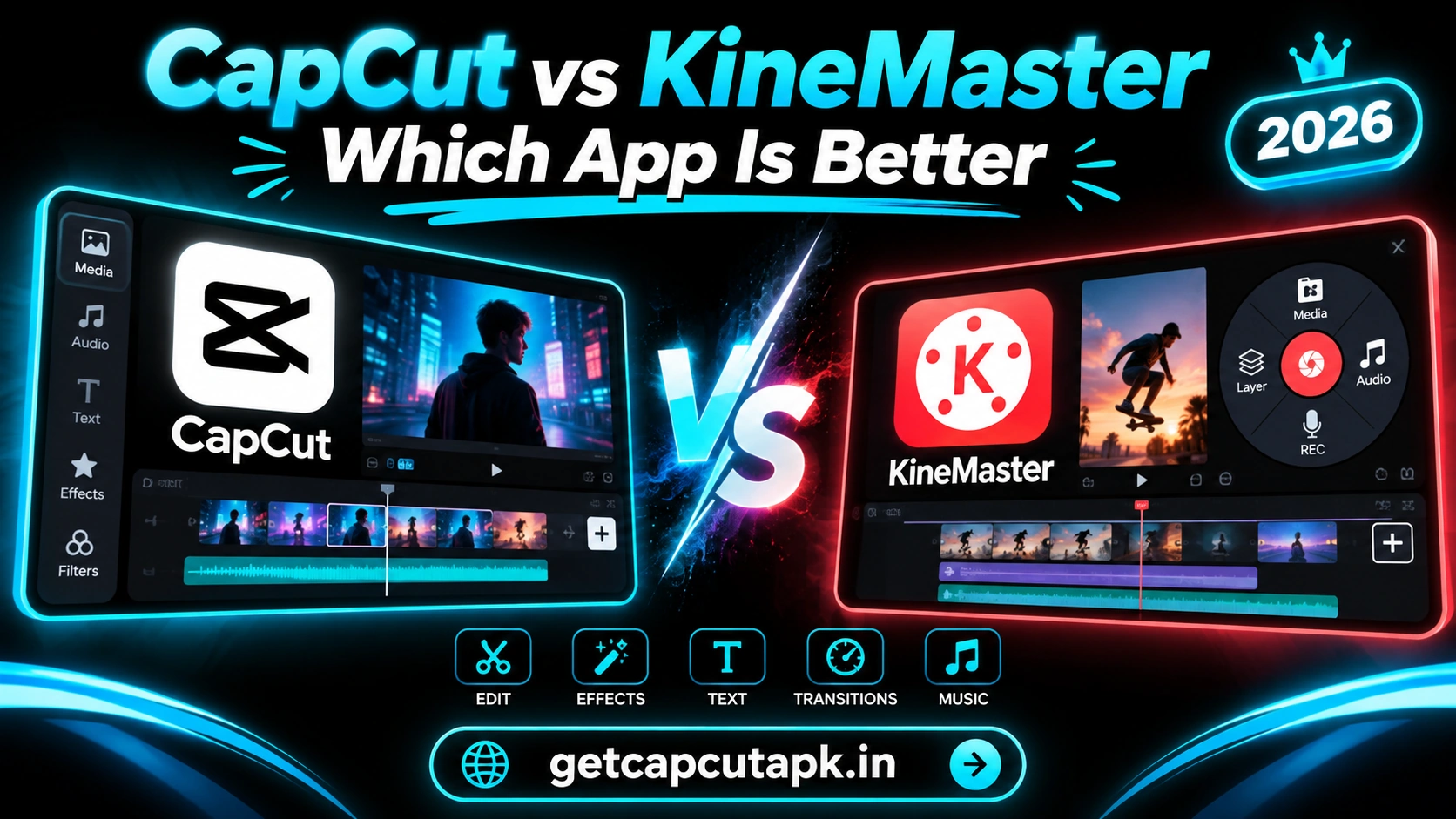
CapCut and KineMaster are two of the most powerful video editors for phones. Both offer layers, effects and pro-style tools that go far beyond basic apps. This guide compares CapCut vs KineMaster so you can choose the right one for your videos.
We compare them on ease of use, editing tools, layers, templates, AI features, export quality, watermarks and price. We also share which app suits different creators and why. The team at getcapcutapk.in/ has used both apps for vlogs, ads, tutorials and short-form content.
Both apps are excellent, but they focus on slightly different strengths. By the end of this guide, you will know which one fits your editing style. For an overview of CapCut, visit our CapCut Pro APK home page.
Quick Comparison Table
Here is a short summary of the main differences. Each point is explained in detail below. Use this table as a quick guide.
| Point | CapCut | KineMaster |
|---|---|---|
| Developer | ByteDance | KineMaster Corporation |
| Price | Free with optional Pro | Free with optional subscription |
| Free Watermark | No watermark, ending clip removable | Watermark on free exports |
| Templates | Huge trending library | Project templates available |
| Layers | Multi-track overlays | Strong multi-layer system |
| AI Tools | Many AI tools | Growing set of AI tools |
| Asset Store | Built-in effects and music | Large asset store |
| Desktop Version | Yes | Mobile focused |
| Best For | Trends, AI and fast edits | Layer-heavy mobile projects |
Overview of CapCut
CapCut is a free editor from ByteDance that is very popular for short-form video. It offers templates, effects, transitions, keyframes, masks, Chroma Key and many AI tools. Its free version has no watermark once you remove the ending clip.
CapCut also runs on Windows, Mac and the web. You can sync projects between devices through the cloud. This makes it flexible for creators who edit on many screens.
Its biggest strengths are templates, trending effects and smart AI tools. Many TikTok and Reels creators use it every day. It is also great for beginners thanks to its one-tap templates.
Overview of KineMaster
KineMaster is a long-standing mobile video editor known for its pro-style tools. It focuses on a strong multi-layer system with video, image, text and effect layers. It also has a large asset store with effects, stickers, music and more.
KineMaster offers keyframes, chroma key, blending modes, speed control and audio tools. It is popular with YouTubers and users who build complex edits on their phones. Recent versions have added more AI features too.
The free version adds a watermark to exports. A subscription removes the watermark and unlocks premium assets. Prices vary by region.
Ease of Use
Both apps are user friendly, but they feel different. CapCut uses a bottom toolbar and a timeline that many users find familiar from TikTok. KineMaster uses a side menu and a layer-based timeline.
CapCut is very easy for beginners, especially with templates. You can make a trendy video in seconds. Advanced tools are there when you need them.
KineMaster may take a little longer to learn because of its layout. Once learned, its layer controls feel powerful and organized. Users with some editing experience often enjoy it.
| Point | CapCut | KineMaster |
|---|---|---|
| Learning curve | Easy | Medium |
| Template help | Strong | Moderate |
| Layout | Bottom toolbar | Side menu with layers |
Editing Tools
Both apps include the core tools you need for good videos. Each has some extra strengths. The table below compares key tools.
| Tool | CapCut | KineMaster |
|---|---|---|
| Trim and split | Yes | Yes |
| Keyframes | Yes | Yes |
| Chroma key | Yes | Yes |
| Blending modes | Yes | Yes |
| Masks | Yes | Yes |
| Speed curves | Yes | Speed control |
| Motion tracking | Yes | Limited |
| Stabilization | Yes | Limited |
| Audio mixing | Good | Strong |
CapCut leads in speed curves, motion tracking and stabilization. KineMaster shines in layer control and audio mixing. Both handle keyframes, chroma key and blending well.
Layers and Complex Projects
Layers let you stack videos, images, text and effects on top of each other. They are key for picture-in-picture, collages and creative edits. Both apps support layers, but in different ways.
KineMaster’s layer system is one of its biggest strengths. You can add many layers and control each one in detail. It feels close to a desktop editor on your phone.
CapCut uses overlay tracks that work well for most projects. You can stack clips, stickers and text with ease. For very complex layered edits on mobile, KineMaster may feel more organized.
Templates and Assets
CapCut offers a huge template library with daily trending styles. You can make viral videos by adding your clips to a template. This is perfect for TikTok and Reels creators.
KineMaster offers project templates and a large asset store. The store includes effects, transitions, stickers, fonts and music. Many assets are free, while premium ones need a subscription.
If you want quick trend videos, CapCut is the better choice. If you like building custom edits from many assets, KineMaster is great. Read our guide on CapCut templates for more on CapCut’s library.
AI Features
CapCut has a wide range of AI tools, including background removal, Auto Captions, AutoCut, AI effects and text to speech. These tools save time and open new options. Some need internet or a Pro plan.
KineMaster has added AI tools in recent versions, such as background removal and upscaling. Its AI set is growing but is generally smaller. It still focuses mainly on manual editing tools.
For fast AI-powered editing, CapCut is ahead. For hands-on control, KineMaster works well. Check each app for the newest AI features in your region.
Export Quality and Watermarks
Both apps support high-quality exports on supported devices. Options depend on your phone hardware. Here is a comparison.
| Point | CapCut | KineMaster |
|---|---|---|
| Max resolution | Up to 4K on supported devices | Up to 4K on supported devices |
| Frame rate | Up to 60 fps | Up to 60 fps on supported devices |
| Free watermark | No watermark, ending clip removable | Watermark on free exports |
The watermark is a big difference for free users. CapCut lets you export clean videos without paying. Read our guide on how to remove the CapCut ending for the simple steps.
Price
Both apps are free to download with paid upgrades. Prices vary by country and plan length. Here is how they compare in general.
CapCut Pro unlocks premium effects, templates, AI tools and more cloud space. KineMaster’s subscription removes the watermark and unlocks premium assets. Both offer monthly and yearly plans.
Many users find CapCut’s free version very generous. KineMaster users often subscribe to remove the watermark. For CapCut plan details, read our post on CapCut Pro price.
Performance
Both apps run well on modern phones. KineMaster can feel heavy with many layers on older devices. CapCut can also lag with many effects on low-end phones.
On older phones, keep projects short and lower preview quality in either app. Close other apps before you edit. These steps help both editors run smoothly.
High-end phones handle both apps with ease. Export times are similar on strong devices. The choice comes down to features rather than speed.
Platforms
CapCut runs on more platforms than KineMaster. This matters if you edit on a computer as well as your phone. Here is a comparison.
| Platform | CapCut | KineMaster |
|---|---|---|
| Android | Yes | Yes |
| iPhone and iPad | Yes | Yes |
| Windows and Mac | Yes | Mobile focused |
| Web browser | Yes | No |
| Cloud sync | Yes | Project sharing options |
If you want to move projects between phone and computer, CapCut makes it simple. KineMaster is best when all your editing happens on mobile. Both apps work very well on Android and Apple devices.
Real Use Cases Side by Side
Here is how each app handles common creator tasks. These notes come from hands-on use of both apps. They show where each one shines.
| Task | CapCut | KineMaster |
|---|---|---|
| TikTok trend video | Very fast with templates | Manual build with assets |
| YouTube vlog on a phone | Smooth with auto captions | Smooth with strong audio tools |
| Picture-in-picture tutorial | Overlays and masks | Detailed layer control |
| Product ad | Templates and AI cutouts | Asset store graphics |
| Music video edit | Beat sync and speed curves | Precise audio mixing |
Both apps can handle every task on this list. The difference is how fast and easy each one feels. Choose the app that fits the tasks you do most often.
Audio Tools Compared
Audio is a key part of any video. KineMaster is known for strong audio tools on mobile. CapCut has also improved its audio features in recent versions.
KineMaster offers detailed volume envelopes, audio ducking options and voice effects. These help when you mix voice, music and sound effects. Podcasters and YouTubers often like this control.
CapCut offers volume control, fades, noise reduction, voice effects and beat marks. Beat marks are very helpful for music-based edits and velocity videos. Read our guide on how to make velocity edits in CapCut to see them in action.
Community and Learning
A strong community makes it easier to learn any app. CapCut has a massive community thanks to its link with TikTok trends. Tutorials, templates and tips are easy to find.
KineMaster also has a loyal user base and many tutorials. Its community often focuses on detailed edits and YouTube content. You can find guides for most of its tools.
Which App Should You Choose?
The best app depends on your goals and editing style. Use this simple guide to decide. Some creators use both.
| If You Want | Choose |
|---|---|
| Trending templates | CapCut |
| Free exports with no watermark | CapCut |
| Many AI tools | CapCut |
| Detailed layer control | KineMaster |
| Large asset store | KineMaster |
| Strong audio mixing | KineMaster |
| Editing on PC too | CapCut |
Pros and Cons
Each app has strengths and weaknesses. These lists sum them up. Use them to make your final choice.
CapCut Pros
- Huge trending template library
- Many AI tools
- No watermark on free exports
- Phone, PC and web versions
CapCut Cons
- Can feel busy at first
- Not available in some countries
KineMaster Pros
- Powerful layer system
- Large asset store
- Strong audio tools
KineMaster Cons
- Watermark on free exports
- Steeper learning curve
- Mobile focused
Our Verdict
For most social media creators, CapCut is the better all-round choice. It offers templates, AI tools and watermark-free exports for free. It also works on phone, computer and web.
KineMaster is a strong choice for layer-heavy projects and users who want detailed control on mobile. Its asset store and audio tools are excellent. It suits YouTubers and editors with some experience.
The team at getcapcutapk.in/ uses CapCut for most short-form work. KineMaster is a solid pick when a project needs many layers on a phone. Try both and see which one you enjoy more.
Key Takeaways
Here are the most important points from this guide on CapCut vs KineMaster. Keep them in mind for your next project. They cover the steps that make the biggest difference.
- CapCut leads in templates, AI and free exports
- KineMaster leads in layers and audio mixing
- CapCut also runs on PC and the web
- Try both with the same clips
Conclusion
CapCut and KineMaster are both powerful mobile video editors. CapCut wins for templates, AI tools, cross-platform use and free exports without a watermark. KineMaster wins for layer control, asset variety and audio mixing.
Your choice depends on the videos you make and how you like to edit. Trend creators and beginners will love CapCut. Experienced mobile editors who need many layers may prefer KineMaster.
For more comparisons and tutorials, keep visiting getcapcutapk.in/. Also read our post on CapCut vs InShot for another popular comparison. Happy editing.
Frequently Asked Questions
CapCut is better for templates, AI tools and free exports without a watermark. KineMaster is better for detailed layers and audio mixing. The best choice depends on your projects.
Yes, KineMaster adds a watermark to free exports. A subscription removes it. CapCut free exports have no watermark once you remove the ending clip.
Both work well for YouTube. CapCut offers a desktop version for longer edits. KineMaster offers strong layer and audio tools on mobile.
KineMaster has a slightly steeper learning curve because of its layer-based layout. CapCut is easier for beginners, especially with templates. Both become easy with practice.
Yes, both apps are free to download. Both offer optional paid plans for extra features. Prices vary by region.