CapCut AI Video Generator Guide to Turn Text Into Video Fast
Imagine typing a short idea and getting a finished video in a few minutes. That is what the CapCut AI video generator aims to do. This guide shows you how to turn text into video fast with CapCut’s AI tools.
You will learn what the AI video generator does, how to write good prompts and scripts and how to edit the result. We also cover voices, captions, credits, limits and common problems. The team at getcapcutapk.in/ has tested these tools for faceless videos, explainers and social posts.
AI video tools change quickly, and names or menus may differ by version and region. The steps below describe the general flow you will see in most versions. For an overview of the app, visit our CapCut Pro APK home page.
What Is the CapCut AI Video Generator?
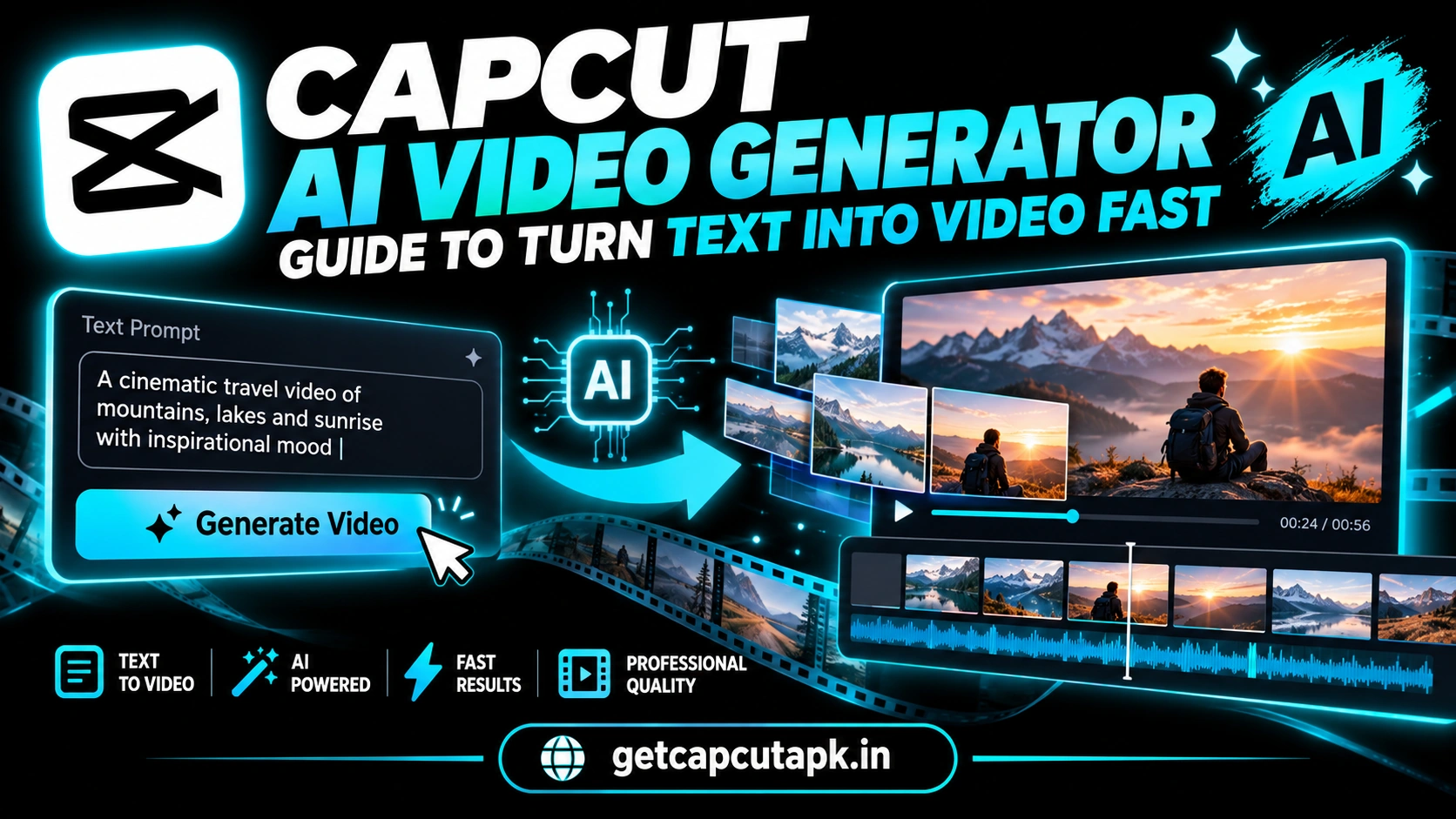
The AI video generator is a set of CapCut tools that create videos from text, scripts or images. You describe what you want, and the AI builds scenes, adds voice and places captions. You can then edit the result like any other project.
There are two main types of AI video creation in CapCut. The first is script to video, which turns a written script into a video with stock clips, voiceover and captions. The second is AI generated footage, where models create brand new video clips from a prompt.
Some AI video models inside CapCut come from the same company family as Dreamina. For example, Seedance models power some AI video features in supported regions. Read our guide on Dreamina and Seedance AI in CapCut to learn more.
What Can You Make With It?
The AI video generator works well for many kinds of content. It is especially helpful when you do not want to film yourself. Here are popular uses.
- Faceless YouTube videos with voiceover and stock scenes
- Explainer videos for products and ideas
- Social media posts from a short text idea
- Story videos with AI generated scenes
- Quick promos for small businesses
- Educational clips for students and teachers
AI saves time on the first draft. You still add your own touch with edits, music and text. The best results come from mixing AI speed with human judgment.
How to Use Script to Video
Script to video is the easiest way to start. You provide a script or topic, and CapCut builds the video. Here is the general flow.
- Open CapCut and look for the AI or Script to video option.
- Type a topic or paste your full script.
- Choose a video length, ratio and style if offered.
- Pick a voice for the narration.
- Tap Generate and wait.
- Review the scenes, voice and captions.
- Tap Edit to open the project in the editor.
CapCut usually matches each sentence of your script to a scene. It also adds captions that follow the voiceover. You can replace any scene that does not fit.
How to Generate AI Video Clips From a Prompt
Some versions of CapCut let you create brand new clips with AI video models. You describe a scene, and the model generates a short clip. This is great for B-roll and creative visuals.
- Open the AI video or Text to video tool.
- Type a clear prompt describing the scene.
- Choose the ratio, such as 9:16 or 16:9.
- Pick a model or style if available.
- Tap Generate and wait for the clip.
- Add the clip to your project.
AI generated clips are usually short, often a few seconds each. Combine several clips to build a longer video. These tools often use credits or need a Pro plan.
How to Write Good Prompts for AI Video
The prompt decides what the AI creates. Clear prompts lead to clearer videos. Here are simple tips.
| Prompt Part | Example |
|---|---|
| Subject | A golden retriever puppy |
| Action | Running through a field of flowers |
| Setting | On a sunny spring morning |
| Camera | Slow motion, low angle tracking shot |
| Style | Cinematic, warm colors |
Describe motion and camera moves, since video is about movement. Keep one main action per prompt. Long, complex prompts often give messy results.
How to Write a Good Script
For script to video, a good script makes the biggest difference. The AI follows your words closely. These tips help.
- Start with a strong hook in the first line
- Keep sentences short and clear
- Use one idea per sentence
- Aim for about 150 words per minute of video
- End with a clear call to action
Read your script out loud before you generate. If it sounds stiff, rewrite it in simple words. Natural scripts make the AI voice sound better too.
Choosing the Right AI Voice
The voice shapes how viewers feel about your video. CapCut offers many voices with different tones and accents. Pick one that fits your content.
| Content Type | Voice Style |
|---|---|
| Explainers | Calm, clear and friendly |
| Motivation | Deep and confident |
| Kids content | Bright and cheerful |
| News style | Neutral and steady |
| Product promos | Energetic and upbeat |
You can also adjust the speed of some voices. Slightly slower speech is easier to follow. For your own voice, read our guide on how to clone your voice in CapCut.
How to Edit the AI Generated Video
The first AI draft is a starting point, not the final video. Editing makes it accurate and personal. Here is what to check.
- Watch the full video once without stopping.
- Replace any scene that does not match the line.
- Fix any caption mistakes.
- Adjust music volume so the voice stays clear.
- Add your logo and a call to action.
- Trim slow parts to keep the pace tight.
This review step is very important. AI may pick scenes that look odd or do not match your message. A few minutes of editing turns a generic draft into a strong video.
Best Ratios and Lengths for AI Videos
Choosing the right shape and length before you generate saves time later. Each platform has its own sweet spot. Use this table as a guide.
| Platform | Ratio | Ideal Length |
|---|---|---|
| TikTok | 9:16 | 20 to 60 seconds |
| YouTube Shorts | 9:16 | Under 60 seconds |
| Instagram Reels | 9:16 | 15 to 45 seconds |
| YouTube videos | 16:9 | 3 to 10 minutes |
| Website or ads | 16:9 or 1:1 | 15 to 60 seconds |
For short platforms, keep the script tight and fast. For YouTube, break long topics into clear sections. Each section can be its own short scene group.
Sample Workflow for a Faceless Video
Faceless channels are one of the most popular uses of AI video. Here is a simple workflow the team at getcapcutapk.in/ recommends. It turns one idea into a finished video.
- Pick one clear topic, like five tips to sleep better.
- Write a short script with a hook, five points and a closing line.
- Use script to video to build the first draft.
- Replace weak scenes with better stock or AI clips.
- Add Auto Captions with a bold style.
- Add background music at a low volume.
- Export in 9:16 for Shorts and 16:9 for YouTube.
This workflow can take less than an hour once you get used to it. Save your caption style and music choices as presets. Your next videos will be even faster.
How to Mix AI Clips With Real Footage
The best AI videos often mix generated scenes with real clips. Real footage adds trust, while AI scenes fill gaps. This mix feels natural to viewers.
Use real clips for faces, products and key moments. Use AI clips for backgrounds, transitions and ideas that are hard to film. Match the color of both with one filter.
Keep AI scenes short so small flaws are less noticeable. Cut quickly between scenes on music beats. Read our guide on CapCut transitions to blend them smoothly.
Free vs Pro AI Video Features
Some AI video tools are free, while others need a Pro plan or credits. The rules change often and differ by region. Here is a general guide.
| Feature | Typical Access |
|---|---|
| Script to video with stock clips | Free with limits |
| AI voiceover | Free with some premium voices |
| AI generated video clips | Often Pro or credits |
| High resolution AI clips | Often Pro |
Check the labels in your app to see what is free. If you use AI video often, a Pro plan may save time. Read our post on CapCut Pro price for details.
Limits of AI Video
AI video is impressive, but it has limits you should know. Knowing them helps you plan better. Here are the main ones.
- Clips are often short
- Hands, faces and text in AI clips can look odd
- Stock scenes may not match specific topics
- Generation can take time during busy hours
- Some features are not available in every region
Use AI clips for B-roll and mood scenes rather than key details. For exact product shots, use real footage. This mix gives the best results.
Use AI Video Responsibly
AI video tools are powerful, so use them honestly. Do not create fake videos of real people or misleading news. Many platforms remove deceptive AI content.
Label AI generated content when platforms ask you to. Check facts in your script before you publish. Your audience trusts accurate content.
Respect copyright and avoid prompts that copy famous characters or brands. Create original ideas instead. Original content also performs better over time.
How to Add Music to AI Videos
Music sets the mood of an AI video and keeps viewers watching. CapCut often adds music to script videos automatically. You can change it to fit your style.
- Tap the music track on the timeline.
- Tap Replace or delete it.
- Tap Audio and pick a new track.
- Lower the music to around 20 to 30 percent under the voice.
- Add a fade out at the end.
Choose calm music for explainers and upbeat music for promos. Make sure the music is cleared for your use. The CapCut library is a safe place to start.
Key Takeaways
Here are the most important points from this guide on the AI video generator. Keep them in mind for your next project. They cover the steps that make the biggest difference.
- Start with a short, clear script or prompt
- Pick a voice that fits your topic
- Always review and edit the AI draft
- Label AI content when platforms ask
Common Problems and Fixes
A few problems can appear when you use AI video tools. Most have simple fixes. The table below lists them.
| Problem | Fix |
|---|---|
| AI tool missing | Update CapCut and check your region |
| Generation stuck | Check internet and try again later |
| Scenes do not match | Replace scenes or rewrite the script |
| Voice sounds robotic | Try another voice or simplify sentences |
| Out of credits | Wait for a refresh or upgrade |
Conclusion
The CapCut AI video generator helps you turn text into video fast. Script to video builds a full draft with scenes, voice and captions. AI video models can also create new clips from a prompt in supported regions.
Write short, clear scripts and specific prompts for the best results. Pick a voice that fits your content and always edit the AI draft. Use AI honestly and label AI content when needed.
For more AI guides, keep visiting getcapcutapk.in/. Also explore our CapCut AI tools guide to see every smart feature. Happy creating.
Frequently Asked Questions
Yes, CapCut offers AI tools that turn scripts and prompts into videos. Names and features vary by version and region. Some tools need credits or Pro.
Script to video is often free with limits. AI generated clips often need credits or a Pro plan. Check the labels in your app.
Script to video can make videos of a few minutes. AI generated clips are usually short. Combine clips for longer videos.
Yes, open the result in the editor. Replace scenes, fix captions and adjust music. Editing makes the video more accurate.
Yes, if you follow CapCut’s terms and YouTube’s rules. Label AI content when required. Check that your script is accurate.