Dreamina and Seedance AI in CapCut Explained in Simple Words
You may have seen the names Dreamina and Seedance while using CapCut’s AI tools. They sound similar, and many users wonder how they connect. This guide explains Dreamina and Seedance AI in CapCut in simple words.
You will learn what Dreamina is, what Seedance is and how Seedance models power AI video inside CapCut. We also cover how to access these tools, how to write good prompts, credits, limits and responsible use. The team at getcapcutapk.in/ has followed these tools closely and tested them for creative videos.
AI tools change fast, and availability depends on your region, plan and app version. Some features are offered for a limited time or as Pro benefits. For an overview of the app, visit our CapCut Pro APK home page.
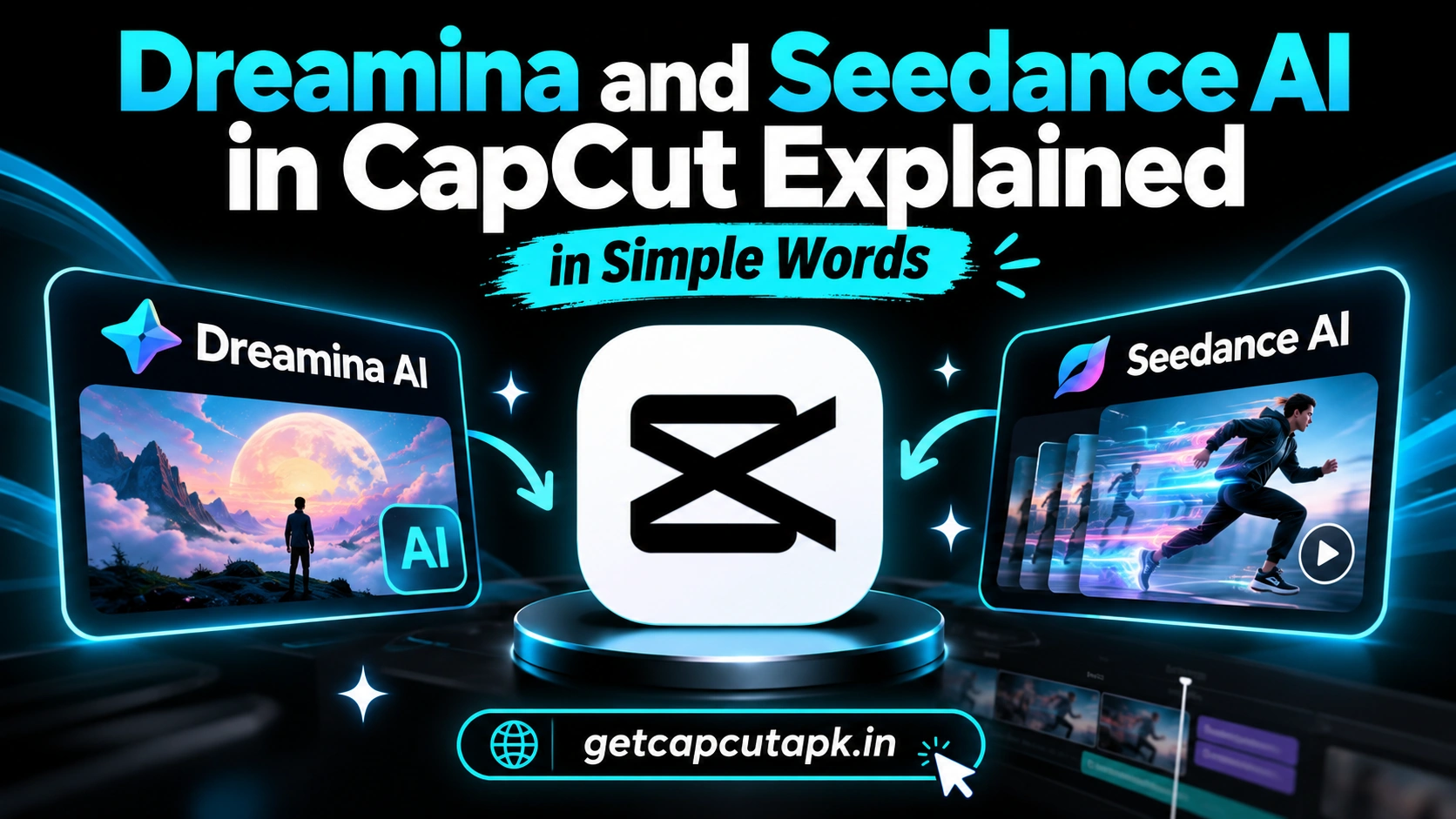
What Is Dreamina?
Dreamina is an AI creative platform from the same company family as CapCut. It creates images and videos from text prompts and reference images. It also includes tools for editing, expanding and upscaling images.
Dreamina is available on the web and in apps in supported regions. Many users sign in with the same account they use for CapCut or TikTok. Read our full Dreamina AI guide for a deeper look.
Think of Dreamina as the creative studio. It is where you generate visuals from ideas. You can then bring those visuals into CapCut for editing.
What Is Seedance?
Seedance is the name of an AI video generation model. It turns text prompts and images into short video clips. Newer versions aim for better motion, detail and prompt following.
In 2026, CapCut announced that Dreamina Seedance 2.0 was coming to CapCut. This brought Seedance video generation into CapCut’s AI video tools in supported regions. Some reports described it as a Pro benefit, sometimes offered for a limited time.
Think of Seedance as the engine behind some AI video features. You do not need to know how it works to use it. You simply choose the AI video tool and write a prompt.
How Dreamina and Seedance Connect
The names can be confusing, so here is a simple way to remember them. Dreamina is the platform, and Seedance is a video model. CapCut uses these AI technologies inside its own tools.
| Name | What It Is | Where You See It |
|---|---|---|
| Dreamina | AI image and video platform | Dreamina website and apps |
| Seedance | AI video generation model | Inside Dreamina and CapCut AI video tools |
| CapCut | Video editor | Mobile, desktop and web |
You can use Seedance-powered features in Dreamina or in CapCut, depending on availability. In both cases, the result is an AI generated video clip. You then edit it in CapCut.
What Can Seedance Create?
Seedance-powered tools can create short, cinematic clips from your ideas. They are useful for many creative projects. Here are common uses.
- B-roll scenes for faceless videos
- Story scenes for short films and narration videos
- Product concept clips for ads and mockups
- Music video visuals that match a mood
- Animated images from still photos
- Creative intros and transitions
AI clips are usually short. You combine several clips to build a longer video. CapCut’s editor makes this easy.
How to Access Seedance in CapCut
Access depends on your version, region and plan. The steps below describe the general flow. Look for words like AI video, Text to video or Seedance.
- Update CapCut to the latest version.
- Open the AI section or AI video tool.
- Look for a model option that mentions Seedance or Dreamina.
- Choose Text to video or Image to video.
- Write your prompt and pick settings.
- Tap Generate.
If you do not see Seedance, it may not be available in your region or plan yet. You can also try Dreamina directly. Check official CapCut announcements for the latest access details.
How to Write Prompts for AI Video
Good prompts lead to better clips. Video prompts should describe both the scene and the motion. Here is a simple formula.
| Part | Example |
|---|---|
| Subject | A young woman with a red umbrella |
| Action | Walking slowly through the rain |
| Setting | On a neon-lit city street at night |
| Camera | Slow tracking shot from the side |
| Style | Cinematic, moody colors |
Keep one main action per prompt. Describe camera movement clearly. Avoid long lists of unrelated details.
Prompt Tips
- Use simple, clear words
- Describe motion and camera moves
- Add light and mood words
- Keep clips short and focused
- Try small changes to improve results
Text to Video vs Image to Video
There are two main ways to create AI video. Each one has its own strengths. Here is a comparison.
| Method | How It Works | Best For |
|---|---|---|
| Text to video | Creates a clip from your description | New ideas and scenes |
| Image to video | Animates an image you provide | Consistent characters and products |
Image to video gives you more control over the look. Start with an image from Dreamina or your own photo. Then describe the motion you want.
How to Use AI Clips in CapCut Projects
AI clips work best as part of a larger edit. Combine them with music, text and real footage. Here is a simple workflow.
- Generate several short AI clips.
- Add them to a CapCut project.
- Arrange them to tell a story.
- Add transitions between clips.
- Add music, captions and text.
- Apply one filter for a consistent look.
- Export your video.
Matching colors across clips makes AI scenes feel connected. Use the same style words in every prompt. Read our guide on CapCut transitions for smooth scene changes.
Credits, Pro and Limited-Time Access
AI video generation uses a lot of computing power. Because of this, it often uses credits or needs a Pro plan. Some features are offered as limited-time benefits.
| Access Type | What It Usually Means |
|---|---|
| Free credits | A small number of generations |
| Pro benefit | Access included with a paid plan |
| Limited-time offer | Free or extra access for a period |
| Paid credits | More generations for heavy users |
Check your app for current access and limits. Plan your prompts to save credits. Read our post on CapCut Pro price for plan details.
Prompt Ideas to Try
Need inspiration for your first AI clips? These prompt ideas work well for social media and story videos. Change the details to fit your niche.
| Niche | Prompt Idea |
|---|---|
| Travel | Slow drone shot over turquoise water at sunrise, cinematic |
| Food | Close-up of steam rising from a bowl of noodles, warm light |
| Tech | Glowing circuit board with light trails, futuristic style |
| Nature | Wind moving through tall grass at golden hour |
| Fitness | Runner on an empty road at dawn, tracking shot |
| Fantasy | Floating islands above clouds, soft painterly style |
Start with one idea and generate a few versions. Pick the best clip and refine the prompt. Save prompts that work well for future projects.
How to Keep Characters Consistent
Story videos often need the same character in several scenes. AI can change faces and clothes between clips. A few tricks help keep characters consistent.
Start From an Image
Create or choose one image of your character. Use image to video for each scene. The model will follow the look of that image more closely.
Repeat Key Details
Describe the same clothing, hair and colors in every prompt. Small details help the model stay consistent. Use the exact same words each time.
Keep Scenes Simple
Complex scenes with many people can confuse the model. Keep one main character per clip. Add other elements with editing instead.
Dreamina vs CapCut for AI Video
You may be able to create Seedance clips in both Dreamina and CapCut. Each place has its own strengths. Here is a quick comparison.
| Point | Dreamina | CapCut |
|---|---|---|
| Main focus | AI generation | Video editing |
| Prompt tools | More generation options | Simpler access |
| Editing | Basic | Full editor |
Many creators generate clips in Dreamina and edit in CapCut. Others use CapCut's built-in AI tools for convenience. The team at getcapcutapk.in/ uses both depending on the project.
Limits of AI Video
AI video models are powerful, but they still have limits. Knowing them helps you plan better projects. Here are the main ones.
- Clips are short
- Hands, faces and text can look odd
- Complex actions may not follow the prompt
- Results can vary each time
- Some features are region limited
Use AI clips for mood, scenery and creative ideas. Use real footage for exact product details and faces. This mix gives the best results.
Use AI Video Responsibly
AI video can create very realistic scenes, so responsible use matters. Misleading AI content can harm people and break rules. Follow these guidelines.
- Do not create fake videos of real people
- Do not make misleading news or events
- Avoid copying famous characters and brands
- Label AI content when platforms ask
- Follow CapCut’s terms and local laws
Many platforms require labels for realistic AI content. Clear labels build trust with your audience. They also protect your account.
Common Problems and Fixes
A few problems can come up with AI video tools. Most have simple fixes. The table below lists them.
| Problem | Fix |
|---|---|
| Seedance option missing | Update CapCut and check region and plan |
| Generation fails | Simplify the prompt and try again |
| Clip does not match prompt | Make the prompt more specific |
| Out of credits | Wait for a refresh or upgrade |
| Strange faces or hands | Generate again or avoid close-ups |
AI Video Checklist
Use this checklist before you publish a video with AI clips. It helps you catch problems and stay responsible. Run through it every time.
- Does each clip match your prompt and story?
- Are faces, hands and text free of obvious errors?
- Do colors match across all clips?
- Is the video labeled as AI where required?
- Does it avoid real people, brands and famous characters?
Stay Updated on New Models
AI video models improve quickly, and new versions arrive often throughout the year. Each update can bring smoother motion, better detail and stronger prompt following. Watch the CapCut and Dreamina apps and official announcements for news about new models and access.
Key Takeaways
Here are the most important points from this guide on Dreamina and Seedance. Keep them in mind when you try AI video. They cover the steps that make the biggest difference.
- Dreamina is the AI creative platform, and Seedance is a video model
- Seedance powers some AI video features inside CapCut where available
- Write prompts with subject, action, setting, camera and style
- Label AI content and avoid fake videos of real people
Conclusion
Dreamina and Seedance are AI technologies from the same company family as CapCut. Dreamina is a creative platform for AI images and videos. Seedance is a video model that powers some AI video features in Dreamina and CapCut.
Access depends on your region, plan and app version, and some features use credits or Pro. Write clear prompts that describe the subject, action, setting, camera and style. Combine short AI clips with music, text and real footage in CapCut.
For more AI guides, keep visiting getcapcutapk.in/. Also read our guide on the CapCut AI video generator for more ways to create video with AI. Happy creating.
Frequently Asked Questions
Dreamina is an AI creative platform for images and videos. Seedance is an AI video generation model. Seedance powers some video features in Dreamina and CapCut.
CapCut announced Dreamina Seedance 2.0 coming to CapCut in 2026. Access depends on region, plan and version. Some access has been offered as a Pro benefit.
It may need Pro, credits or a limited-time offer. Check the AI video tool in your app. Rules change over time.
AI generated clips are usually short. Combine several clips for longer videos. Check your tool for current length options.
Yes, if you follow CapCut’s terms and YouTube’s rules. Label realistic AI content when required. Avoid copying real people or brands.